
WordPress Media Offload
Automating WordPress Media Offloading with AI Agents and WP-CLI
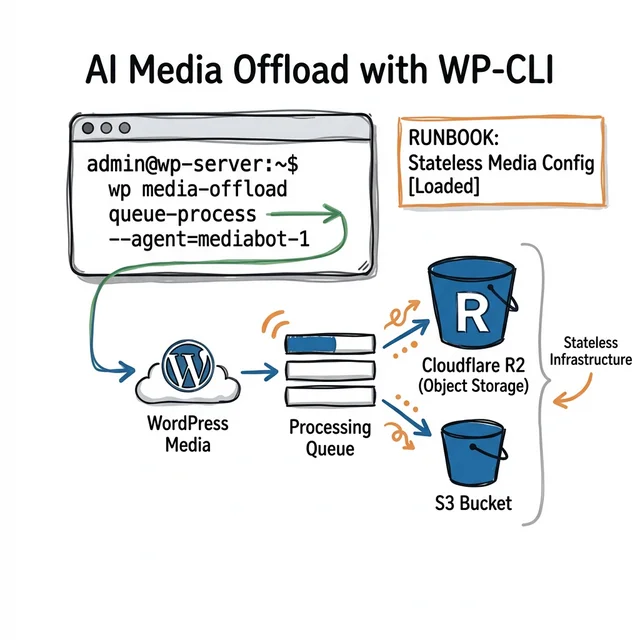
Automating WordPress Media Offloading with AI Agents and WP-CLI
WordPress media libraries have a way of becoming an infrastructure problem before teams realize it. A few thousand uploads turn into a server full of originals, thumbnails, product images, PDFs, and downloads that keep growing long after the theme and plugin choices have settled down.
At that point, the pain is familiar: disks fill up faster than expected, backups get heavier, restore times get worse, and moving environments becomes harder than it should be. The media library quietly becomes one of the least portable parts of the stack.
The obvious fix is to stop keeping all of that media on the WordPress server. Offloading uploads to object storage such as Cloudflare R2, Amazon S3, or Google Cloud Storage takes that weight off the application layer and makes the stack easier to scale.
But that only solves half the problem. Teams still have to configure the provider, test the connection, migrate existing media, verify URL rewriting, and keep the setup consistent across environments. That is where manual clicks stop being good enough.
The practical answer is to move the workflow into wp and wp cloudsync, make the steps explicit, and let AI help only after the process is clear. That is where a tool like CloudSync Master Pro fits.
Try CloudSync Master Free on WordPress.org | See CloudSync Master Pro Features
Why this matters now
When uploads stay on the application server, you inherit a predictable set of problems:
- Local disk usage grows faster than expected.
- Backup windows get longer and less reliable.
- Horizontal scaling gets harder because media lives on ephemeral nodes.
- Migration between environments becomes messy.
- Bandwidth costs become opaque when storage and delivery are mixed together.
Moving media to object storage solves the storage problem. Setting it up safely and repeating it without drift is the operational problem, and that is where teams still lose time.
The real bottleneck is not S3, R2, or Google Cloud Storage. It is the manual process around them.
The core idea: AI agents are only useful when the workflow is explicit

There is a lot of vague talk about “AI for DevOps.” Most of it falls apart the moment an agent has to touch real infrastructure.
The useful version is narrower:
- You define the allowed CLI commands and guardrails.
- You package plugin-specific instructions as a reusable skill.
- The agent executes only the allowed steps.
- The results are visible in shell output and deployment logs.
The important point is simpler: the workflow has to be explicit, testable, and reusable. Without that, an AI agent is just guessing at infrastructure changes.
This is why the right question is not, “Can an AI configure WordPress?”
The right question is, “Can my WordPress infrastructure process be expressed clearly enough that an agent can run it without guessing?”
If the answer is no, the process is probably too brittle for humans too.
Why WP-CLI is the bridge
GUI-only configuration does not scale well across environments. A CLI-first plugin does.
That matters because WP-CLI gives you:
- Repeatable commands for setup and verification.
- Better auditability through shell history and CI logs.
- Easier environment parity between local, staging, QA, and production.
- A path to code-managed configuration rather than mutable UI state.
CloudSync Master exposes the workflow through wp cloudsync. The exact commands available on your site depend on whether you are running the free plugin or Pro, so check wp help cloudsync before you build automation around it.
If your team uses agent skills, 1TeamSoftware publishes them in the 1TeamSoftware skills repo, including the wp-cloudsync-master skill. A typical install looks like npx skills add https://github.com/1TeamSoftware/skills --skill 1teamsoftware/wp-cloudsync-master.
That is what makes agent execution viable. Without CLI coverage, the agent is reduced to browser automation or improvised scripting. Neither is a serious long-term operating model.
What a good WordPress media offload workflow should contain
This is the minimum structure I would expect before allowing an agent anywhere near production:
1. Preflight checks
- Confirm
wpworks in the target environment. - Confirm the plugin is installed and active.
- Confirm Pro license status if Pro-only commands are needed.
- Confirm bucket existence and secret availability.
- Confirm rollback path.
2. Provisioning commands
- Add account.
- Activate account.
- Test connection.
- Apply baseline settings.
3. Migration logic
- Detect current plugin state.
- Import existing metadata if migrating.
- Start sync or migration in the correct order.
- Keep fallback behavior intact until verification completes.
4. Verification checks
- Account test passes.
- Queue backlog behaves as expected.
- URLs rewrite correctly.
- Sample media renders from the target provider.
5. Hardening steps
- Export config to
wp-config.phpor environment variables. - Reduce reliance on mutable admin settings.
Once you have this written down, an agent can execute it. Until then, you do not really have automation. You have a sequence living in somebody’s head.
A concrete example: automating Cloudflare R2 setup

Cloudflare R2 comes up a lot for one obvious reason: no egress charges. On image-heavy WordPress sites, that changes the math fast.
Official pricing reference: Cloudflare R2 Pricing
Here is a Pro-oriented WP-CLI example workflow. Use it as a starting point, then confirm the exact subcommands on your own site with wp help cloudsync and wp help cloudsync accounts.
Step 1: add and activate the R2 account
Before you run this command, replace the placeholder values with your actual Cloudflare R2 credentials.
R2_ACCESS_KEY: the access key ID from your R2 API tokenR2_SECRET_KEY: the matching secret access keyR2_ACCOUNT_ID: your Cloudflare account ID, used in the R2 endpoint URL
In practice, you usually get these from the Cloudflare dashboard when you create an R2 API token and bucket. If you prefer, you can export them as shell variables first and then run the command.
wp cloudsync accounts add \
  --provider=cloudflare_r2 \
  --name="Production R2" \
  --bucket=my-media-bucket \
  --access-key-id=$R2_ACCESS_KEY \
  --secret-access-key=$R2_SECRET_KEY \
  --region=auto \
  --api-endpoint=https://$R2_ACCOUNT_ID.r2.cloudflarestorage.com \
  --custom-domain=media.example.com \
  --activate
Step 2: test the account before doing anything expensive
wp cloudsync accounts test --account=1This is not optional. The most common mistakes here are bad endpoint values, incorrect credentials, and bucket policy mismatches. It is much cheaper to fail here than after a queue has already started.
Step 3: apply baseline settings
wp cloudsync settings set createObjectOnFileUpload yes
wp cloudsync settings set rewriteFileUrlWithObjectUrl yes
wp cloudsync settings set uploadBatchSize 25
wp cloudsync settings set uploadConcurrency 3
These values are intentionally conservative. Teams often crank concurrency too early and then blame the plugin for host or network bottlenecks that are self-inflicted.
Step 4: sync the existing media library
wp cloudsync sync --batch-size=100Step 5: inspect health
wp cloudsync status --format=json
wp cloudsync queue status
If your automation cannot pause here and verify state, it is not mature enough for production use.
Why Cloudflare R2 comes up so often in WordPress discussions
Storage is usually not the painful part of object storage billing. Data transfer is.
Teams are not looking for “another bucket.” Usually they are trying to stop paying bandwidth bills that feel out of proportion to the site they are running.
For media-heavy WordPress sites, that matters because every image view creates read traffic. Product galleries, news archives, social previews, search crawlers, and aggressive bot traffic all compound this effect.
If you are comparing providers seriously, use a real model:
- monthly pageviews
- average images per page
- average object size
- cache hit ratio
- crawl and bot load
- upload volume
That produces a much better answer than generic pricing tables alone.
If you want the provider-specific setup path, start with these:
- Cloudflare R2 WordPress media offload guide
- Amazon S3 WordPress media offload guide
- Backblaze B2 WordPress media offload guide
Migration from incumbent plugins

Most teams adopting this workflow are not starting from a blank site. They are already using another media offload plugin and want to move without downtime or URL breakage.
That means your migration workflow needs to account for state explicitly.
With CloudSync Master Pro, a typical migration starts by detecting the current offload plugin and importing its metadata. If you are moving from WP Offload Media, the flow can look like this:
wp cloudsync migrate detect
wp cloudsync migrate import --from=wp-offload-media
wp cloudsync accounts list
wp cloudsync accounts test --account=<imported-id>
Then you activate the new target account and proceed through your sync and verification steps.
For teams already using WP Offload Media or a similar plugin, migration quality is often what decides the whole purchase.
If you are evaluating alternatives, compare these things directly:
- Can the plugin import metadata from WP Offload Media or your current offload plugin?
- Can it verify the imported account state before migration?
- Can you keep media serving stable while the transition is in progress?
- Can you move configuration out of the admin UI after cutover?
For a side-by-side comparison, see CloudSync Master vs WP Offload Media.
Current provider support note
As of March 5, 2026, the WordPress.org listing for WP Offload Media Lite includes Amazon S3, DigitalOcean Spaces, and Google Cloud Storage, but not Cloudflare R2. For teams that want to use R2, that difference matters.
Reference: WP Offload Media Lite on WordPress.org
Security hardening: stop treating plugin config as a forever-UI setting

One of the biggest long-term benefits of CLI-driven configuration is not speed. It is control.
In too many WordPress stacks, cloud credentials are added through the dashboard and then left there as mutable settings indefinitely. That creates avoidable risk.
A better pattern looks like this:
- Set up and validate the account.
- Export the hardened configuration snippet.
- Move source-of-truth config to
wp-config.phpor environment variables. - Reduce day-two dependence on dashboard edits.
In Pro, CloudSync Master provides a config generation command for this:
wp cloudsync config generate --account=1That is the point where media offload stops being a dashboard feature and starts becoming infrastructure configuration.
This matters for audits, incident response, and environment parity. It also means junior admins are less likely to break production with a stray settings change at 4:30 PM on a Friday.
What teams usually get wrong with AI automation
The mistakes are usually pretty predictable.
They mistake prompts for process
A smart prompt is not a substitute for a defined workflow. Prompts are useful wrappers. The real asset is a clear set of CLI steps plus plugin-specific skill instructions.
They skip verification because the commands “look right”
This is how people end up debugging bad signatures, wrong endpoints, or missing object URLs after a queue has already run.
They optimize concurrency too early
You do not need maximum throughput on day one. You need a stable, observable migration.
They leave rollback as an afterthought
Rollback needs to be a first-class part of the workflow, not a sentence in a postmortem.
They talk about AI in abstract terms
The useful unit of work here is not “agentic infrastructure.” It is:
- add account
- test account
- apply settings
- sync media
- verify outputs
- harden config
Troubleshooting guide for real operations

Problem: account test fails immediately
Likely causes:
- wrong endpoint
- wrong key pair
- missing bucket permissions
- host clock skew affecting signatures
First checks, if your installed edition supports them:
wp cloudsync accounts list
wp cloudsync accounts info --account=1
wp cloudsync accounts test --account=1
Do not continue to sync until this passes.
Problem: queue backlog grows but media is barely moving
Likely causes:
- concurrency set too high for the host
- cron execution is weak or inconsistent
- remote provider throttling
- oversized objects dominating the queue
Response, if your installed edition supports these commands:
wp cloudsync settings get uploadConcurrency
wp cloudsync settings set uploadConcurrency 2
wp cloudsync queue status
wp cloudsync queue process
Then re-measure. This is ops work, not magic.
Problem: rewritten media URLs return 404
Likely causes:
- objects have not finished syncing
- path prefix mismatch
- old provider disabled too early
Response:
- keep fallback behavior intact
- validate a sample of attachments manually
- do not decommission the old bucket until samples are clean
Problem: signed download links fail intermittently
Likely causes:
- expiry window too short
- proxy or CDN layer normalizing signed query params
- encoding mismatch in a downstream layer
Fix the path from origin outward. Do not start debugging from the browser inward.
Where this fits in CI/CD

This workflow is useful both for manual operations and for pipelines.
For many teams, the right model is:
- human-triggered for the first migration and higher-risk cutovers
- pipeline-driven for repeatable environment bootstrap and drift correction
A sane pipeline structure looks like this:
Preflight
- verify plugin activation
- verify CLI availability
- verify secrets exist
Apply
- add or update account
- test the account
- apply settings idempotently
Verify
- export status
- inspect queue health
- sample object availability
Promote
- only continue if verification passes
That gives you something far better than “an AI changed some settings and we think it worked.”
It gives you an operational artifact trail.
Who this guide is for
This workflow is a strong fit for:
- agencies managing multiple WordPress environments
- WooCommerce teams with large media libraries
- developers running WordPress on containers or ephemeral infrastructure
- teams migrating away from a legacy offload plugin
- teams comparing R2, S3, and other storage providers before committing
It is probably overkill for:
- very small brochure sites with minimal media
- teams that never touch staging or CI
- sites where local storage is cheap, stable, and unlikely to grow
If none of those apply, a simpler dashboard-only setup may be enough. But once media offload becomes part of your operational workflow, WP-CLI and reusable automation become much more valuable than ad hoc admin clicks.
Frequently asked questions
Can I use Cloudflare R2 with WordPress?
Yes. Cloudflare R2 works well with WordPress because it uses an S3-compatible API and does not charge egress fees. The real question is whether your media offload plugin supports R2 cleanly and whether you can migrate without breaking existing media URLs.
For implementation details, see the Cloudflare R2 WordPress guide.
Is WP-CLI really necessary for WordPress media offload?
Not always. If you run one small site and rarely change anything, the dashboard may be enough. WP-CLI starts to matter when you manage multiple environments, want repeatable setup, or need a workflow you can verify and run again later.
Is this an AI workflow or just a shell script with extra branding?
It can be either. For fixed tasks, a shell script is often enough. AI becomes useful when the workflow includes checks, branching decisions, or environment-specific details that make a hard-coded script awkward to maintain.
Should I choose Cloudflare R2 or Amazon S3 for WordPress media?
It depends on your workload. R2 is often attractive when bandwidth is a major part of the bill. S3 still makes sense if you are already deep in AWS or need to match existing AWS policies and tooling.
Can I migrate from WP Offload Media without breaking URLs?
Usually yes, but you should treat it as a migration project, not a toggle. The safe path is to import metadata, validate the new account, test rewritten URLs on a sample set of media, and keep fallback behavior in place until you are confident the new setup is working.
How do I evaluate a WordPress media offload plugin before rollout?
Look past the feature checklist. The important questions are: does it support your storage provider, can you automate setup with WP-CLI, can you migrate safely from your current plugin, do media URLs stay stable, and can you move configuration out of the dashboard once setup is done?
When CloudSync Master is the right fit
CloudSync Master is a strong fit if you need:
- WordPress media offload across multiple providers
- Cloudflare R2 support
- CLI-driven setup and operations
- migration away from incumbent tools
- a smaller plugin footprint
- a free starting point before paid rollout
If that matches your use case, start here:
Final takeaway
The important shift is not “AI for WordPress” in the abstract.
The important shift is moving media offload from a manual dashboard routine to a documented, testable, CLI-driven process.
If your team still depends on someone remembering which settings to click in wp-admin, you do not have infrastructure automation yet.
You have a manual process that is hard to reproduce and harder to audit.
A CLI-first approach fixes that. WP-CLI makes the workflow executable. An AI agent can help apply it consistently across environments.
That is the practical value here.
If you want to put this into practice today:
- Try CloudSync Master Free.
- Build a small CLI workflow around
wp cloudsync. - Test it in staging with Cloudflare R2 or your current provider.
- Move successful configuration into code-managed state.
- Expand into production only after you have verification and rollback steps written down.
That is a much better path than treating WordPress infrastructure as a sequence of remembered clicks.