
FOR WOOCOMMERCE STORES & MEDIA-HEAVY WORDPRESS SITES
Cut WordPress hosting costs with Amazon S3 media offload
Move your media to S3’s global infrastructure. 1.5 MB plugin, no SDK bloat, 10-minute setup.
All 10 cloud providers free • No credit card required
TL;DR
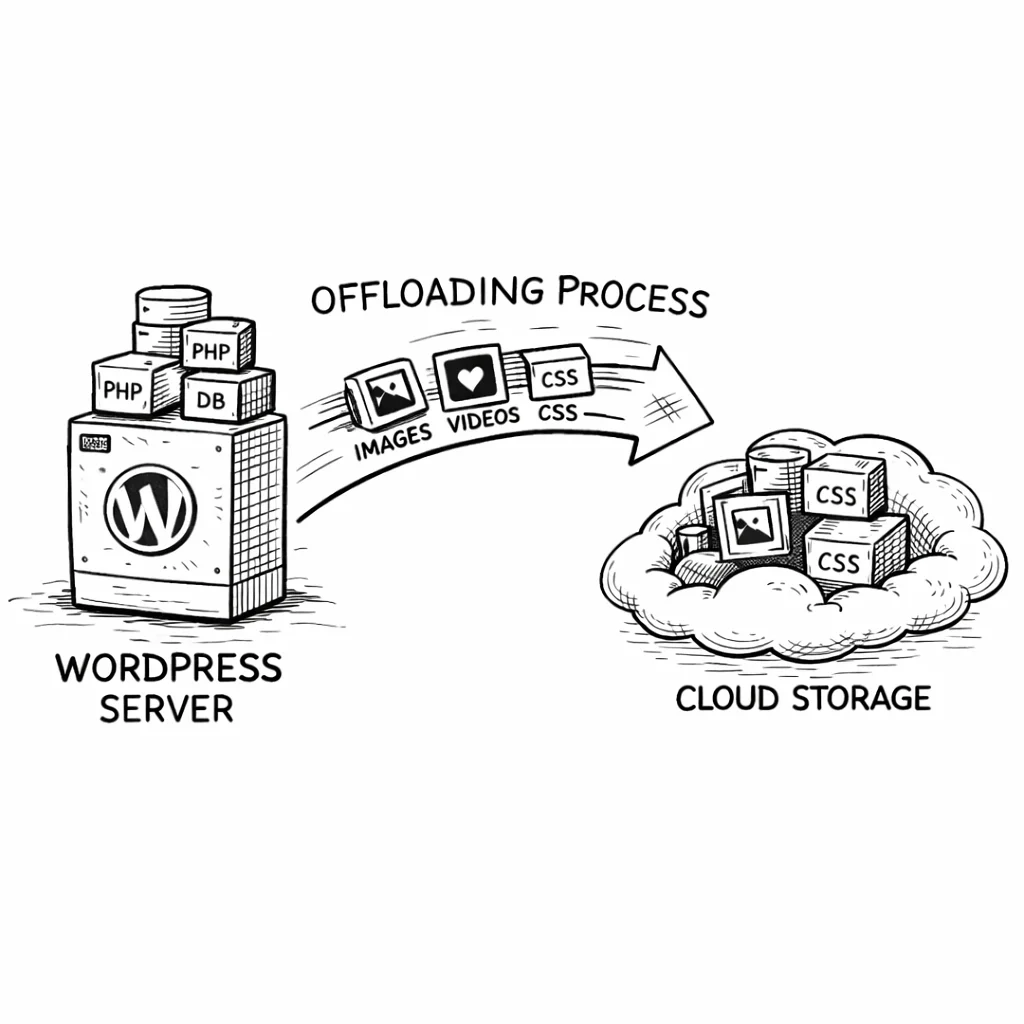
Amazon S3 offloads your WordPress media to highly durable cloud storage at $0.023/GB, freeing your server to focus on PHP and database work. CloudSync Master Pro is a 1.5 MB plugin (no SDK bloat) that connects to S3 in under 10 minutes, supports zero-downtime migration from WP Offload Media and 3 other plugins, and has a free version on WordPress.org. Start free, upgrade to Pro ($89/yr) when you need bulk upload, WooCommerce signed URLs, or configurable performance settings.
Stop paying hosting premiums for storage you can get at 1/100th the price
Your web host charges a premium for SSD storage. The base plan from most managed WordPress hosts gives you 10–25 GB. A single WooCommerce product gallery with high-resolution photos can eat through that in weeks. Once you hit the limit, you either pay for a storage upgrade or start compressing everything into oblivion.

S3 storage costs $0.023 per GB in the US East region. That’s $0.23 for 10 GB. Compare that to your host charging $10–30/month for an extra 10 GB of SSD space. At those rates, 10 GB on S3 costs less than a single month of most hosts’ storage upgrade.
But cost is only part of it. Here’s what actually changes when you connect WordPress to Amazon S3:
Every image request that hits Apache or Nginx consumes CPU cycles, memory, and bandwidth. A product page with 8 images at 500KB each means your server pushes 4MB of data per visitor on that page alone. Move those files to S3, and your server processes only the HTML, CSS, and PHP. The difference shows up immediately in Time To First Byte (TTFB).
On shared hosting and even many VPS plans, you share disk I/O with other tenants. Heavy media serving competes with database reads. Once media is off the local disk, your database queries get faster because there’s less I/O contention.
S3 also removes the storage ceiling entirely. Whether your media library is 500 MB or 500 GB, S3 handles it the same way. You never need to resize a volume, migrate to a bigger server, or clean up old uploads at 2 AM because your disk hit 95% capacity.
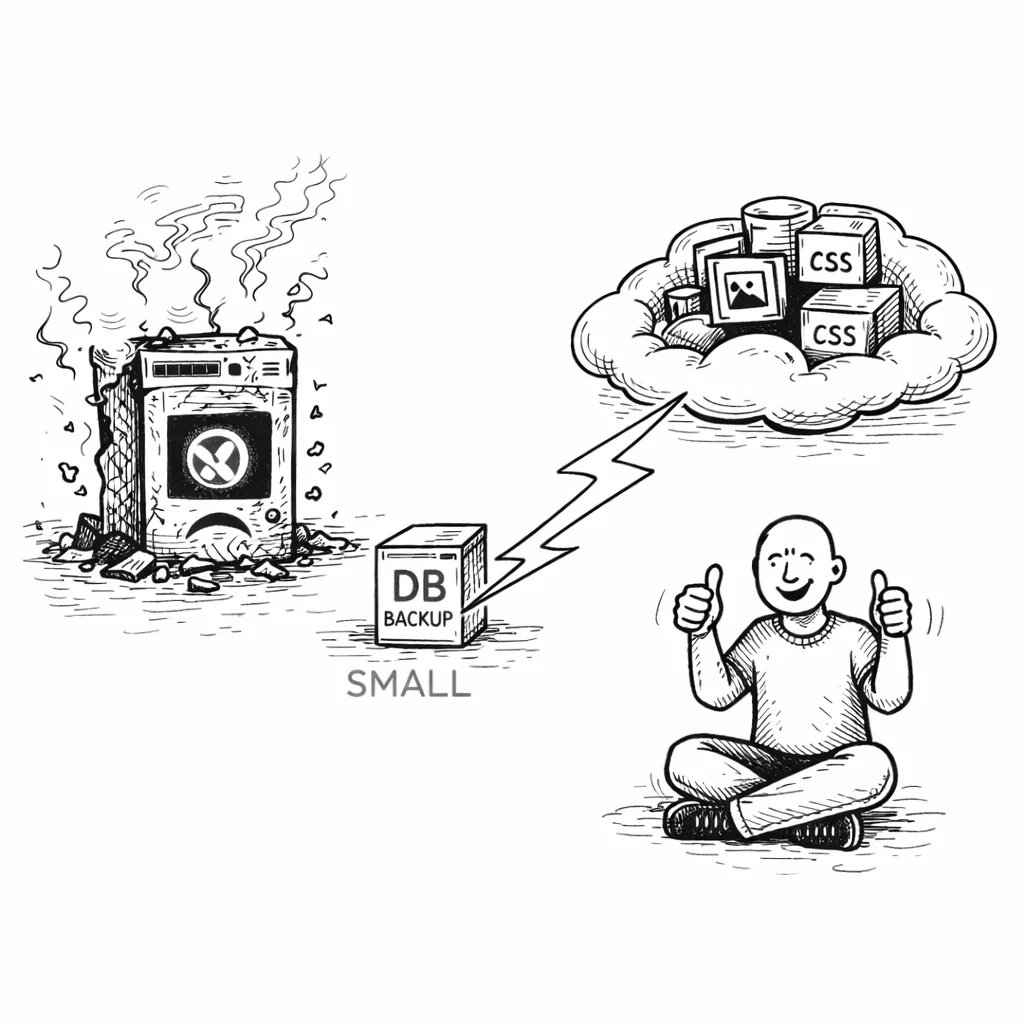
Then there’s durability. S3 stores your files with 99.999999999% durability (eleven 9s). If your web server dies tomorrow, your media library is untouched. Spin up a new server, reconnect the plugin, and you’re back online. Your backups also get smaller because they no longer need to include gigabytes of media files.
Save $110–1,110/year compared to WP Offload Media
If you’ve searched for a WordPress S3 plugin before, you’ve seen WP Offload Media. It’s the most popular option. But after using it on client sites and running into its limitations, we built something different. For a detailed breakdown, see our full CloudSync Master vs WP Offload Media comparison.
Never worry about plugin conflicts — or wasted server memory
WP Offload Media bundles the complete AWS PHP SDK. That’s 23 MB of library code loaded into your WordPress installation. Media Cloud is even worse at 87 MB. CloudSync Master Pro is 1.5 MB total. The entire plugin.
1.5 MB
CloudSync Master
23 MB
WP Offload Media
87 MB
Media Cloud
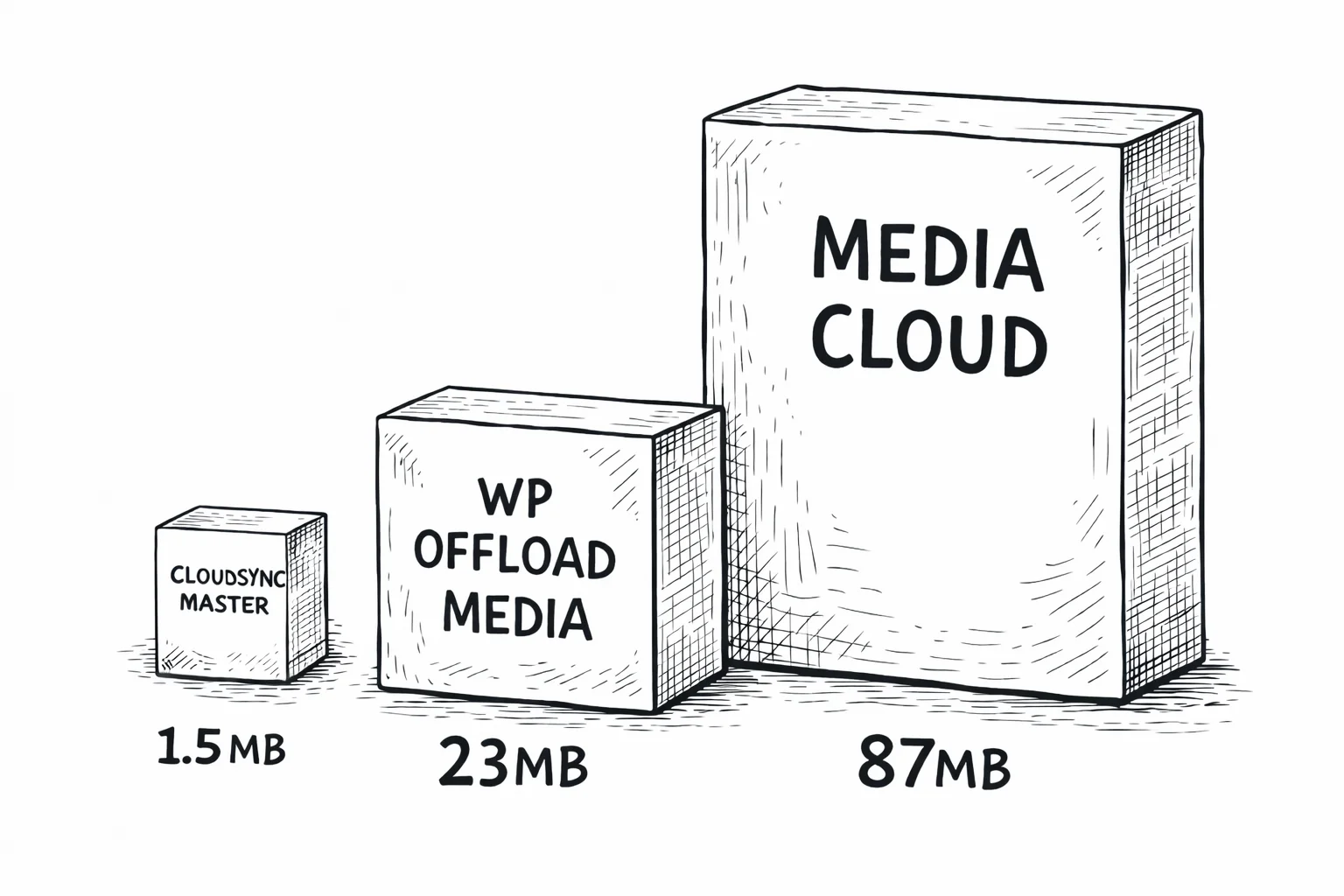
How? Instead of shipping the full SDK, CloudSync uses a custom implementation of AWS Signature V4 authentication. It sends the same authenticated requests to S3 that the SDK would, but without the 15,000+ files of dependency code you don’t need. Fewer files means less memory usage, faster autoloading, and a smaller attack surface.
Keep growing without paying more for your S3 plugin
WP Offload Media uses tiered pricing based on how many media items you offload:
| Plugin | Price | Item Limit | Providers |
|---|---|---|---|
| WP Offload Media Lite | Free | Limited features | 2 (S3, DigitalOcean) |
| WP Offload Media | $39/yr | 5,000 items | 3 providers |
| WP Offload Media | $99/yr | 40,000 items | 3 providers |
| WP Offload Media | $349/yr | Unlimited | 3 providers |
| CloudSync Master Pro | $89/yr | Unlimited | 10 providers |
If your WordPress site has 6,000 images, WP Offload Media’s $39 plan won’t work. You jump to $99/year. CloudSync Master Pro is $89/year with no item cap, regardless of whether you have 1,000 files or 100,000.
30-day money-back guarantee included.
Switch providers in one click when your needs change
WP Offload Media supports 3 cloud providers: Amazon S3, DigitalOcean Spaces, and Google Cloud Storage. It does not support Cloudflare R2, Backblaze B2, MinIO, Wasabi, or any other S3-compatible storage.
CloudSync Master Pro supports 10 providers, including all of the above. More importantly, it includes built-in cross-provider migration. Start on S3 today, move to Cloudflare R2 next year for zero egress costs, or shift to Backblaze B2 for cheaper storage. Just add the new provider account and switch to it — the plugin migrates files in the background automatically, falling back to S3 for anything not yet transferred. Zero downtime.
That flexibility matters because S3 egress fees ($0.09/GB) add up fast on high-traffic sites. Having a zero-downtime path to a zero-egress provider like R2 is an easy way to switch providers if your egress bill grows.
Step-by-step setup tutorial
30-day money-back guarantee included.
Deliver images faster to visitors worldwide with S3 + CDN
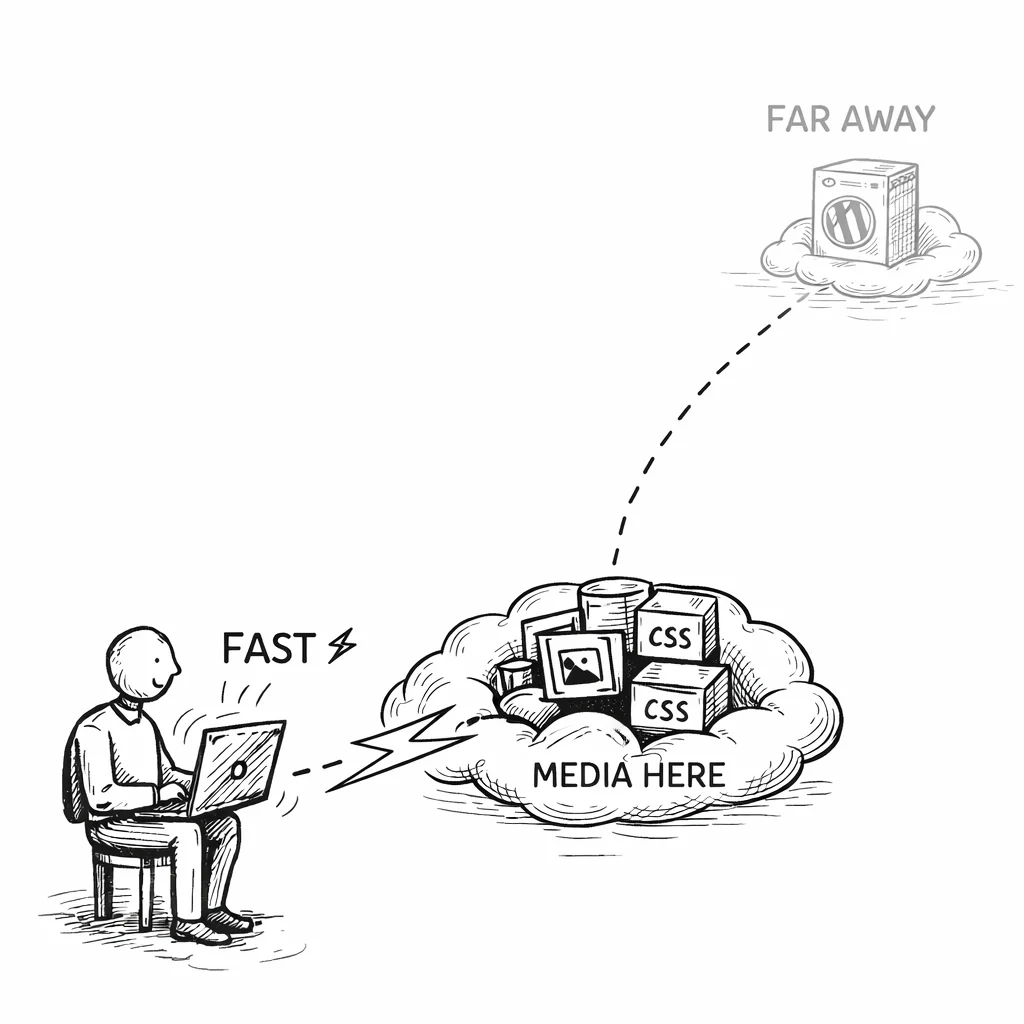
S3 stores your files in one region. Visitors on the other side of the world will experience higher latency when loading images directly from that single region. The fix is a CDN.
Amazon CloudFront + S3
The most common pairing is Amazon CloudFront in front of your S3 bucket. CloudFront caches your media at 400+ edge locations globally. A visitor in Tokyo gets images from a Tokyo edge server, not from your us-east-1 bucket.
To set this up:
- Create a CloudFront distribution with your S3 bucket as the origin.
- If your bucket blocks public access, create an Origin Access Control (OAC) so CloudFront can read from the bucket without making files public.
- In CloudSync Master settings, enter your CloudFront URL (e.g.,
https://d123456.cloudfront.netor your custom domain likecdn.yoursite.com) in the CDN URL field. - The plugin will rewrite all media URLs to use that CDN domain.
Third-party CDNs
You’re not locked into CloudFront. Any CDN that can pull from an S3 origin works: Cloudflare, BunnyCDN, KeyCDN, Fastly. Just point the CDN at your S3 bucket URL and enter the CDN domain in the plugin settings.
If you’re already using Cloudflare for DNS and caching, consider Cloudflare R2 as your storage layer instead of S3. R2 is S3-compatible (so the same plugin works), has zero egress fees, and integrates natively with Cloudflare’s CDN. That can save meaningful money compared to S3 + CloudFront.
See the difference: real performance results from a WooCommerce store
Actual numbers from a WooCommerce store that moved 14,000 product images from local storage to S3 + CloudFront using CloudSync Master Pro.
48 → 94
PageSpeed Score
5.2s → 1.1s
GTmetrix Load Time
512 → 280 MB
Server Memory Usage
8.4 GB → 340 MB
Backup Size
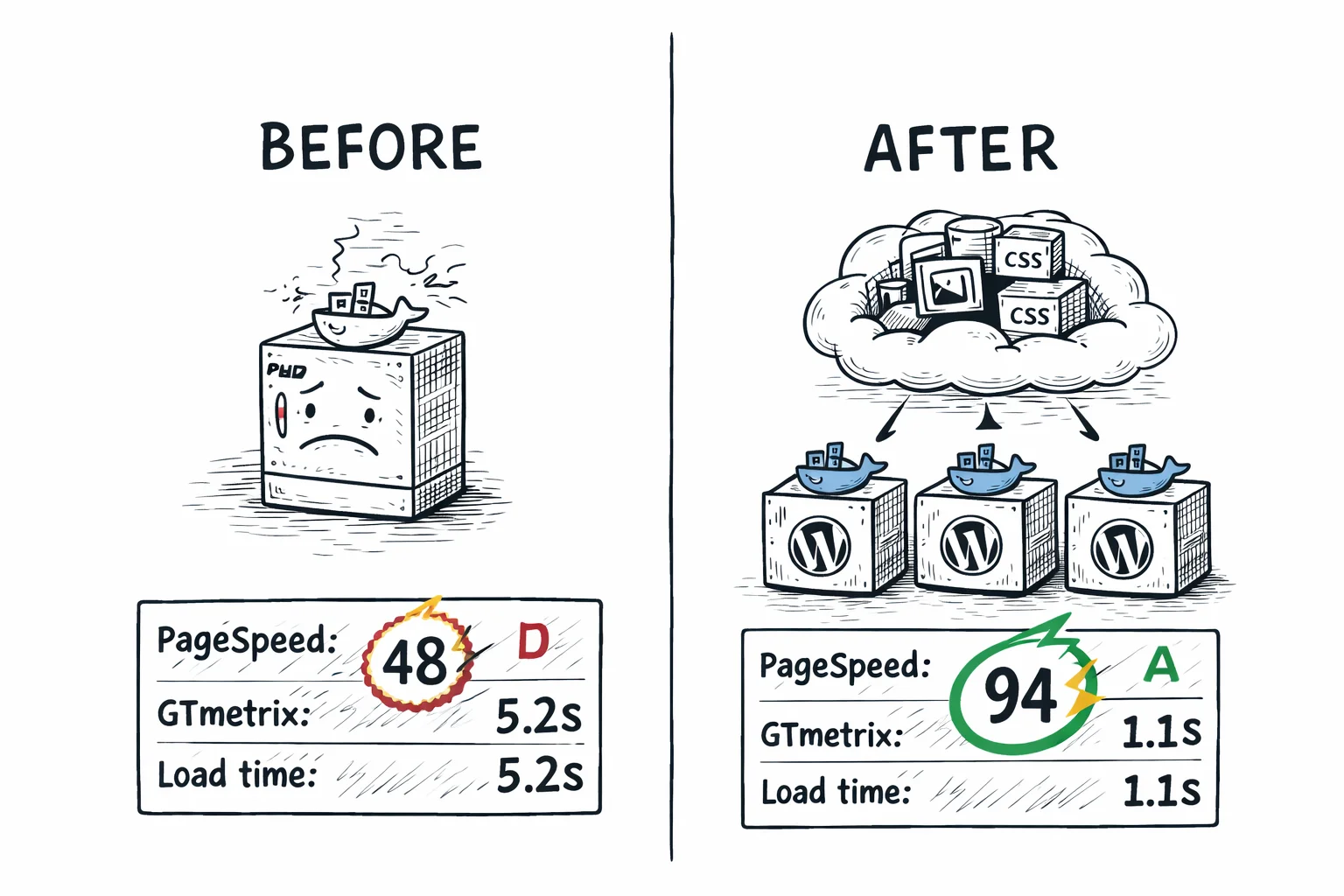
The PageSpeed jump from 48 to 94 didn’t come solely from offloading. The store also started serving WebP images through CloudSync’s integration with ShortPixel. But the offloading itself was responsible for the TTFB improvement and the server memory drop.
S3 features that save you time, money, and headaches
Shrink your images by half — automatically (Pro)
CloudSync Master Pro integrates with four image optimizers: ShortPixel, Imagify, EWWW Image Optimizer, and Smush. When any of these tools generate WebP or AVIF versions of your images, CloudSync uploads those formats to S3 alongside the originals. The plugin then detects the visitor’s browser and serves the best supported format automatically.
This is not a separate feature you need to configure. If you have an image optimizer active and it’s producing next-gen formats, CloudSync handles the rest.
Stop unauthorized sharing of your digital products (Pro)
If you sell digital products through WooCommerce, storing those files in /wp-content/uploads/ is a security problem. Anyone who guesses or shares the direct URL can download your product for free.
CloudSync Master Pro uploads digital products to a private S3 bucket and generates time-limited signed URLs when a customer completes a purchase. The link expires after a set period. If someone shares it, the link dies. Your files stay protected without any additional security plugins.
Reclaim your server’s disk space
After a file is confirmed uploaded to S3, there’s no reason to keep it on your server. Enable the Delete Local Media option and CloudSync removes the local copy once the S3 upload succeeds. This is what actually frees up disk space on your host.
If you ever need the files back locally (switching hosts, deactivating the plugin), CloudSync has a one-click download tool that pulls everything from S3 back to your server.
Never break your site with a cache mismatch (Pro)
URL rewriting can break if your caching plugin serves stale HTML with old local URLs. CloudSync Master Pro integrates with 6 cache plugins to handle this correctly: WP Super Cache, W3 Total Cache, WP Rocket, LiteSpeed Cache, WP Fastest Cache, and Autoptimize. When media URLs change, the relevant cache is automatically purged.
Who this is for
This plugin is built for:
- WooCommerce stores tired of paying $50+/month in hosting overages because product images eat through storage limits. If you’re already in the AWS ecosystem with EC2 or Lightsail hosting, S3 is the natural media backend with minimal latency between services.
- Enterprise WordPress sites that need audit-ready compliance with specific AWS regions, IAM policies, and CloudTrail logging. S3’s granular access controls meet corporate governance standards without extra configuration.
- Agencies that want one lightweight plugin across every client site instead of juggling different solutions per deployment. Standardize on CloudSync Master and cut onboarding time for new projects.
- Anyone paying $199–1,199/year for WP Offload Media who wants the same unlimited media offloading at $89/year. CloudSync Master Pro can import WP Offload Media metadata directly — switch in minutes, save hundreds.
This might not be for you if:
- You’re cost-sensitive about egress fees. S3 charges $0.09/GB for data transfer out, which adds up on high-traffic sites. Consider Cloudflare R2 for zero egress.
- Your site has fewer than 100 images and minimal traffic. At that scale, media offloading adds complexity without meaningful savings.
- You don’t use AWS for anything else and don’t want another cloud vendor relationship. R2 or Backblaze B2 may be simpler starting points.
- You need on-the-fly image transformations (resizing, cropping, format conversion at the edge). S3 is storage, not an image processing pipeline. Consider Cloudflare R2 instead — R2 Workers can handle edge transformations with zero egress fees.
Switch from WP Offload Media in minutes — without re-uploading a single file
If you’re already using WP Offload Media and want to switch to CloudSync Master, you don’t need to re-upload anything. Your files are already in S3. The migration tool handles the database records.
Here’s the process:
- Install CloudSync Master Pro alongside WP Offload Media (both can be active briefly).
- In CloudSync Master, go to the Sync/Migrate tab.
- Select Import from WP Offload Media.
- The plugin scans your WordPress database for WP Offload Media’s metadata records (the
amazonS3_infometa entries). - It adopts those records and maps them to CloudSync’s own metadata format.
- Your S3 files stay exactly where they are. Nothing is re-uploaded, moved, or duplicated.
- Deactivate and delete WP Offload Media.
The import also works for three other plugins: Media Cloud, WP Media Folder Cloud, and Jetrail’s Jetrail Cloud. So if you’re coming from any of those, the same one-click import applies.
Total downtime: zero. The URL rewriting switches over immediately after the import completes.
Here’s what a typical mid-size site actually pays on S3
People worry about S3 costs. Here’s a realistic estimate for a mid-size WordPress site with 20 GB of media and 50,000 monthly pageviews, based on current S3 pricing.
Storage
$0.46/mo
20 GB × $0.023/GB
PUT Requests (uploads)
$0.001/mo
200 images/mo, effectively free
GET Requests (serving)
$0.12/mo
300K requests at $0.0004 per 1,000
Egress (data transfer out)
$5.40/mo
60 GB at $0.09/GB (the expensive part)
Estimated Total
~$6/month
For 20 GB storage + 50K monthly pageviews
If you put CloudFront in front of S3, the egress from S3 to CloudFront is free. You then pay CloudFront’s data transfer rate ($0.085/GB for the first 10 TB), which is slightly cheaper. The real savings from CloudFront come from caching, since cached responses don’t hit S3 at all.
For sites where egress costs become significant (100 GB+ monthly transfer), look at Cloudflare R2 or Backblaze B2 as alternatives. Both have zero or near-zero egress. CloudSync Master Pro supports them with the same configuration interface.
30-day money-back guarantee included.
Scale WordPress without worrying about media sync
For agencies and businesses running multiple WordPress instances, S3 offloading has an additional benefit: it decouples storage from compute.
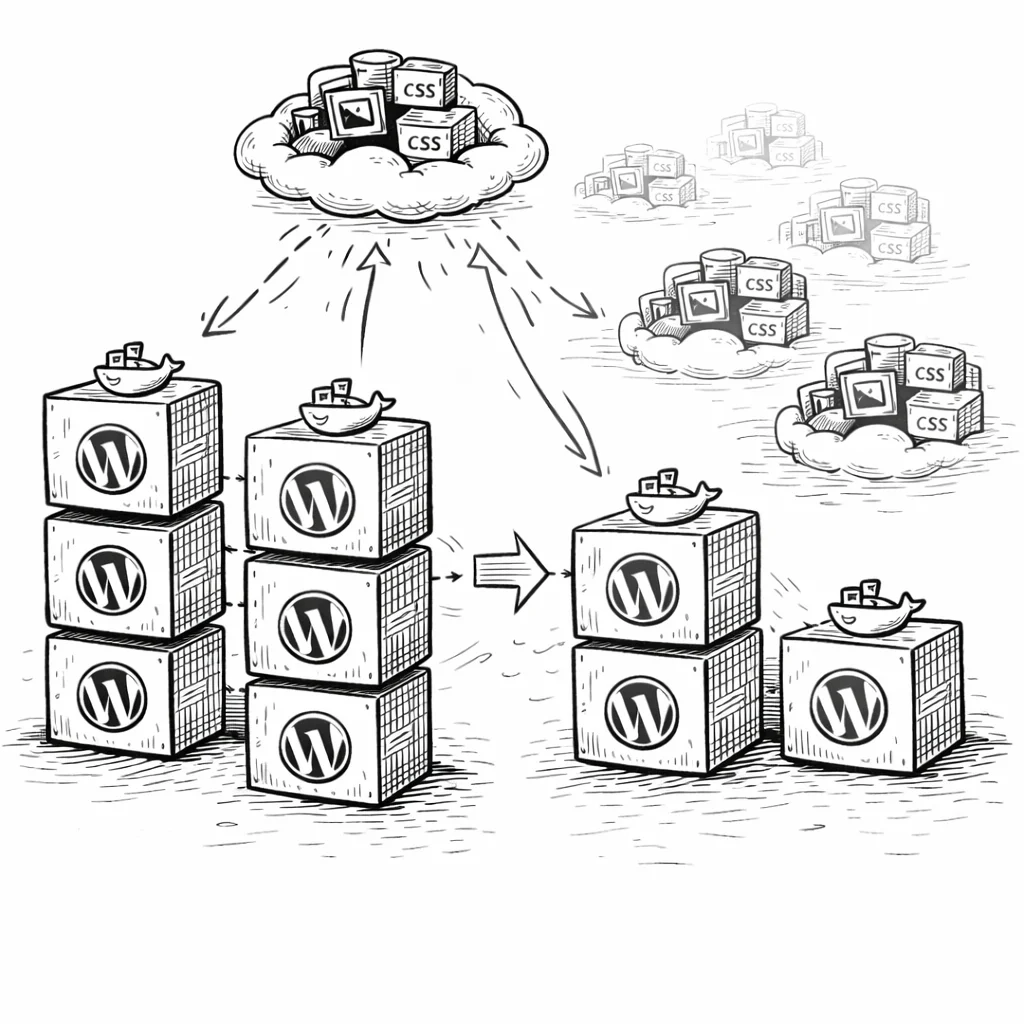
If you run WordPress behind a load balancer with two or more app servers, local media storage becomes a problem. An image uploaded on Server A doesn’t exist on Server B. You end up needing NFS mounts, GlusterFS, or rsync scripts to keep uploads in sync.
With S3 as your media backend, every server reads from and writes to the same bucket. There’s nothing to sync. You can spin up new servers without worrying about media consistency. This is how WordPress works in horizontally scaled environments at companies like Vox Media and Time Inc.
CloudSync Master Pro handles this cleanly because there are no file-level locks or local state files. The plugin reads metadata from the WordPress database (which is already shared in a multi-server setup) and generates S3 URLs. Add a new server, install the plugin, and it works immediately.
Why store owners trust CloudSync Master
CloudSync Master is listed on WordPress.org with 1,000+ active installations. It passed the same standard plugin review process as every listed plugin and is tested up to WordPress 6.7.
Built by 1TeamSoftware, a team with over a decade of experience building enterprise WordPress and WooCommerce solutions. That background in high-traffic store infrastructure is why CloudSync Master handles edge cases like WooCommerce signed URLs, multi-server deployments, and cross-provider migration out of the box.
Every paid license includes a 30-day money-back guarantee, priority support, and ongoing updates. The plugin works with WooCommerce, Multisite, and all major hosting providers.
If it doesn’t work for your setup, you get your money back. No questions.
Free vs Pro: which version do you need?
If you’re testing S3 or run a small personal site, start with the free version. For WooCommerce stores, sites with existing media libraries that need bulk upload, or anyone migrating from another cloud provider, Pro can pay for itself within the first month if you’re migrating a large existing library or selling digital downloads.
| Feature | Free | Pro |
|---|---|---|
| 10 cloud providers | Yes | Yes |
| Amazon S3 support | Yes | Yes |
| Auto-upload new media | Yes | Yes |
| URL rewriting | Yes | Yes |
| Delete local copies | Yes | Yes |
| Competitor import (4 plugins) | Yes | Yes |
| Cross-provider migration | Yes | Yes |
| Import from cloud | Yes | Yes |
| Plugin size | 1.5 MB | 1.5 MB |
| Cloud storage accounts | 1 | Unlimited |
| Bulk upload existing library | No | Yes |
| WooCommerce & EDD signed URLs | No | Yes |
| 4 image optimizer integrations | No | Yes |
| Auto WebP/AVIF serving | No | Yes |
| 6 cache plugin integrations | No | Yes |
| CSS/JS offloading | No | Yes |
| Priority support | No | Yes |
| Price | Free | $89/yr |
| Download free | Recommended for production sites |
Simple, transparent pricing
No per-item limits. No hidden fees. Start free, upgrade when you’re ready. AWS pricing changes regularly. Locking in an annual CloudSync Master Pro license today means you’re covered regardless of future S3 rate adjustments.
Free
$0
Available on WordPress.org
- ✅ All 10 cloud providers (1 account)
- ✅ Auto-upload new media
- ✅ URL rewriting to cloud/CDN
- ✅ Delete local after upload
- ✅ Competitor import (4 plugins)
- ✅ Cross-provider migration
- ❌ Bulk upload existing media
- ❌ WooCommerce & EDD signed URLs
- ❌ Auto WebP/AVIF
- ❌ CSS/JS offloading
Pro Monthly
$19/month
Cancel anytime
- ✅ Everything in Free
- ✅ Bulk upload existing media
- ✅ WooCommerce & EDD signed URLs
- ✅ Auto WebP/AVIF serving
- ✅ CSS/JS offloading
- ✅ Priority support
Pro — 1 Site
$89/year
Unlimited media items
- ✅ Everything in Free
- ✅ Bulk upload existing media
- ✅ WooCommerce & EDD signed URLs
- ✅ 4 image optimizer integrations
- ✅ Auto WebP/AVIF serving
- ✅ 6 cache plugin integrations
- ✅ CSS/JS offloading
- ✅ Cross-provider migration
- ✅ Priority support
MOST POPULAR
Pro — 3 Sites
$199/year
$66/site/year, saving 25%
- ✅ Everything in Pro
- ✅ 3 WordPress sites
- ✅ Centralized license
- ✅ Ideal for freelancers
Frequently asked questions about WordPress S3 offloading
Common questions about offloading WordPress media to Amazon S3.
Both. CloudSync Master Pro includes a bulk upload tool that queues your entire existing media library for background upload to S3. New uploads go to S3 automatically as soon as the connection is configured. You don’t have to choose between existing and future media.
Install CloudSync Master Pro, connect it to your S3 bucket using the steps in this guide, then use the Upload Local Media to Cloud tool in the Sync/Migrate tab. The plugin handles the URL rewriting in your database so all your posts and pages reference the new S3 URLs instead of local paths.
Yes. The entire plugin is 1.5 MB because it doesn’t bundle the AWS PHP SDK or any other provider SDK. It uses a custom Signature V4 implementation for authentication. For comparison, WP Offload Media is 23 MB and Media Cloud is 87 MB.
Yes. CloudSync Master Pro’s import tool reads WP Offload Media’s database records and adopts them. Your files stay in S3 where they are. Nothing is re-uploaded or duplicated. The switch takes a few minutes and causes zero downtime.
Directly, yes. Every media request that S3 handles is one your server doesn’t. On a typical product page with 6–10 images, that’s 3–5 MB of data your server no longer needs to push per visitor. The freed-up CPU, memory, and bandwidth go toward processing PHP and database queries faster.
CloudSync Master Pro supports any S3-compatible storage provider. In the settings, you can specify a custom endpoint URL for S3-compatible services. This works with MinIO (self-hosted), Wasabi, DigitalOcean Spaces, Linode Object Storage, Vultr Object Storage, and others.
S3 has a 99.99% availability SLA and 99.999999999% durability. It’s more reliable than your web server. In the extremely unlikely event of an S3 regional outage, images would fail to load, but your site itself would remain functional (just without images). You can mitigate this further by using CloudFront, which caches images independently of S3 availability.
Yes. CloudSync Master Pro is Multisite compatible. Each subsite can have its own cloud storage configuration, or you can configure a single bucket at the network level with per-site prefixes.
For a typical WordPress site with 20 GB of media and 50,000 monthly pageviews, expect to pay roughly $6/month. Storage is $0.46 (20 GB at $0.023/GB), GET requests are about $0.12, and egress is around $5.40. Adding CloudFront in front of S3 reduces egress costs because cached responses are served from edge locations without hitting S3.
Yes. Enter your CloudFront distribution URL in the CDN URL field under CloudSync Master settings, and the plugin rewrites all media URLs to serve from CloudFront instead of directly from your S3 bucket. If your bucket blocks public access, set up an Origin Access Control (OAC) in CloudFront so it can read from the bucket privately. CloudFront caches your media at 400+ edge locations, which significantly reduces latency for global visitors.
Every month you wait, your server delivers images that S3 could serve faster and cheaper
You now have everything you need: the bucket setup, the IAM policy, the plugin configuration, and the cost math. Start offloading today — it takes 10 minutes and costs nothing. CloudSync Master Pro is $89/year with no item limits, no per-GB surcharges, and support for 10 cloud providers. If S3 stops making sense for you later, migrate to R2, B2, Google Cloud Storage, DigitalOcean Spaces, or any other supported provider without re-uploading a single file.
30-day money-back guarantee included. All paid plans include plugin updates and priority support. Tested up to WordPress 6.7.
See how CloudSync Master works with Cloudflare R2 | Backblaze B2 | Google Cloud Storage | DigitalOcean Spaces