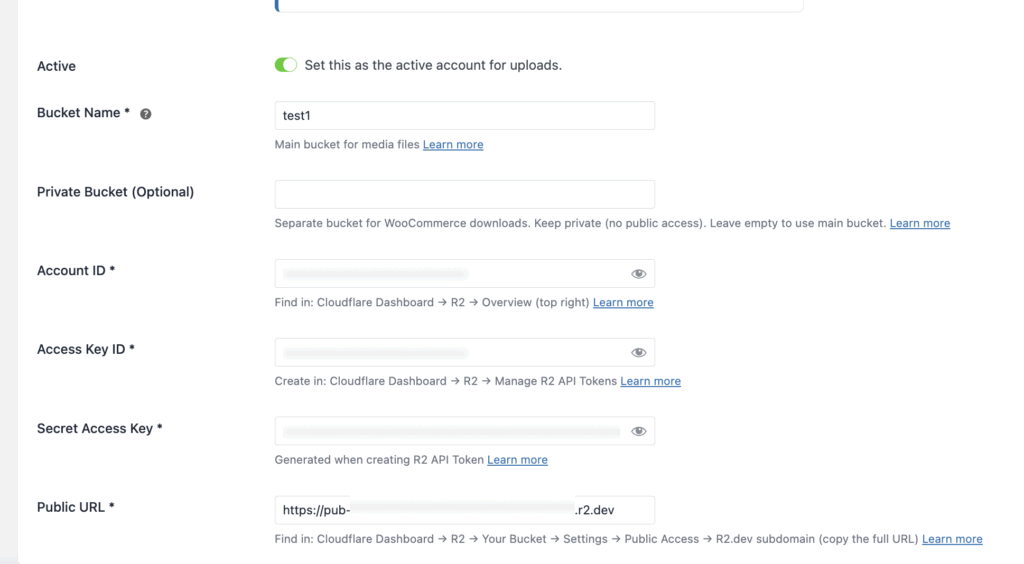
How to Obtain Cloudflare R2 Credentials for CloudSync Master PRO
To use CloudSync Master PRO, you will need the following information from your Cloudflare account: Bucket Name, Account ID, Access Key ID, Secret Access Key, and Public URL.
In this guide, we will show you step by step how to obtain this information from your Cloudflare account.
Set Up Your Cloudflare Account #
First, you need to have a Cloudflare account.
If you do not have a Cloudflare account yet, you can create one using the link below:
https://dash.cloudflare.com/sign-up
If you already have a Cloudflare account, simply log in to your account to continue.
After creating a new account, you will be directed to the Cloudflare dashboard. You will be asked to enter your credit card information to complete the account setup.
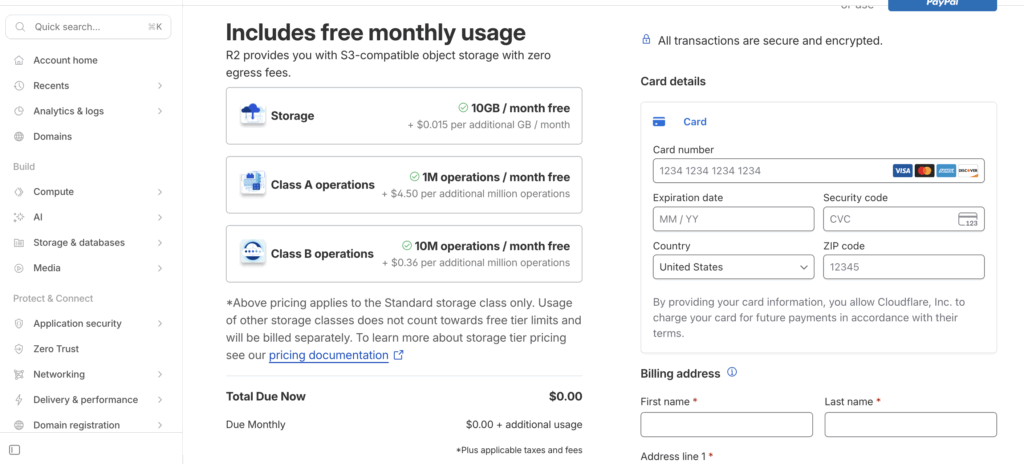
After entering your credit card information, you will be redirected to the R2 Object Storage page.
CloudFlare account ID #
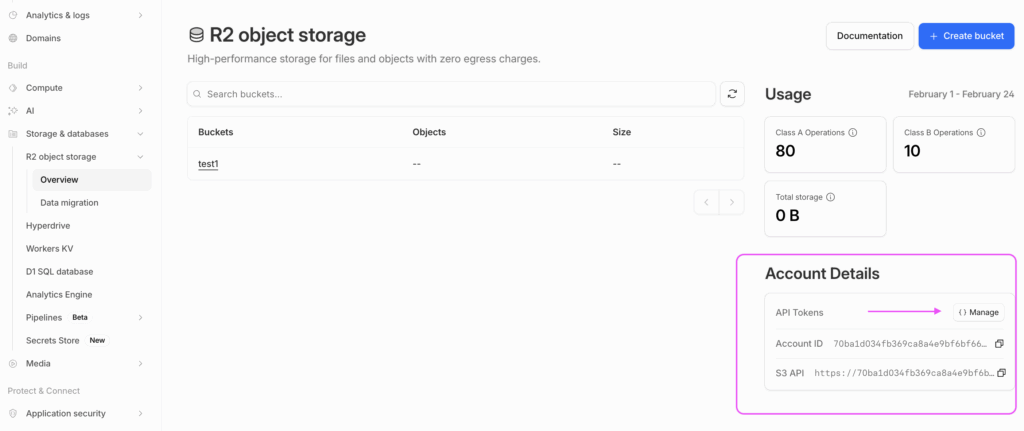
You can find your Cloudflare Account ID on this page, “Overview”
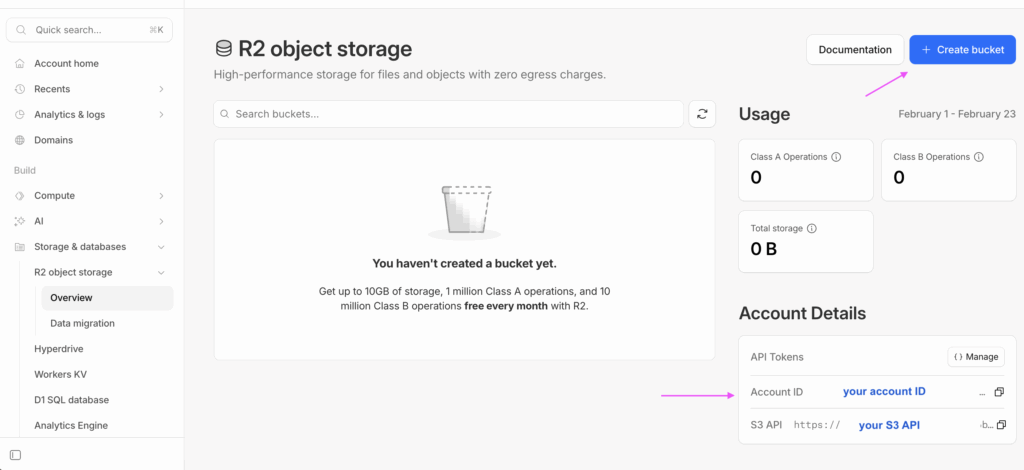
Make sure to keep your Cloudflare Account ID for later use, as you will need to enter it in the plugin settings.
Create Bucket #
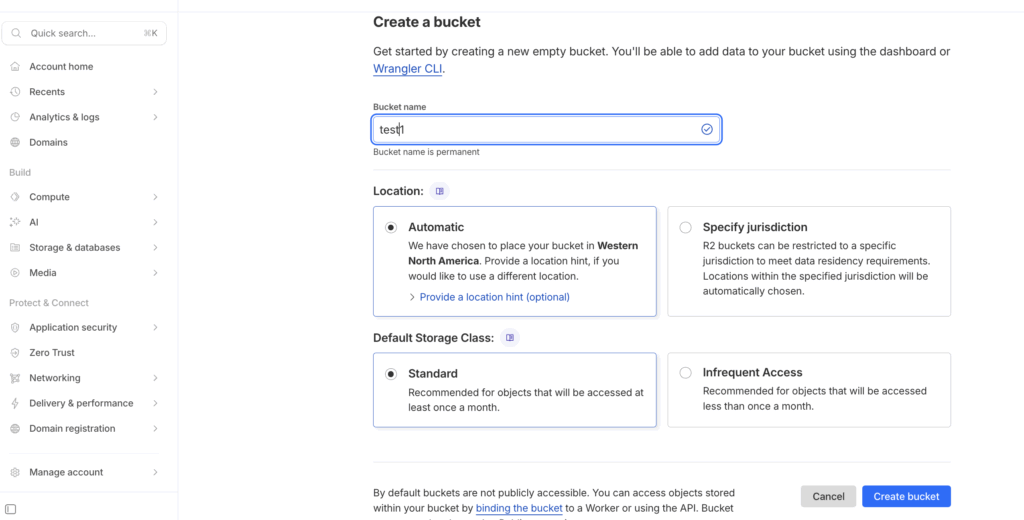
Click “Create bucket” in the top right corner. You will be taken to a new page where you can create a bucket. Enter a Bucket Name, then click Create bucket.
In this example, we use test1 as the bucket name.
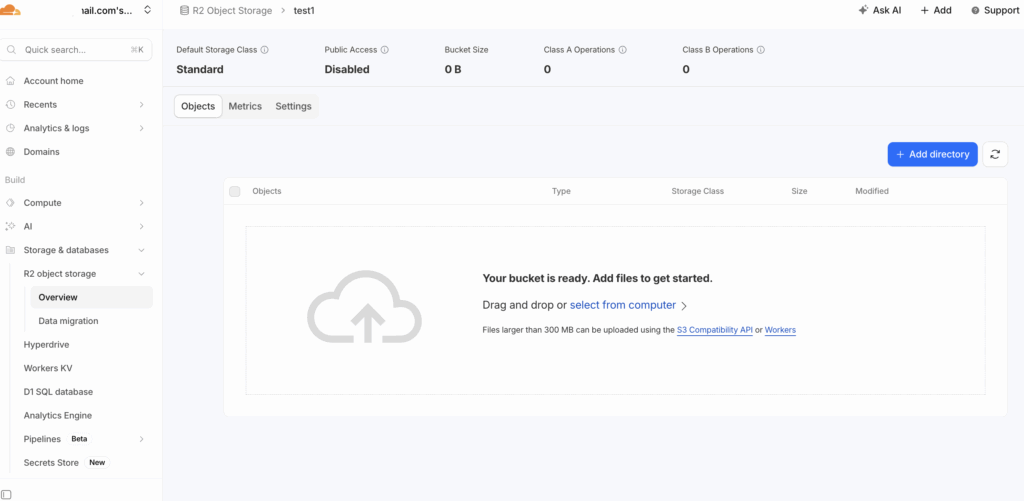
Your new bucket is now ready.
In this example, the bucket “test1” has been successfully created.
Access Key ID and Secret Access Key #
Now you need to obtain your “Access Key ID“.
Go to the Cloudflare Dashboard → R2 → Overview.
In the Account Details section, click “Manage“.
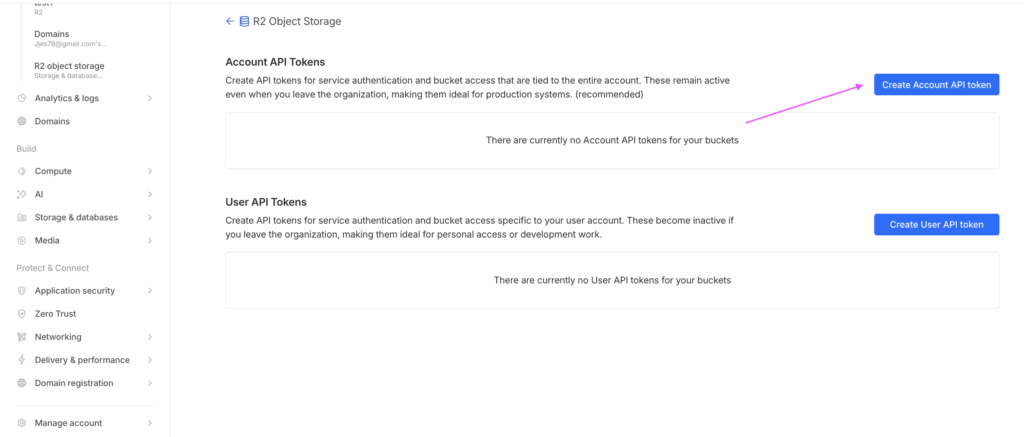
You will be directed to the next page, where you can create an Account API Token.
Click “Create Account API Token” to continue.
You will be taken to the Create Account API Token page.
Under Permissions, select “Object Read & Write“.
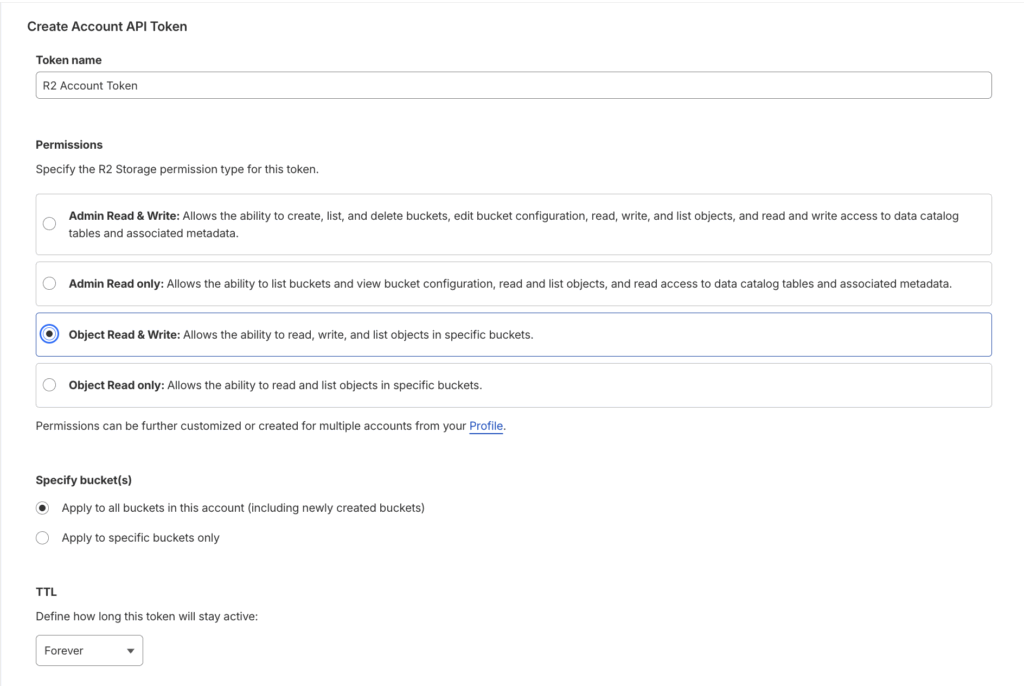
Scroll down and click “Create Account API Token“.
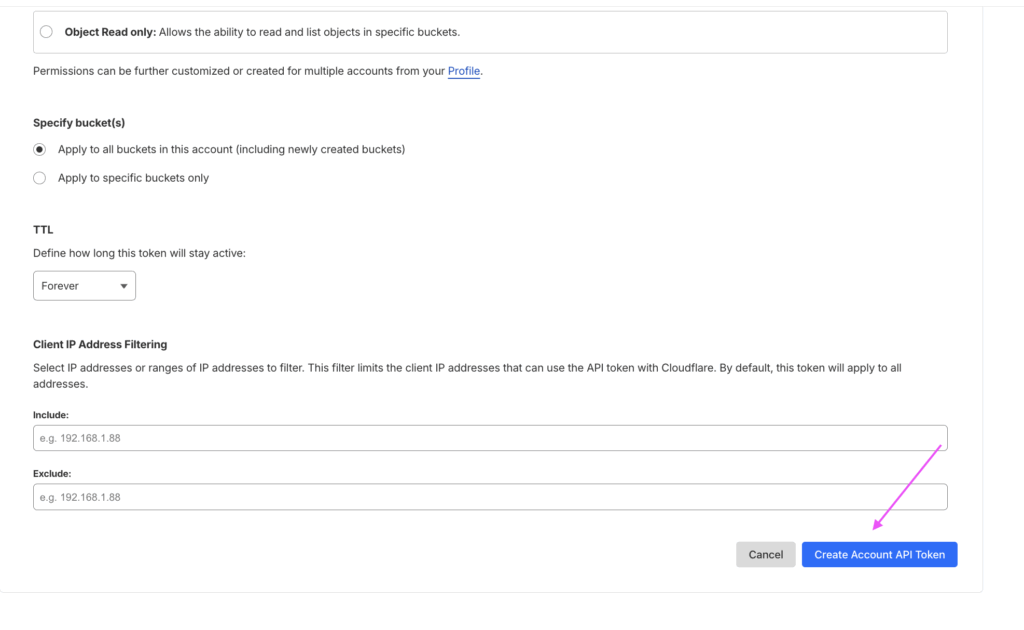
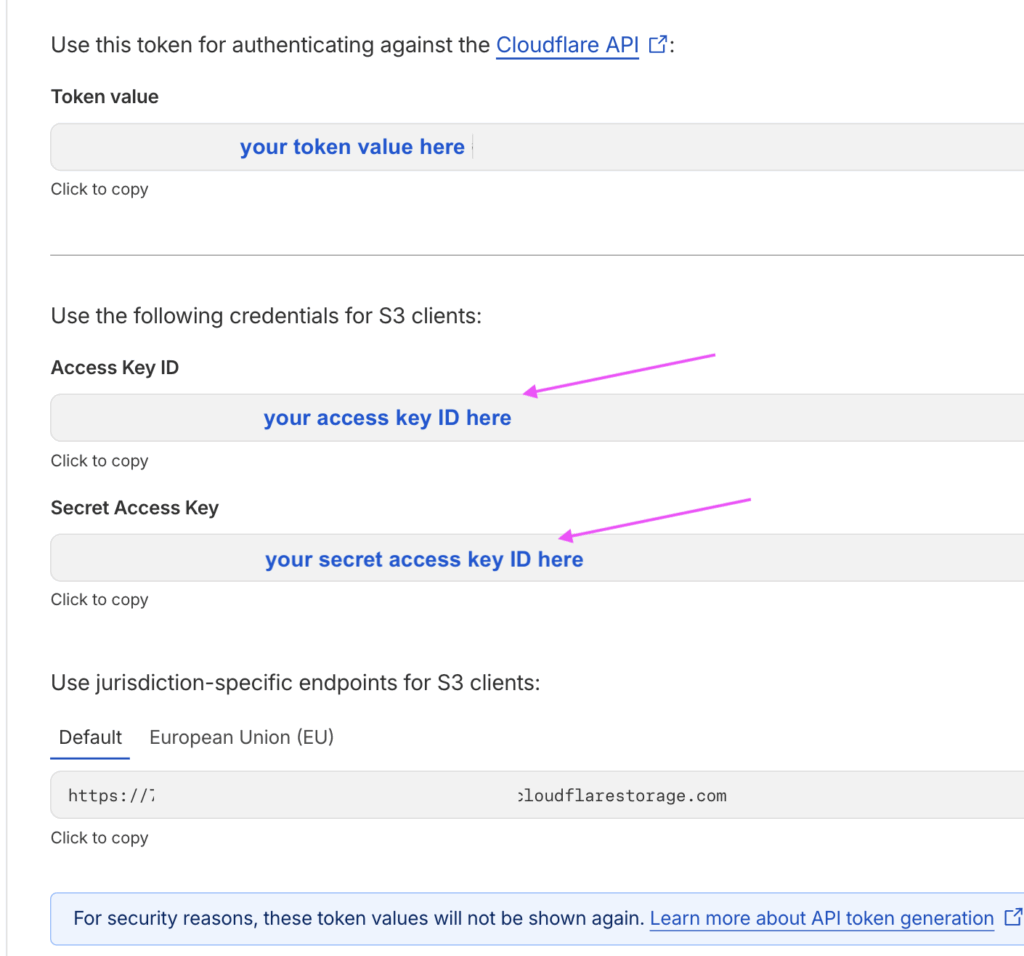
You will then see a new page displaying your “Access Key ID” and “Secret Access Key“.
Make sure to keep this information safe, as it will not be shown again for security reasons.
Public URL #
Now, you need to obtain the Public URL.
Go to the Cloudflare Dashboard → R2 → Your Bucket → Settings.
In this example, open the bucket named Test 1, then click Settings.
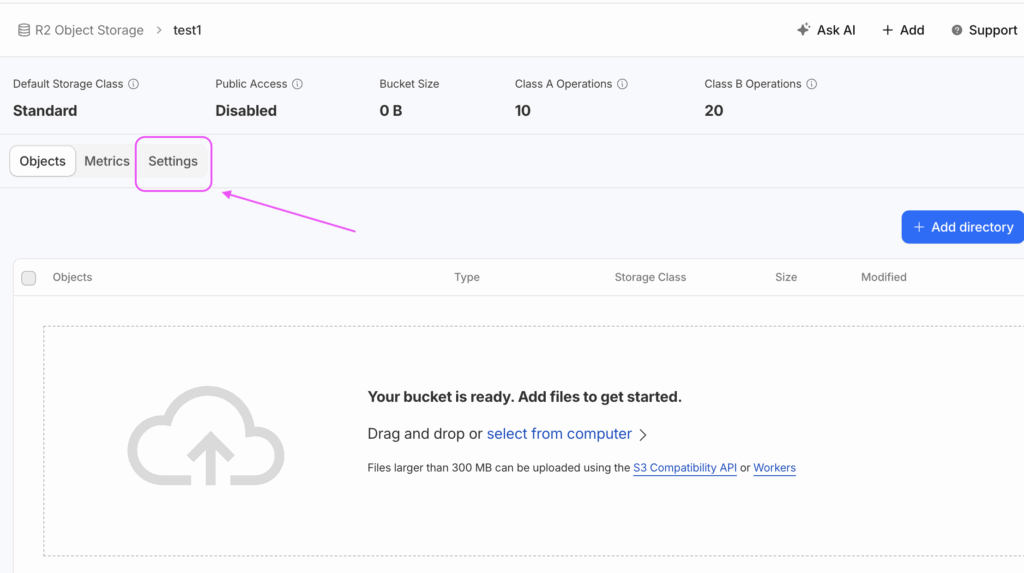
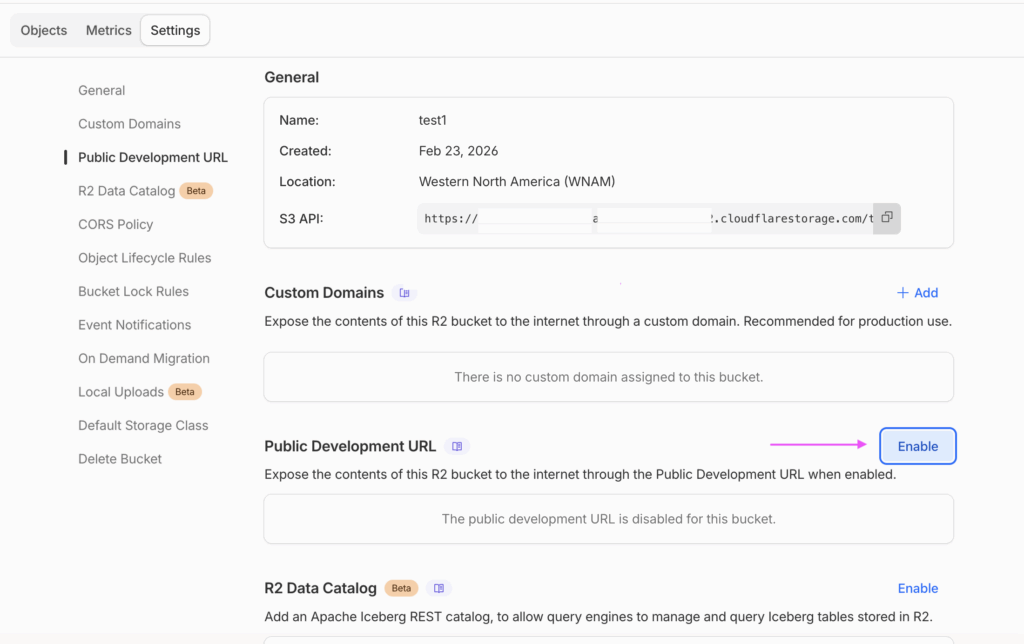
You can find the “Public Development URL” in this section.
If you have a custom domain, you can add it here. Otherwise, click “Enable” next to the “Public Development URL” to activate it.
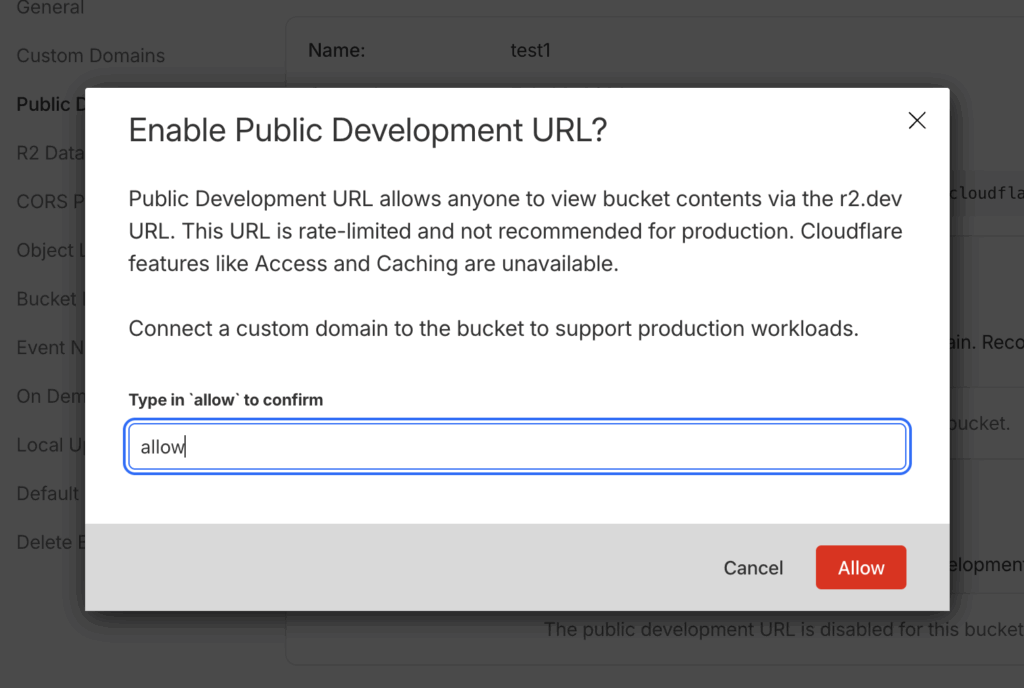
A confirmation window will appear. Type allow in the box, then click “Allow” to continue.
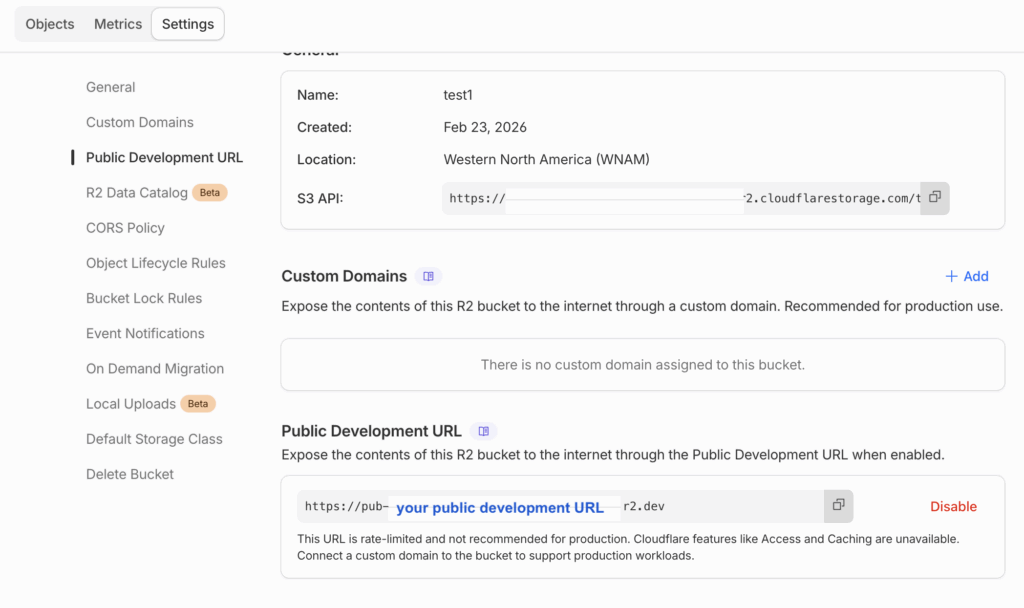
You will then be redirected back to the Settings page.
The Public Development URL will now be displayed. Make sure to keep this URL for later use in the plugin configuration.
You now have all the required information: “Account ID”, “Access Key ID”, “Secret Access Key”, and “Public URL“.
You can enter these details in the CloudSync Master PRO plugin settings to start the configuration.