
How to Generate Canada Post Drop-Off QR Codes in EasyPost Shipping PRO for WooCommerce
4 min read
If you ship domestic packages across Canada with your WooCommerce store, you no longer need a desktop printer or dedicated thermal label printer to fulfill orders. With the Canada Post Drop-Off QR Code feature inside EasyPost Shipping PRO for WooCommerce, you can generate digital QR codes directly from the order edit screen.
You or your customers simply present the digital QR code on a smartphone at any Canada Post post office counter. The postal clerk scans the QR code on the screen, prints the official adhesive shipping label on the spot, and applies it to your package without additional counter fees.
This step-by-step tutorial explains how to use the new Canada Post QR code feature in the EasyPost Shipping PRO plugin, the exact settings required to activate it, and how to troubleshoot common issues.
What Is a Canada Post Drop-Off QR Code? #
Canada Post’s digital drop-off system enables printerless order fulfillment and label-free customer returns:
- For Store Owners: Fulfill orders on the go without the need for a label printer, ink, or thermal label rolls.
- For Customers (Returns): Send your buyers a return QR code by email. Customers bring their boxed return to the nearest Canada Post office without needing a printer at home.
- Instant Hand-Off: Once scanned at the counter, the shipment enters Canada Post’s transit system immediately, and live tracking updates reflect on your WooCommerce order.
Essential Carrier Requirements (Why Settings Matter) #
Canada Post and the EasyPost API enforce strict rules for digital QR code generation. If any single parameter is missed, EasyPost will still purchase the shipping label, but Canada Post will refuse to create the QR code.
- Carrier: Must be Canada Post (Regular Parcel, Expedited Parcel, Xpresspost, or Priority).
- Shipping Origin and Destination: Both addresses must be within Canada (domestic shipments only). International and cross-border shipments are not eligible for Canada Post QR codes, as they require customs documentation.
- Label Format: Must be set to PDF.
- Label Dimensions: Must be set to 8.5 x 11 inches (Letter size).
- Important Note: EasyPost explicitly rejects Canada Post QR code generation on 4×6 thermal label sizes. The carrier’s counter software requires standard letter sizing.
- Plugin setting: The Request Drop-off QR Code must be enabled in the API settings of the plugin.
Step-by-Step Configuration Guide #
Follow these steps to configure your WooCommerce store to generate Canada Post QR codes.
Step 1: Go to the Plugin Settings
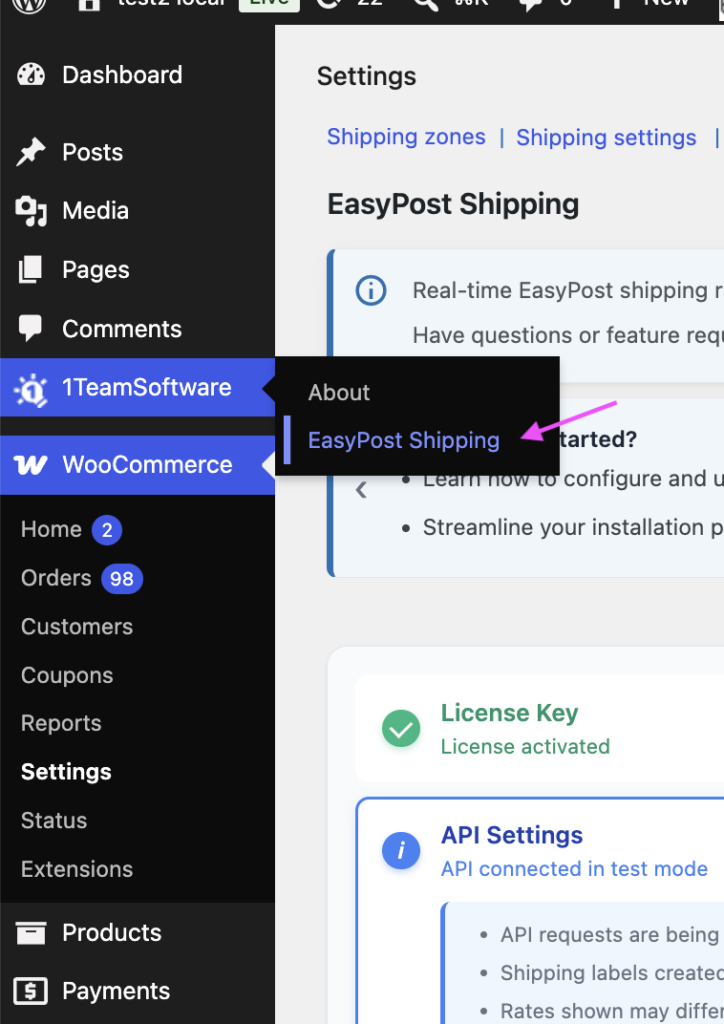
To access the EasyPost Shipping plugin settings, locate the 1TeamSoftware icon in the left-hand menu of your WordPress dashboard. Hover over the icon to expand the submenu, then click EasyPost Shipping to open the plugin’s settings page.
Step 2: Set Label Format and Dimensions
Go to the “API Settings” tab
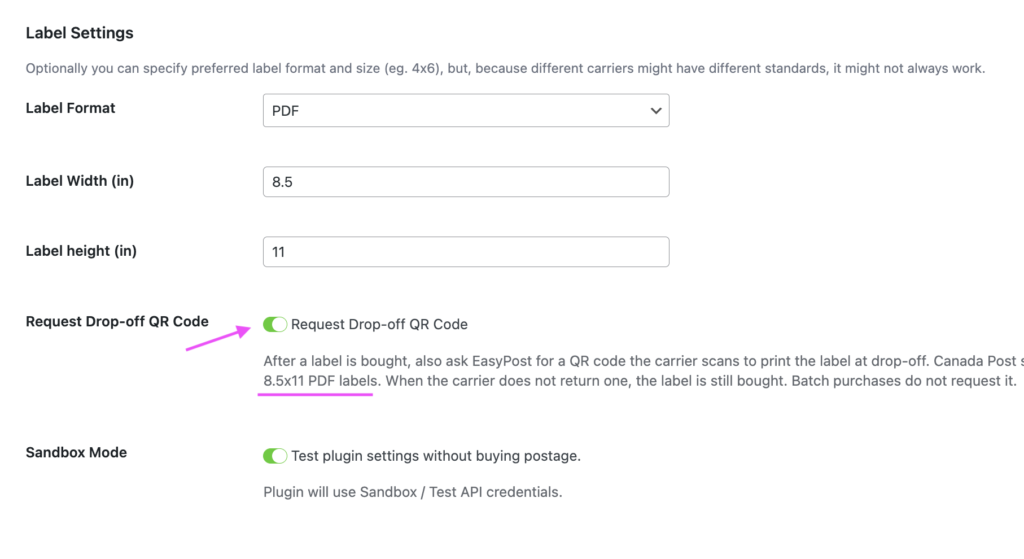
- Label Format: Choose PDF from the dropdown.
- Label Width (in): Enter 8.5.
- Label Height (in): Enter 11.
- Request Drop-off QR Code: Check the box to enable the feature
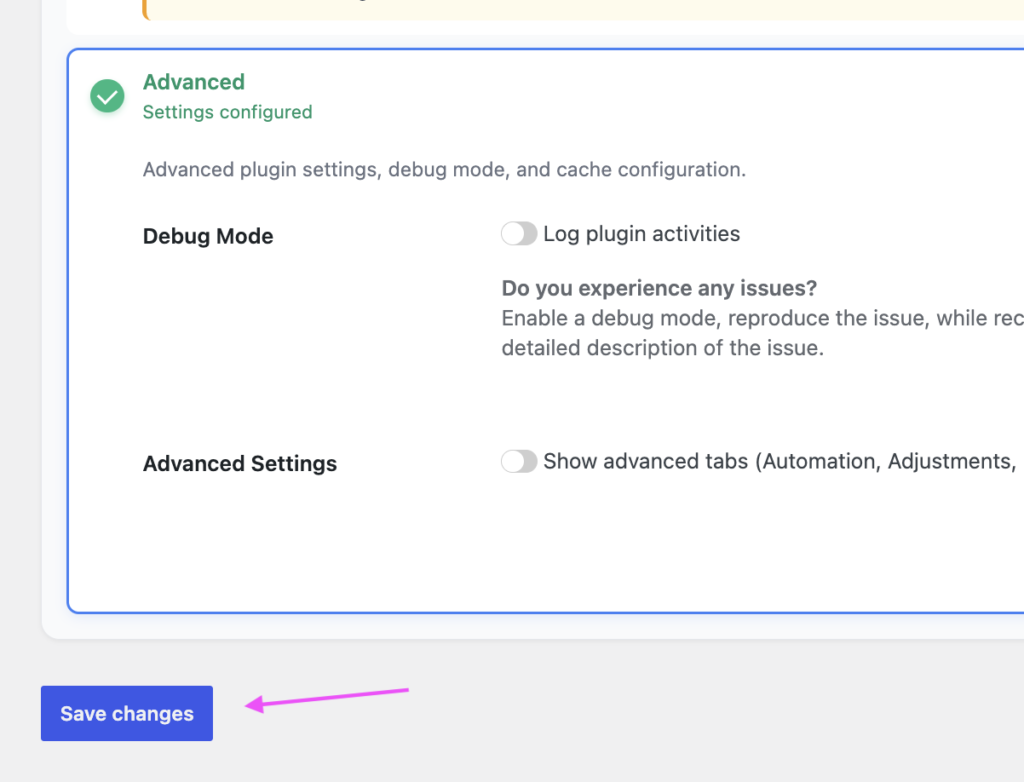
5. Scroll to the bottom of the page and click “Save Changes” to save and apply your updated plugin settings.
How to Buy a Label and Generate the QR Code #
Once the plugin’s settings are updated, follow these steps on any domestic Canadian order:
- In WordPress Admin, navigate to WooCommerce → Orders.
- Open the order you want to purchase a shipping label for (or test).
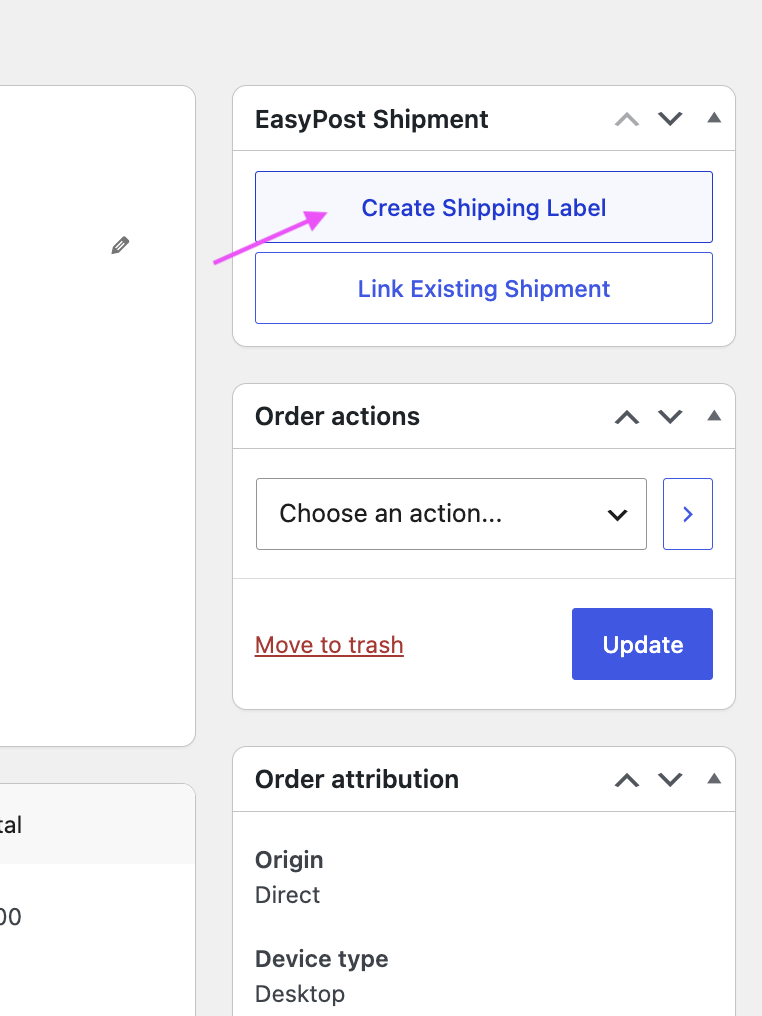
- In the EasyPost Shipping metabox:
- Click “Create Shipment” to proceed with the shipping label purchase process.
Please note: The steps may vary depending on how you have configured the shipping label creation settings in the plugin.
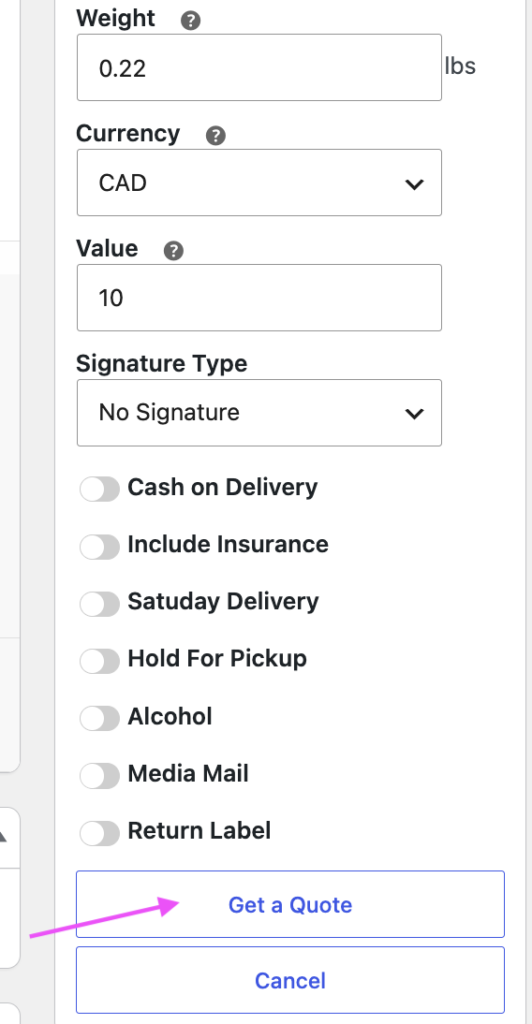
Verify that the package dimensions and weight are correct, then click “Get a Quote” to retrieve the available shipping rates.
- Select your preferred Canada Post service (such as Canada Post Regular Parcel or Expedited Parcel).
- Proceed to Buy Shipping Label.
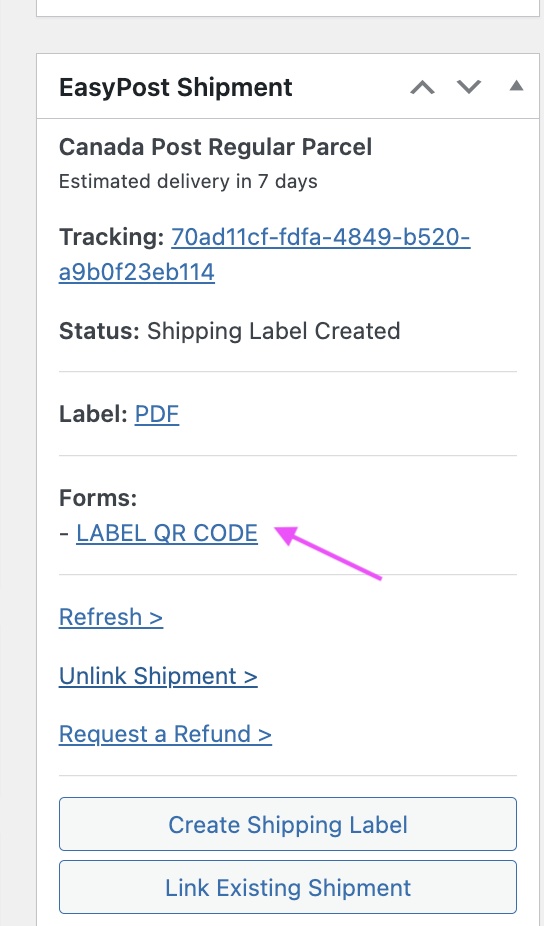
4. Once the shipping label has been successfully purchased, the tracking information will be available. Scroll down within the metabox to the Forms section to view the tracking details.
5. You will also see a link titled LABEL QR CODE.
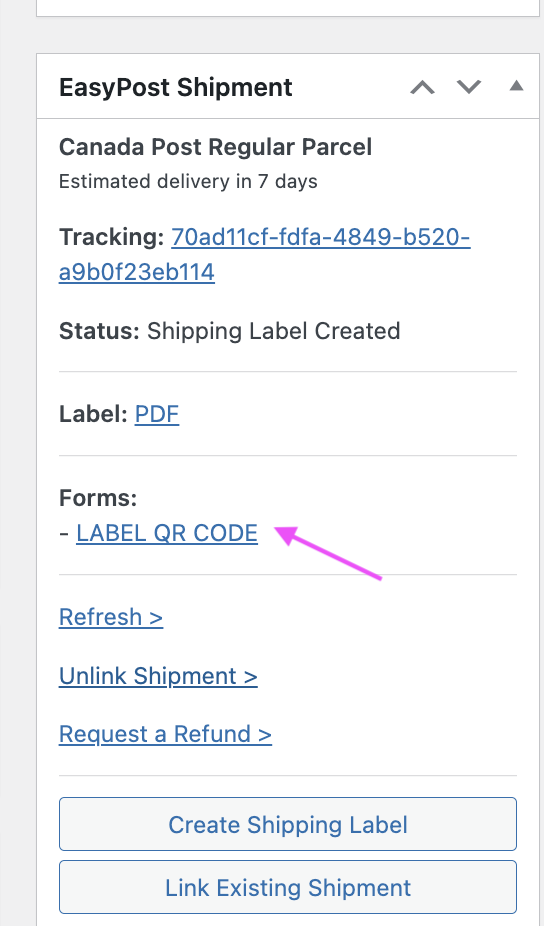
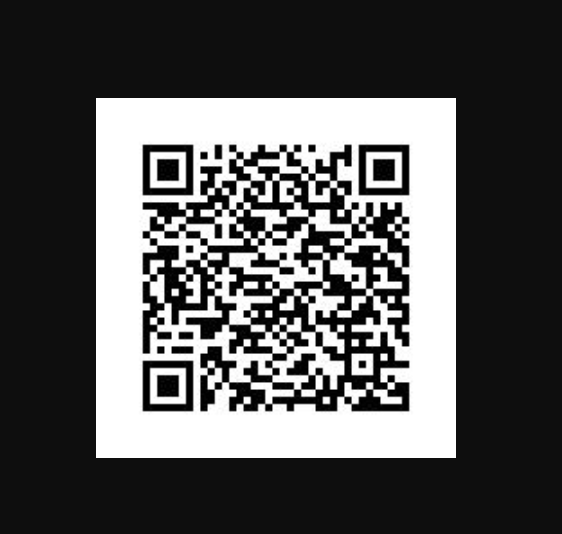
6. Click “LABEL QR CODE” to open, and you can download the high-resolution PNG QR code image. The generated QR code will appear as shown in the screenshot below.
Handling Customer Returns (Label-Free) #
Offering printerless returns removes friction and boosts customer confidence:
- Open the customer’s completed order in WooCommerce.
- In the EasyPost metabox, select the Return Shipment option
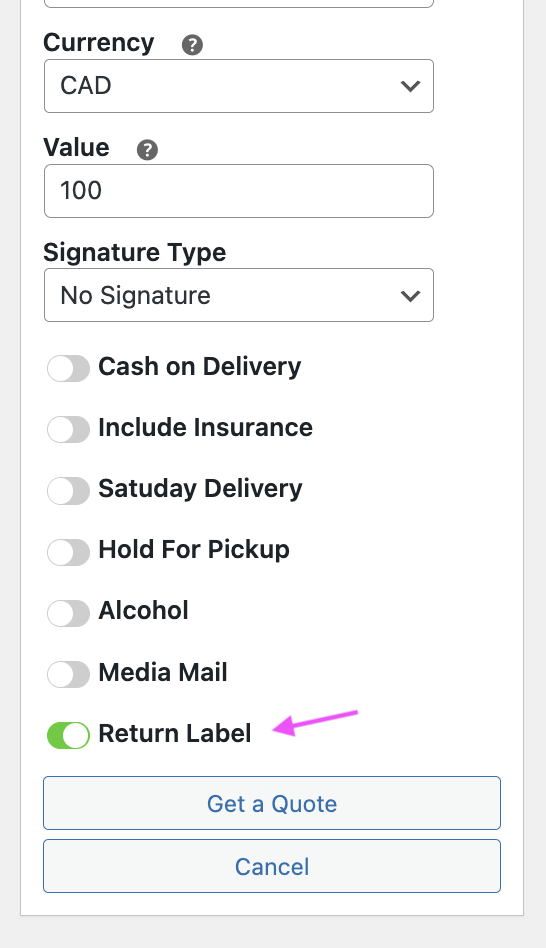
3. Select an eligible Canada Post return shipping service, then proceed with purchasing the shipping label by following the standard label purchase process.
4. Send the generated LABEL QR CODE image and email it to your customer.
5. The customer shows the QR code on their smartphone at their local Canada Post office, and Canada Post staff prints and attaches the label for them.
Frequently Asked Questions: #
I bought a label, but no QR code appeared. Why? #
The most common cause of this issue is having the label dimensions set to 4 × 6 inches or leaving them blank. To resolve this issue, go to the plugin settings and set Label Width to 8.5 inches and Label Height to 11 inches. Click “Save Changes” to apply the updated settings. Then, refresh the WooCommerce order page and try purchasing a new shipping label.
Can I use a 4×6 thermal printer and generate QR codes at the same time? #
No. Canada Post counter QR codes are only generated when the shipping label format is set to 8.5 × 11 inches (PDF). If the label dimensions are set to 4 × 6 inches, EasyPost will still generate the shipping label, but the Canada Post QR code will not be included.
Which Canada Post services support counter QR codes? #
All standard domestic Canada Post services booked via EasyPost are supported:
- Canada Post Regular Parcel
- Canada Post Expedited Parcel
- Canada Post Xpresspost
- Canada Post Priority
(Cross-border services to the US or international destinations do not support retail drop-off QR codes).
Can I test this feature in Sandbox / Test Mode? #
Yes. You can test the entire shipping label creation process using EasyPost Test API Keys in Sandbox Mode. EasyPost generates test Canada Post tracking numbers and QR codes in PNG format, allowing you to verify the workflow without purchasing actual postage or incurring shipping charges.
Summary #
With EasyPost Shipping PRO for WooCommerce, Canadian merchants can simplify their shipping process by generating Canada Post QR codes for both outbound shipments and customer returns.
Simply set the shipping label format to PDF and the label dimensions to 8.5 × 11 inches in the plugin settings. Once configured, you can take advantage of convenient, printer-free shipping and streamline order fulfillment directly from your WooCommerce store.
(For more tutorials, automated shipping tools, and multi-vendor integrations.)


