
How to Exclude Specific Product Categories or Shipping Classes from Certain Shipping Boxes
In most cases, all defined shipping boxes will be used to ship all products in your store.
When the WooCommerce live shipping rate plugin calculates shipping rates, it will automatically select the most suitable shipping box based on the product dimensions and weight, and use that box for the shipment.
For example, let’s say you are testing with a product “Pink Sunglasses”, which belongs to the Accessory product category.
In a regular setup, the shipping plugins picks the most suitable shipping box based on the product’s dimensions and weight.
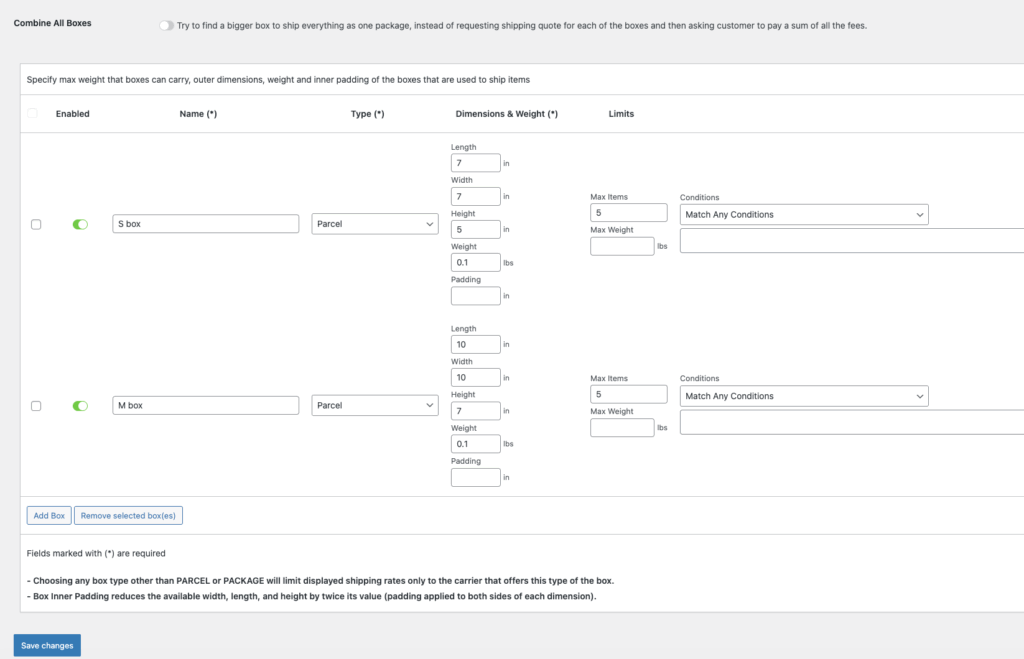
In the settings, we have set up S and M shipping boxes with the condition “Match Any Conditions”, which means they can be used for any product category.
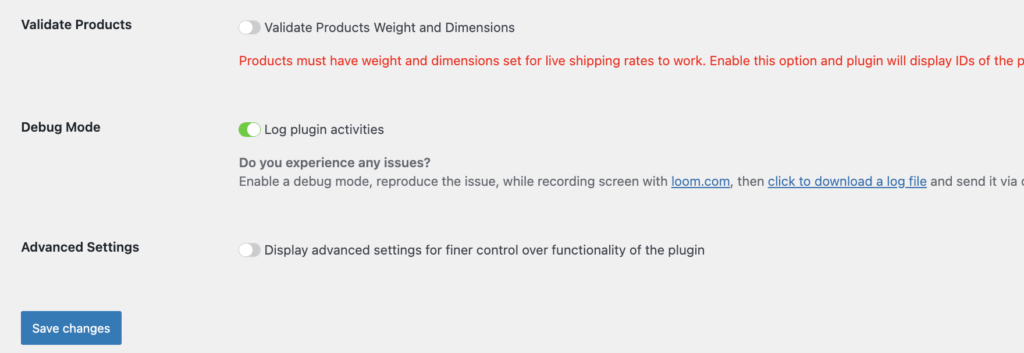
You can enable the plugin’s “Debug Mode” to see which shipping box the WooCommerce live shipping rates plugin selects for shipping.
Go to the “General” tab in the plugin’s settings, enable the “Debug Mode”, and click “Save changes.”
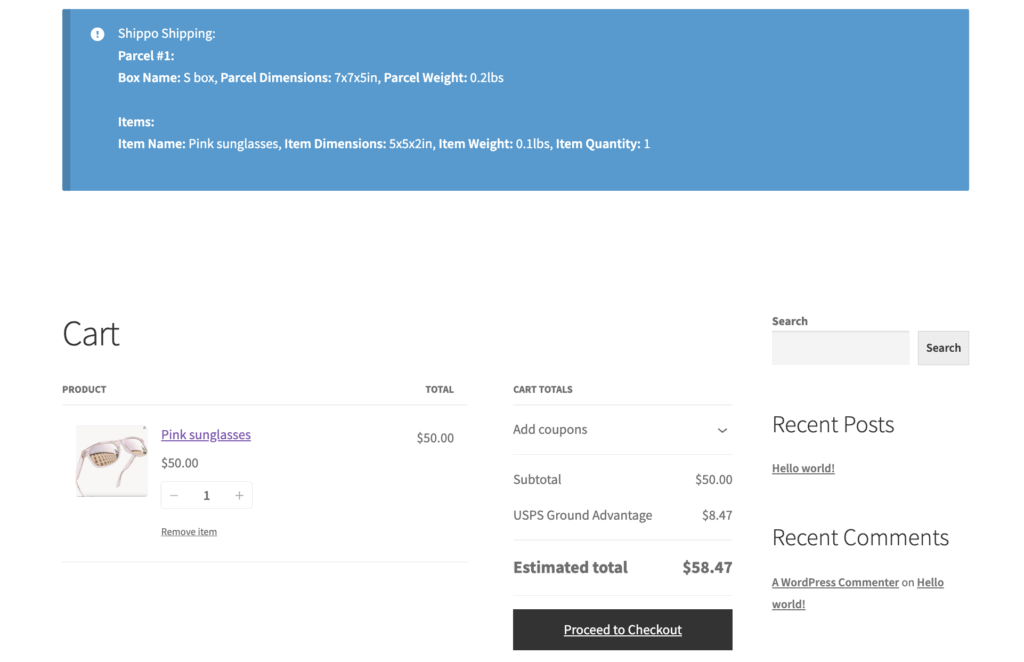
Then we add a sunglasses to the cart, and the shipping plugin shows the package information box on top of the cart, that the shipping plugin selected the S box for shipping based on the product dimensions. This is the regular/default behaviour.
In some cases, you may want to exclude a specific shipping box for certain products.
For example, accessory products may be fragile, and you don’t want to use a specific shipping box (for example, the S box) for shipping items from the Accessory product category.
Now we want to configure the shipping plugin not to use the S box for products in the Accessory category, so that it will exclude the S box and select another box for shipping instead.
Here is what we are going to do in the shipping box configuration:
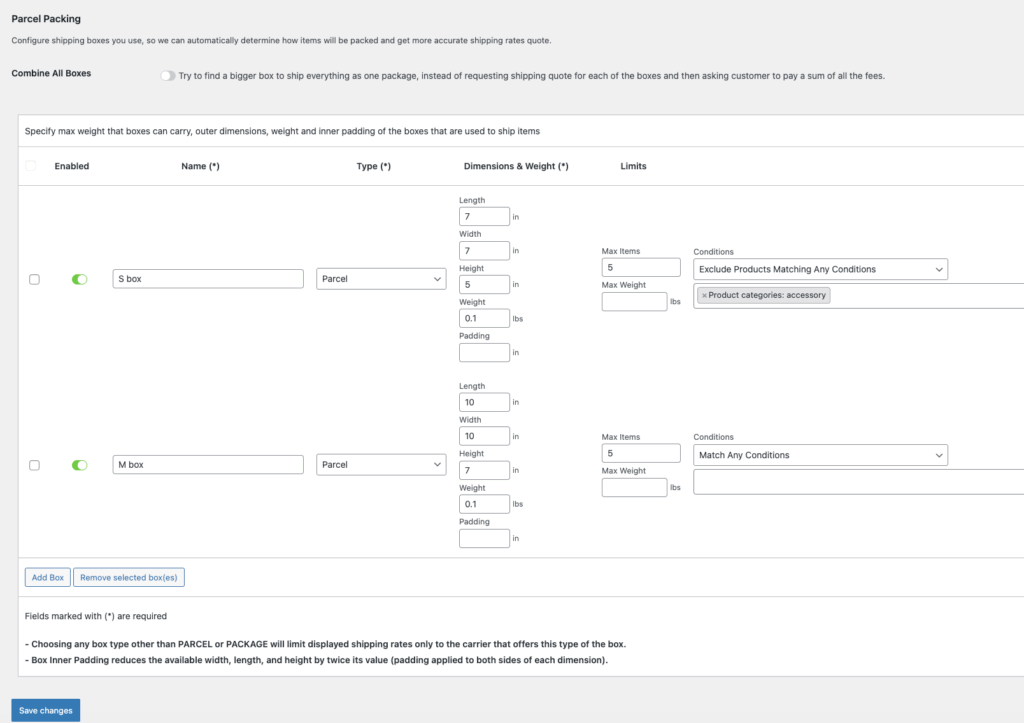
1. In the S box settings, under the “Conditions” column, select “Exclude Products Matching Any Conditions”, and select “Product category: Accessory”. This tells the plugin to exclude Accessory products from using the S box.
2. Leave the other shipping box settings as they are, so they can still be used for any product category.
3. Click “Save changes” to save the settings after making the adjustments.
4. Clear cart.
5. Add a sunglasses (an Accessory product) to the cart for testing.
The debug package information box at the top of the cart will now show that the plugin did not select the S box for this product, because it is excluded for the Accessory category. Instead, the WooCommerce shipping plugin selected the M box for shipping.
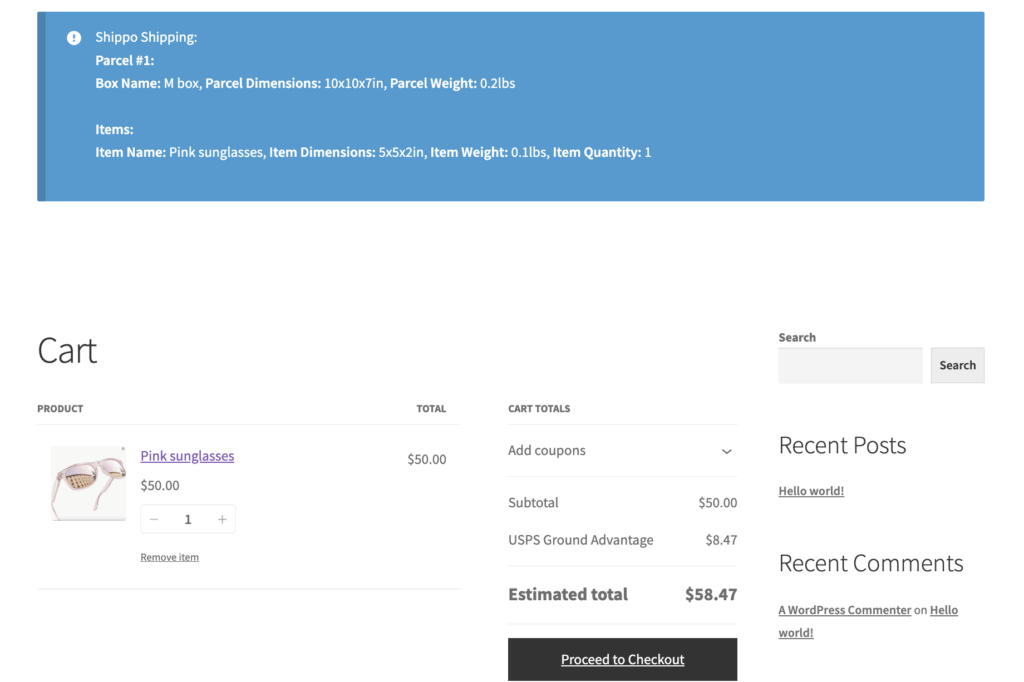
As a result, the S box has now been successfully excluded from shipping products in the Accessory product category.
You can follow the same steps to exclude any other product category or shipping class from using a specific shipping box if needed.
📍If you would like more advanced settings, for example, to have a specific product category or shipping class into a separate package for individual shipping cost calculation, you can use the free WooCommerce plugin “Shipping Packages for WooCommerce.”


