
Understanding How the WooCommerce Shipping Plugin Packs Your Products
When using WooCommerce shipping plugins, one of the most common concerns is whether the plugin is selecting the correct shipping box for your products. If a different box is chosen than expected, it may result in undercharging or overcharging your customers for shipping.
To avoid this, it’s important to understand how the plugin decides which shipping box to use. The WooCommerce live shipping rate plugins automatically choose the most suitable shipping box from your configured shipping box list, based on the product’s dimensions, weight, and total volume.
By enabling debug mode during testing, you can clearly see which shipping box the shipping plugin selects and verify if it matches your expectations. Follow the steps below to use debug mode and confirm how products are packed for shipping.
Using Debug Mode to Test and View Package Information for a Single Item #
For demonstration purposes, we are using the Multi-Carrier Shippo Shipping PRO for WooCommerce as an example.
1. Enable Debug Mode: #
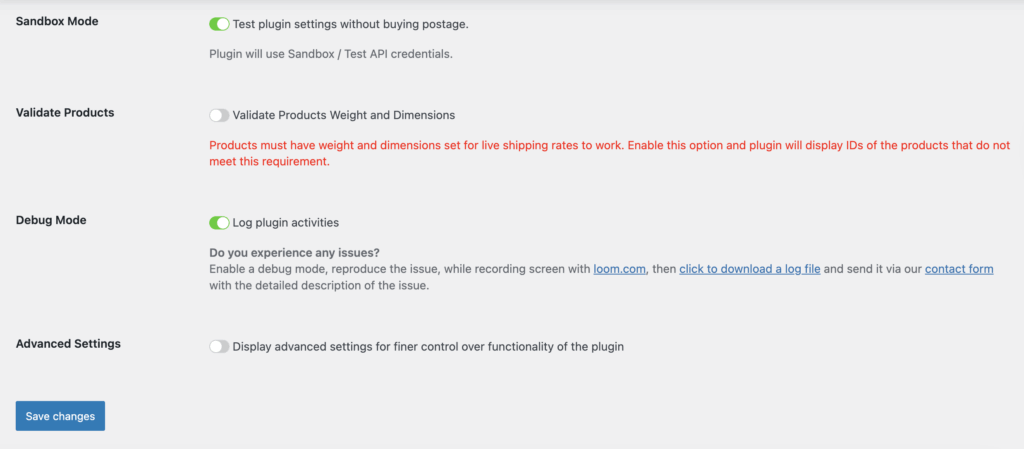
- Navigate to the “General” tab in the plugin settings.
- Enable “Debug mode.”
- Click “Save Changes” to apply the updated settings.
2. Prepare The Shopping Cart #
- Add your preferred item to the cart for testing.
- Input the shipping destination information.
3. View the Package Details #
The cart will display live shipping rates from available shipping services.
Above the cart, a box shows the package information, including:
- The shipping box was selected by the plugin
- The final package dimensions and weight.
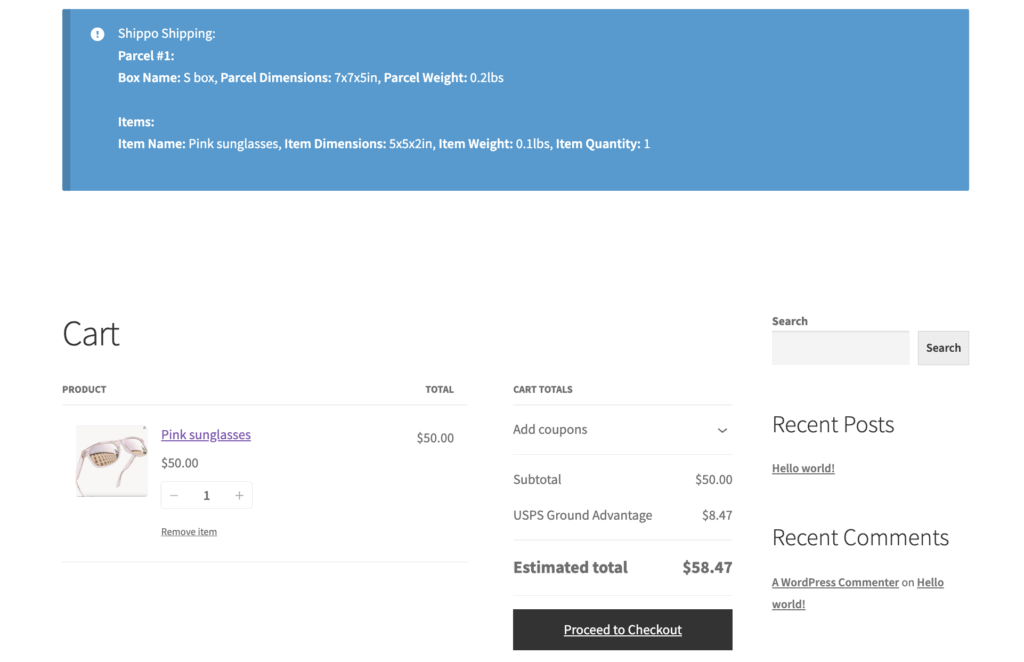
In our testing example, the shipping plugin selected the S shipping box for shipping the sunglasses product.
- The product itself measures 5 × 5 × 2 inches and weighs 0.1 lb.
- After packing, the final shipment uses the S box (7 × 7 × 5 inches), with a total package weight of 0.2 lb, which includes both the product and the shipping box weight.
📍You can use this package information to verify whether it matches your actual shipping box setup.
If the box size or weight does not align with your real-world packaging, consider adjusting the shipping box settings so they reflect your actual package dimensions and weight.
Example: Multiple Shipping Boxes in a Single Shipment #
If the order is packed into multiple boxes, the plugin will show each package’s details: #
- The number of shipping boxes.
- Details for each shipping box selected by the shipping plugin, including its dimensions and weight.
- Ensure that the final package dimensions and weight align with the actual shipment. If they do not, review the product information and shipping box settings to confirm they are configured correctly.
Below is a sample where two items are added to the cart, and the shipping plugin arranges two separate shipping packages for the shipment.
- The plugin assigns the S box to the sunglasses product because its size fits within the configured box dimensions.
- The shoes do not fit into any configured shipping box, so the plugin does not assign a box for them. Instead, it uses the product’s own dimensions and weight to calculate shipping rates.
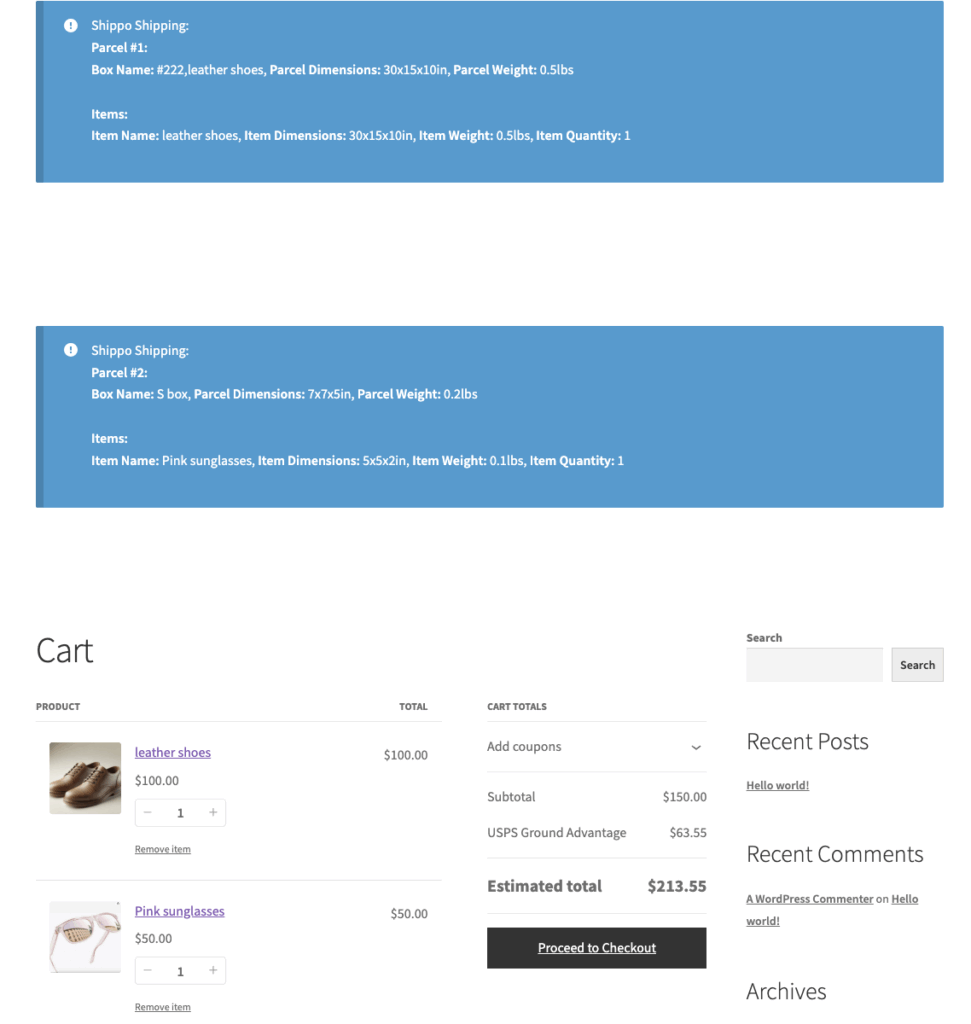
In this example, the shipping plugin creates two separate packages, so it calculates the shipping cost for each package individually and then displays the combined total shipping cost at checkout.
The store admin can purchase one shipping label for each package, based on the packages calculated by the shipping plugin.
Combine All Boxes Feature #
Some store owners prefer to combine all products into a single shipment, so they only need to purchase one shipping label for the shipment. This approach is useful when shipping small or lightweight items, such as earrings, keychains, or gift cards, where multiple products can easily be packed together into one package.
In this case, you may want to enable the “Combine All Boxes” feature to achieve your desired result. This option forces the shipping plugin to combine all shipping packages into one single package.
However, we do not recommend enabling this feature if your store mainly ships large, heavy, or bulky products.
Combining big-sized products may create a package that is too large or too heavy, which could exceed the carrier’s shipping limits or result in very expensive shipping rates, or return no shipping rates at all in the cart.
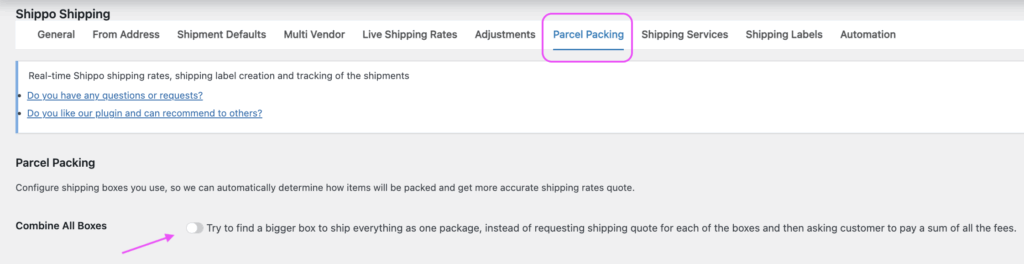
Therefore, in most cases, we recommend keeping the “Combine All Boxes” feature disabled to more accurately match real-life shipping scenarios.


