
How to Configure Chit Chats Shipping PRO for New EU Shipping Requirements in WooCommerce
5 min read
Starting November 2026, Chit Chats has introduced new shipping requirements for packages being sent to European Union (EU) countries. If you use Chit Chats to ship orders from your WooCommerce store to the EU, you may need to add more product information, such as SKU, manufacturer product/model ID, GTIN, UPC, EAN, or ISBN, to meet the new customs requirements.
The screenshot below shows the new product information fields required by the Chit Chats website for shipments to European Union (EU) countries. These include the Product SKU, Manufacturer Product/Model ID, and product identifiers such as GTIN, UPC, EAN, or ISBN.
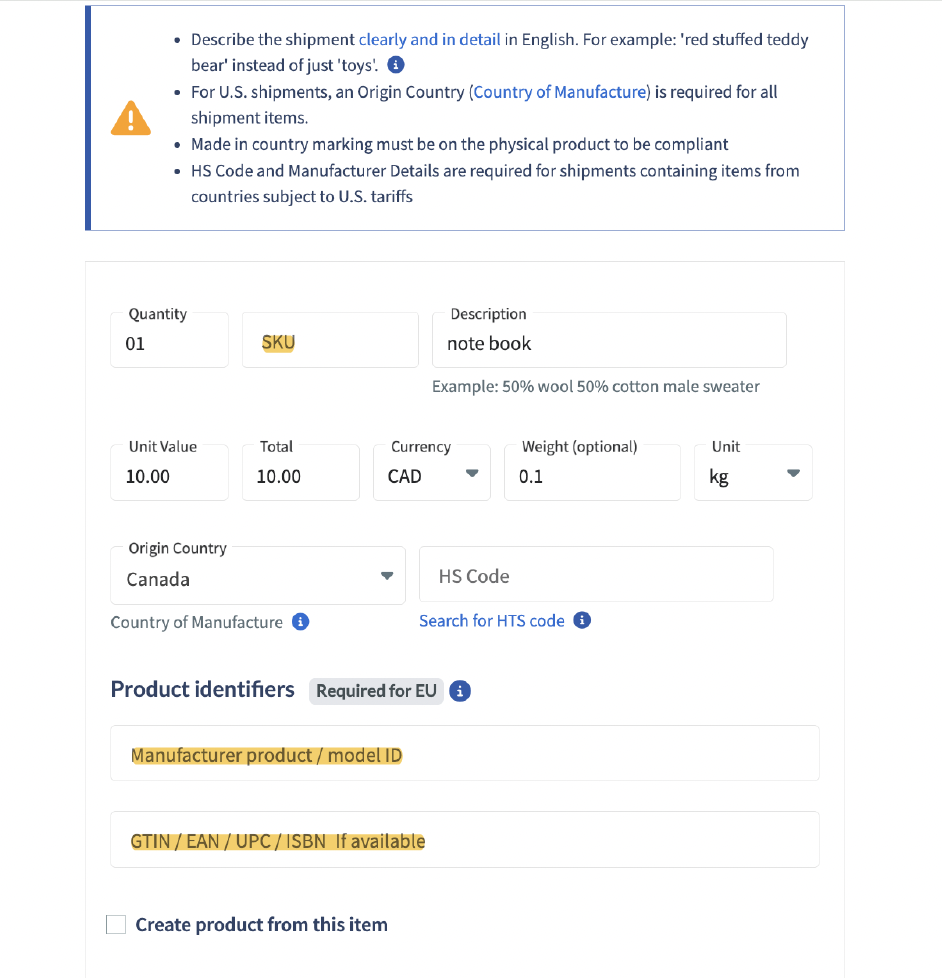
These details help identify your products during EU customs processing.
To support these changes, we have updated our Chit Chats Shipping PRO plugin for WooCommerce to help you provide the required product information when shipping to EU countries.
This guide will show you how to update your WooCommerce product information and configure the Chit Chats Shipping PRO plugin to meet the new EU shipping requirements and help prevent customs delays.
Update WooCommerce Product Information for EU Shipping #
- Update to Chit Chats Shipping PRO for WooCommerce 1.5.24 (free version) or 2.1.14 (PRO version). Please ensure you have updated the Chit Chats Shipping PRO plugin to version 2.1.14 or later to support the new EU shipping requirements and provide the required customs information.
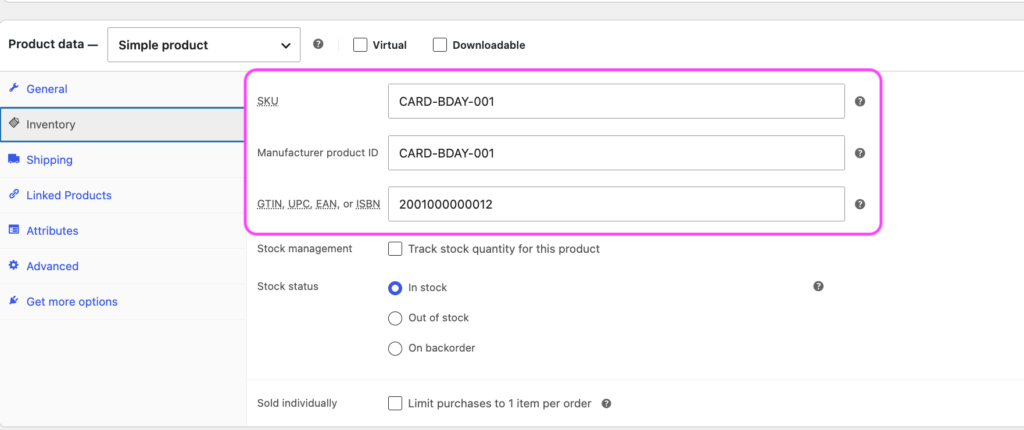
- Go to Products → Edit product → Product data → Inventory.
- Fill in these three fields:
- SKU: WooCommerce’s own SKU field.
- Manufacturer product ID: a new field the plugin adds right after SKU. Its help text says: “Manufacturer’s own product, model or part number. Required by EU customs for shipments to the European Union.”
- GTIN/UPC/EAN/ISBN: WooCommerce’s own field for this, which only exists in WooCommerce 9.2 or later.
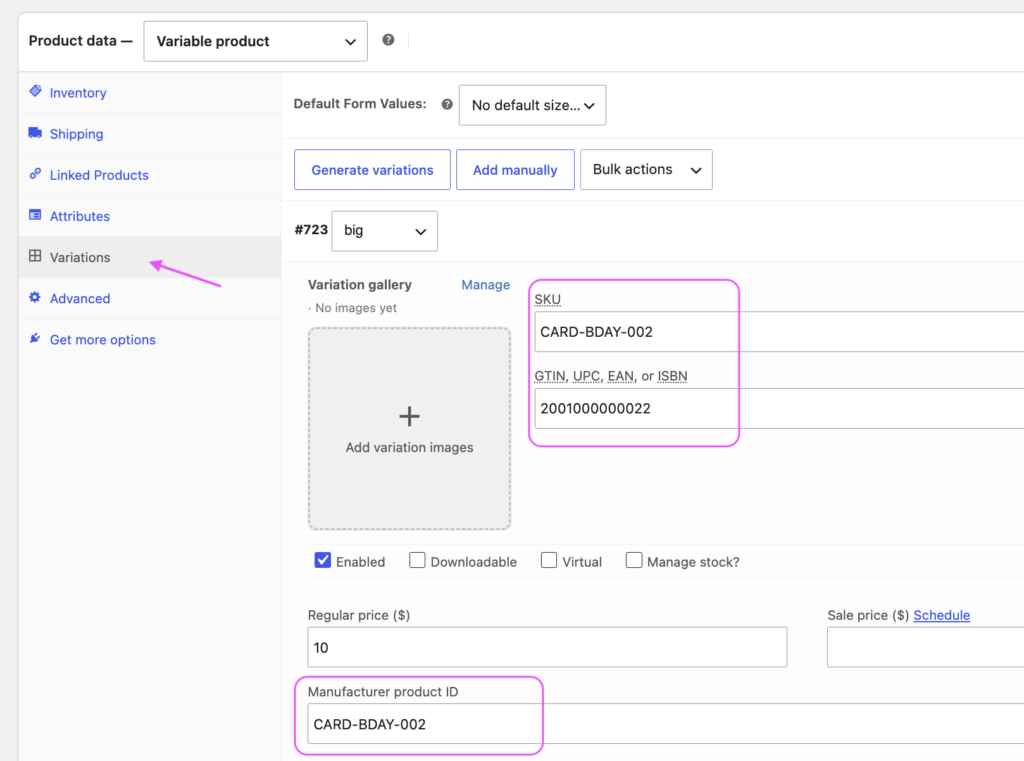
4. For variable products, go to the “Variations” tab and expand each variation to view its settings. You will find the Manufacturer Product ID field near the pricing fields.
You can enter a separate SKU, Manufacturer Product ID, and GTIN for each variation. If any of these fields are left empty, the plugin will automatically use the corresponding information from the parent product, if available.
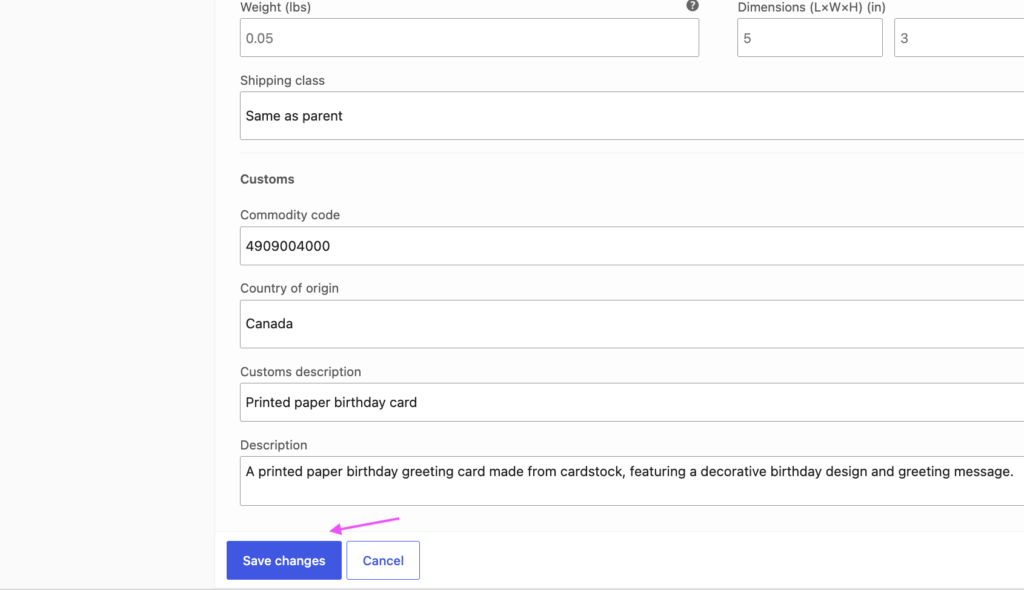
5. Once you have entered all the required product information for EU shipments, scroll down and click “Save Changes” to save your settings.
Next, you’ll need to make a few adjustments to the Chit Chats Shipping PRO plugin settings to ensure your shipments to EU countries meet the new requirements.
Configure Chit Chats Shipping PRO Plugin Settings for EU Shipping
#
1. Configure Shipping Zones
If you ship to different regions, such as the EU, USA, and Canada, we recommend creating separate WooCommerce shipping zones for each region. Make sure you have created a shipping zone for EU countries and added the Chit Chats Shipping PRO shipping method to that zone.
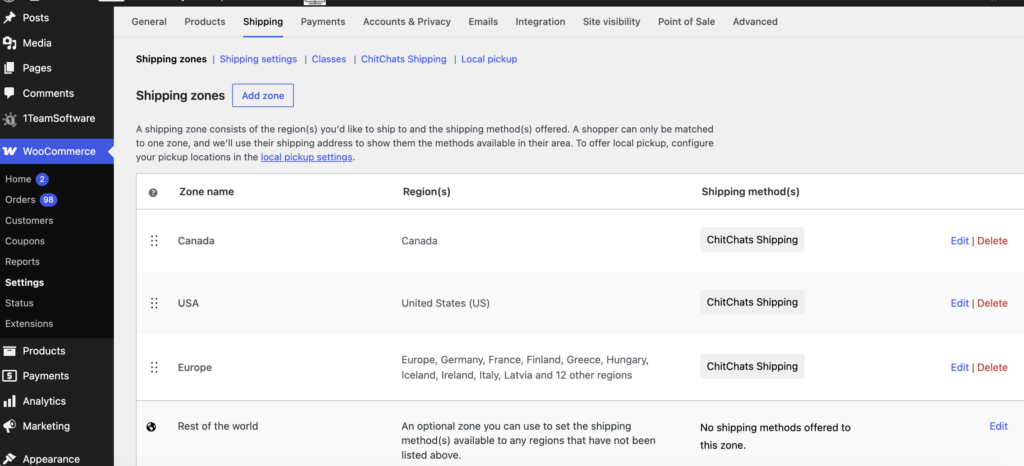
If you’re not familiar with setting up WooCommerce shipping zones, please refer to our How to Configure Shipping Zones in WooCommerce documentation for step-by-step instructions.
2. In the Chit Chats Shipping PRO plugin, go to the “Cart Rates” tab and enable the following options:
Shipping Zone settings:
Enable the shipping zone settings and select “API Credential,” “Services,” and “Default Tariff/HS Code” as shipping zone fields. This allows you to configure API credentials, shipping services, and default tariff/HS codes separately for each shipping zone. Then, scroll down and click “Save Changes” to save your updated settings.
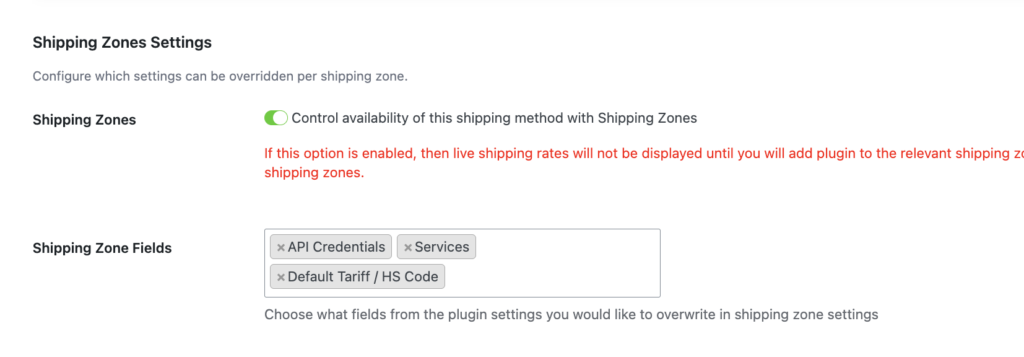
3. Update the EU Shipping Zone Settings
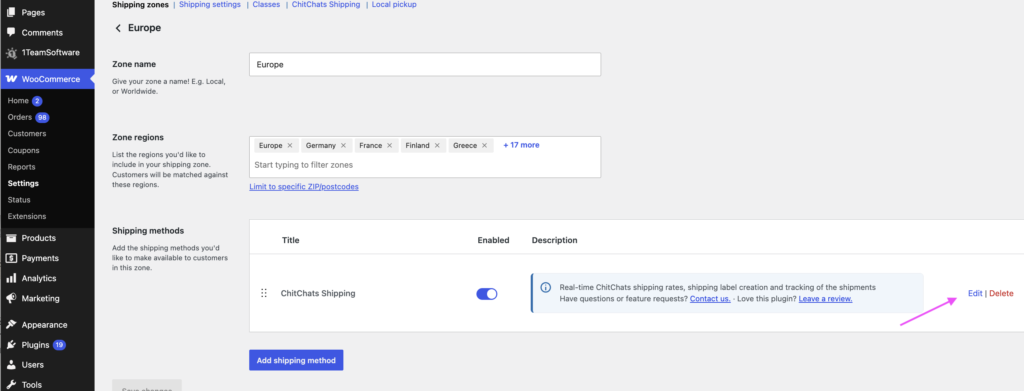
To configure the EU shipping zone, navigate to WooCommerce → Settings → Shipping → Shipping Zones in your WordPress dashboard.
Once you have created the EU shipping zone, make sure the Chit Chats Shipping method has been added to the zone.
Click “Edit” next to the Chit Chats Shipping method to open its settings. From there, you can use the expandable tabs to configure the shipping services and default Tariff/HS Code specifically for the EU shipping zone.
Make sure you review and configure the appropriate settings under each tab. For example, you can select the international shipping services you want to offer for EU shipments and set the appropriate default Tariff/HS Code in the “Shipment defaults” tab for the EU shipping zone.
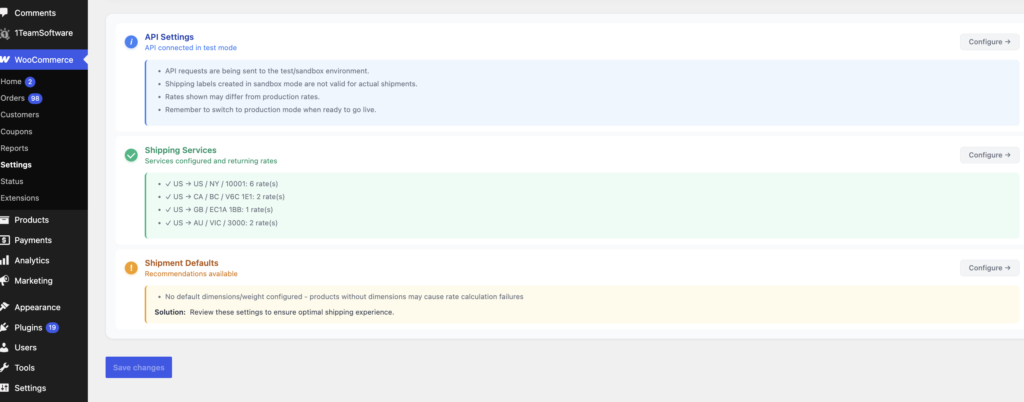
4. Important: Configure the “Duties Paid” Setting for EU and U.S. Shipments
In the “API Settings” tab, pay special attention to the “Duties Paid” option, as this setting affects whether the plugin can return live shipping rates for EU regions.
- EU region: Make sure the “Duties Paid” option is unchecked (disabled). If this option is enabled, the Chit Chats API will not return live shipping rates for shipments to the EU region.
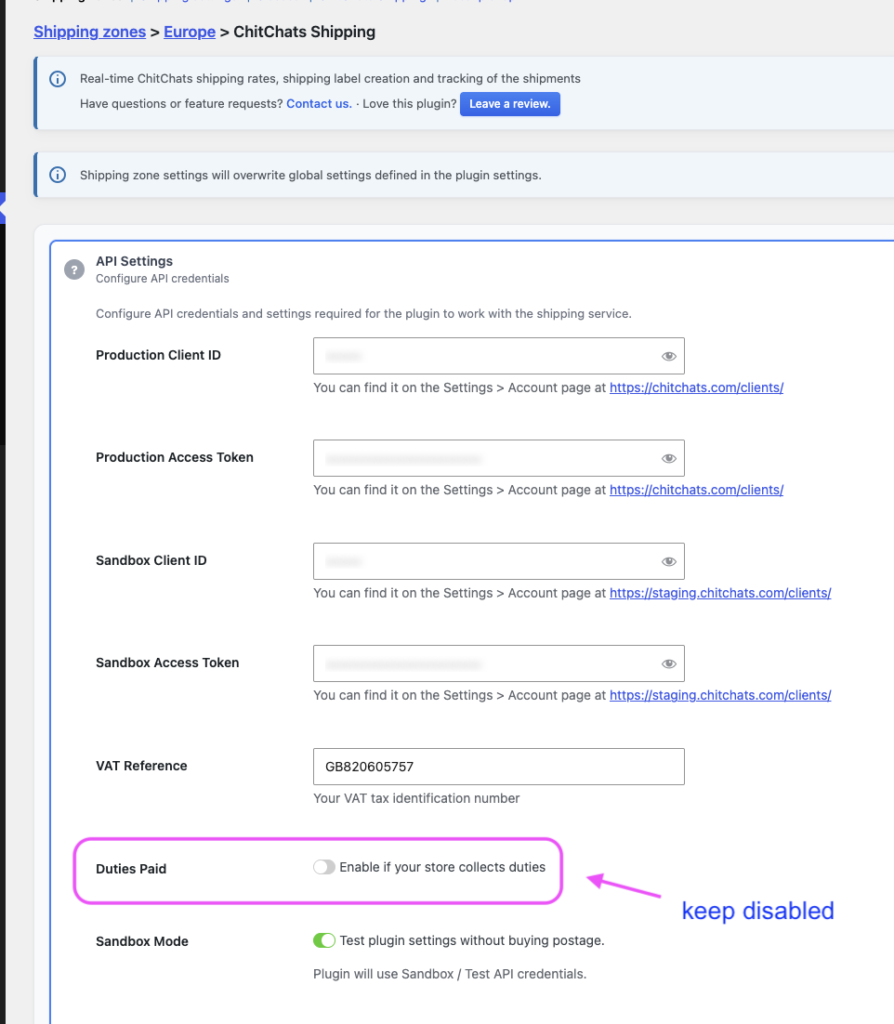
- U.S. region: Shipping to the United States requires different settings than shipping to EU countries.
It requires keeping the “Duties Paid” option checked (enabled) for the U.S. shipping zone. Chit Chats already includes applicable duty fees in the live shipping rates returned by its API, so enabling this option is recommended for shipments to the United States, in order to return live shipping rates. - We have confirmed this behaviour directly with Chit Chats support. Please configure the “Duties Paid” setting according to your shipping destination to ensure the live shipping rates are returned.
5. After updating the settings, click “Save Changes” to apply them.
Once you have completed the above updates to your WooCommerce product information and Chit Chats Shipping PRO plugin settings, you’re all set!
You should now be able to retrieve live shipping rates for EU countries and purchase shipping labels with the required customs information.
📍Related article:
No UK from Chit Chats shipping pro plugin? Configure the “duties paid” the right way.


