
E-Commerce Shipping
How to Set Up ShipEngine Shipping on WooCommerce

Authenticate with your ShipEngine (now ShipStation API) key, and the rest of the setup is just the payload the API needs to price a parcel: your origin address, the boxes you actually pack, and the shipping services you want to use to ship packages. Then send one rate request to prove the call reaches the API. Three interfaces wrap the same calls: the WooCommerce settings screens, a WP-CLI namespace, or an AI agent that runs those commands and pauses to ask for your key. Pick whichever interface suits you; the underlying API sequence is identical.
ShipEngine or ShipStation? Same company, two products, and the distinction matters more here than almost anywhere. ShipEngine is the raw multi-carrier shipping API, the engine that powers the ShipStation app under the hood. On 2025-02-28 Auctane folded the ShipEngine brand into ShipStation API: the carrier engine, the endpoints, and the keys all stayed put, only the name on the docs moved. If you deliberately reached for a shipping API to call from your own code, that is what is now badged ShipStation API, and your existing ShipEngine key still authenticates. If instead you signed up for the hosted dashboard where you batch and print labels, you have the ShipStation app, and a different guide covers it. This one is written for people on the API.
Here is the part that costs money. The ShipEngine API returns rates and buys labels over HTTP, but it has no opinion about where those rates show up, and Auctane never shipped a WooCommerce plugin for it. So the API on its own puts no price in front of your buyer at checkout. Baymard Institute puts documented cart abandonment at roughly 70% on average, and surprise shipping costs rank among the top reasons people bail. A shopper who can’t see a shipping price often leaves, and the ones who stay pay a flat rate that is wrong in both directions:
- The nearby order overpays for shipping and walks.
- The heavy cross-country order underpays and you eat the gap.
What you actually need is a plugin that asks the ShipEngine API for a quote the moment a buyer enters a shipping address, with labels and tracking to match.
The plugin we’ll use here holds a 5 out of 5 rating, and we build and support it ourselves. It talks to the same API you already pay Auctane for, under either name. It is one of eight multi-carrier plugins 1TeamSoftware builds on a single shipping engine, so the workflow below carries over to Shippo, EasyPost, FedEx, and the rest.
Try ShipEngine Shipping Free on WordPress.org | See ShipEngine Shipping PRO Features
TL;DR
What you need:
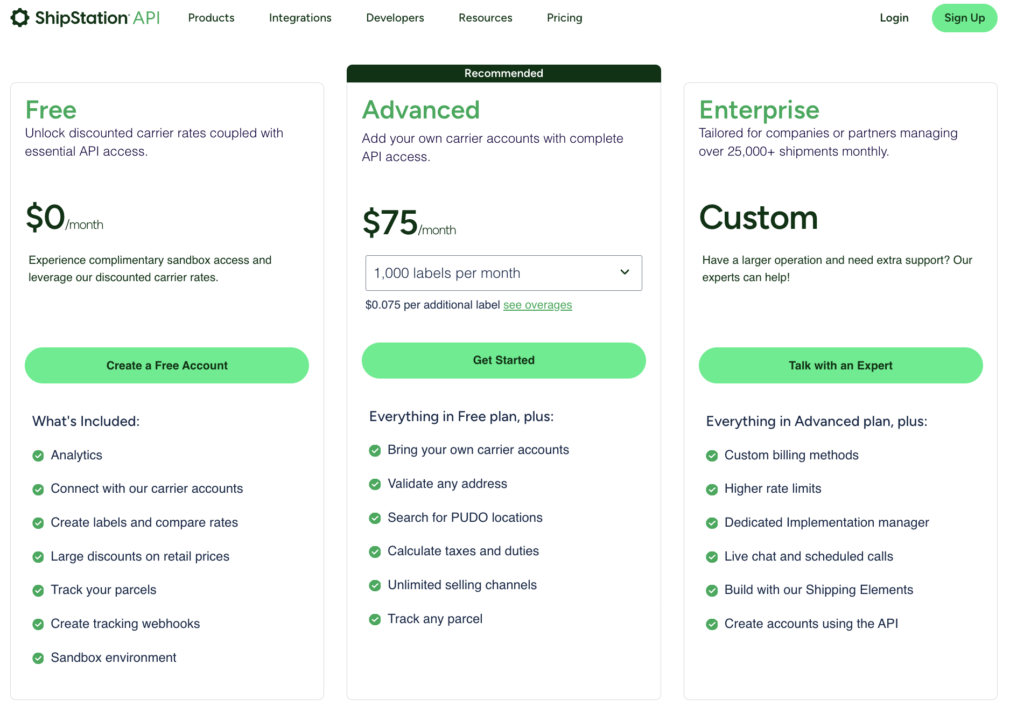
- A ShipEngine (now ShipStation API) account with an API key. Your old ShipEngine key still authenticates after the rebrand. Tiers and prices change, so check Auctane’s current ShipEngine pricing.
ShipEngine (ShipStation) plans as of July 2026
- The free ShipEngine shipping plugin from WordPress.org. PRO adds labels, tracking, box presets, and bulk fulfillment.
The setup, in six steps:
- Confirm you have the ShipEngine API (not the ShipStation app), and grab your API key.
- Install the free ShipEngine shipping plugin and confirm the CLI namespace with
wp help | grep shipping. - Discover the credential keys with
settings list, then set the key and origin. - Audit product weights and dimensions, add your boxes, and enable your services.
- Run
validateand a realrates quoteto confirm the API is reachable. - Attach the plugin to your shipping zones and turn on live rates.
Rather not run any of it yourself? Install the skill once and an assistant like Claude Code handles the whole sequence:
$ npx skills add https://github.com/1TeamSoftware/skills --skill 1teamsoftware-wc-shippingShipEngine vs ShipStation: which one do you have?
This trips up almost everyone, so it is worth a minute. Auctane sells two things that sound alike, and only one of them belongs at your checkout.
- ShipStation is the app: a hosted dashboard where you import orders from your sales channels, batch them, buy labels, and push tracking back. There is an official ShipStation integration for WooCommerce, and it does that job. It exports your orders into the dashboard after checkout. It does not quote a rate to your buyer.
- ShipEngine is the API behind that app: a developer-facing interface that returns rates, validates addresses, buys labels, and tracks shipments over HTTP. On 2025-02-28 Auctane renamed it ShipStation API. Same endpoints, same keys, same carriers. There has never been an official WooCommerce plugin for it, because an API is meant to be wired into something.
So if your goal is a real shipping price at the WooCommerce checkout, neither Auctane product gets you there alone. The ShipStation app imports orders too late, and the ShipEngine API has no front end. What you need is something WooCommerce-native that calls the ShipEngine API the moment a buyer enters an address. That is this plugin.
| Official ShipStation app integration | ShipEngine API (raw) | ShipEngine Shipping plugin (1TeamSoftware) | |
|---|---|---|---|
| Live rates at WooCommerce checkout | No | Not on its own | Yes |
| Buy and print labels in WooCommerce | Yes | Build it yourself | Yes (PRO) |
| Tracking back to the customer | Yes | Build it yourself | Yes (PRO) |
| Address validation at checkout | No | Build it yourself | Yes |
| Per-zone boxes, services, from-address | No | Build it yourself | Yes |
| Multivendor origin (Dokan, WCFM, WCMP) | No | Build it yourself | Yes |
| WP-CLI and AI agent setup | No | n/a | Yes |
| Time to live rates | n/a | Weeks of agency work | Hours |
One row in that table needs a plain-English note. Multivendor origin only matters if you run a marketplace where different sellers ship from their own addresses. Plugins like Dokan, WCFM, and WCMP turn one WooCommerce site into that kind of marketplace, and this plugin can quote each vendor’s parcel from their own location. Sell your own products out of a single warehouse? Ignore that row entirely.
For the full feature-by-feature breakdown, see the ShipEngine Shipping PRO product page.
Before you start
Live rates depend on two prerequisites, and both are external to WooCommerce: an authenticated ShipEngine account with an API key, and the free plugin that consumes it. Provision those two, and everything after is fast.
A ShipEngine account with an API key. The plugin pulls rates and buys labels through this API, so the account needs to be active and provisioned for the carriers you ship with. Carrier availability is set on Auctane’s side, not in the plugin. Your pre-rebrand ShipEngine API key still works, and nothing in your code or settings has to change because of the name swap. If you are choosing a tier, check Auctane’s current ShipEngine pricing.
The free plugin. Install the free ShipEngine shipping plugin from WordPress.org. It covers the API connection and live rates. Labels, tracking, box presets, and bulk fulfillment live in the PRO version of the plugin.
Set it up from the command line
If you already drive ShipEngine over HTTP, you will feel at home here: the plugin mirrors its entire setup into a WP-CLI namespace, so you script the configuration instead of clicking through admin screens. Every command maps to a setting or an API call you could otherwise make by hand. It is the pillar guide, configure WooCommerce shipping with AI and WP-CLI, applied to ShipEngine specifically.
The commands live under a per-plugin namespace, which is the plugin slug with -pro removed. For ShipEngine that is wc-shipengine-shipping, the same for both the free and PRO editions. Confirm it on your site before scripting:
$ wp help | grep shippingUse whatever namespace it prints back. Every example below uses wc-shipengine-shipping.
See where you stand
Start with these two. Neither mutates state; both are pure GET-style reads that echo back the current config and surface what is broken, leaving every setting untouched.
$ wp wc-shipengine-shipping status
$ wp wc-shipengine-shipping validate
validator              status  message
License Status         PASS    License is activated
Ship From              PASS    From Address configured
Product Dimensions     WARN    Only 27% of products have valid dimensions
Cart Rates             PASS    Rates working: 4/4 routes, 15 rate(s) total
Shipping Services      PASS    7 service(s) available
Shipping Zones         PASS    Using global shipping rates
Sandbox Mode           INFO    Sandbox mode is active
status prints a snapshot of your config: version, carrier, the sandbox and debug flags, whether live rates are on, the origin, and how many method instances exist. It carries no “is the API reachable” field, because only a rates quote proves connectivity. validate runs the configuration through each assertion and stamps the result with a status of PASS, FAIL, WARN, INFO, or PENDING. Treat its exit status the way you would any other API health probe: a single FAIL flips the process exit code to non-zero, which is precisely the signal a deploy pipeline reads to halt a release.
Discover the credential keys, then set them
ShipEngine’s credential keys differ from carrier to carrier across the line, so read the exact setting key names off your install rather than guessing them. List the settings first. Secrets come back as [REDACTED], so this is safe to run anywhere:
$ wp wc-shipengine-shipping settings listFind the credential key in the output, then set it along with your origin address. Replace <apiKeyName> with the exact key name settings list showed you:
$ wp wc-shipengine-shipping settings set <apiKeyName> "your_shipengine_api_key"
$ wp wc-shipengine-shipping settings set enableLiveShippingRates yes
$ wp wc-shipengine-shipping settings set origin '{"name":"My Store","address":"123 Main St","city":"San Francisco","state":"CA","postcode":"94105","country":"US"}'
One rule saves you a support ticket: never hard-code a credential key name for a carrier you have not inspected. Run settings list and read the real one. The origin object will not satisfy the API without an address, city, country, and postcode populated. For US and Canada destinations, include the state in that JSON as well; ShipEngine returns tighter rates when it has the subdivision to work with.
Audit your products
The ShipEngine API prices a parcel based on its weight and dimensions, so missing values are missing inputs. A product with no weight is dropped from the request payload, and an empty payload is one of the most common reasons the API returns an empty rate set:
$ wp wc-shipengine-shipping products audit --detailed --format=json --limit=0The per-product lists (missing_weight_products, missing_dimensions_products, suspicious_data_products) only show up with --format=json. In table mode, --detailed gives you the same summary as plain audit. Pass --limit=0 so a big catalog isn’t capped at 500. Virtual and downloadable products drop out automatically, and variations inherit weight and dimensions from the parent.
Find your services and enable them
List the carrier services your ShipEngine account exposes, then enable only the ones you actually ship with.
$ wp wc-shipengine-shipping services --format=json
$ wp wc-shipengine-shipping settings set services '{"usps_ground_advantage":{"enabled":true,"name":"USPS Ground Advantage"}}'
services lists the real service IDs your account exposes, each with its enabled status. Pull your service IDs from that response, not from features; the features command is a read-only capability inventory and is not what you write back. Always pass valid IDs from services into settings set services. Don’t invent IDs; they won’t match and the rate won’t appear. Because ShipEngine fronts many carriers under one key, the available IDs depend on which carriers your Auctane account has provisioned.
Quote a rate to prove it works
Run a real quote against your credentials. This is what confirms the ShipEngine API is reachable and handing back prices.
$ wp wc-shipengine-shipping rates quote --products="123" --destination="500 5th Ave, New York, NY 10001, US"rates quote spins up a temporary order, asks the ShipEngine API for a live rate quote, then deletes the order. The smallest --destination the API will accept is a ZIP or postcode paired with a country; feed it a complete street address, and the returned rates get more precise. A quote that returns rates is the only real proof the API is reachable, and there’s no separate test-connection command, by design. One gotcha when you script it: the command prints a human-readable log line before the JSON, so parse the array from the first [ to the matching ] instead of leaning on 2>/dev/null.
A note on --format while you’re here. status, validate, features, services, zones, and rates accept the full table|json|csv|yaml|count range. The products subcommands, boxes, track, and settings list stick to table|json, and anything outside that errors out instead of guessing what you meant.
For every command, flag, and output field, see the full WP-CLI command reference.
The developer-friendly path: hand it to an AI agent
If you came here from the API side, this part will feel natural. You already talk to ShipEngine in code; here you talk to the plugin in plain English. Install the skill once and an assistant like Claude Code drives every command above for you. It ships with playbooks for the jobs that actually come up, and it picks the right one for what you asked, so you describe the outcome instead of remembering which subcommand to run. There’s no hidden layer here. It runs the same CLI you would, and it stops to ask for your API key instead of making one up.
$ npx skills add https://github.com/1TeamSoftware/skills --skill 1teamsoftware-wc-shippingOnce it’s installed, just describe what you want with real constraints. These are the kinds of multi-step requests it’s built for:
- “Set up ShipEngine from scratch. Here is my API key. We ship from 215 Clayton St, San Francisco 94117. Before you turn on live rates, show me which credential field this carrier actually uses, audit my catalog for missing weight or dimensions, recommend a starter box set from what I actually sell, and prove rates come back with a real quote. Ask me one question at a time.”
- “We rate-shop USPS and UPS through ShipEngine. List the real service IDs my account exposes, enable only those two carriers’ ground and priority services, disable the rest, and show me the enabled list when you’re done.”
- “Customers in some regions say no shipping options appear. Make the plugin active for both my US domestic zone and Rest of World, then show me the zone coverage table so I can confirm it’s attached where it needs to be.”
- “Our shipping is undercharging. Survey live ShipEngine rates for my three best sellers to a few US zones, add a 15% markup plus a flat $2 handling fee, show me the before and after, and apply it only after I confirm.”
- “Add a post-deploy check that fails the build if our shipping config has any FAIL-level problems, and make sure stderr noise doesn’t corrupt the JSON the check parses.”

Show live ShipEngine rates at checkout
This is the glue the raw API never ships, so it is worth spelling out. Two switches arm it: live rates enabled, and the plugin attached as a shipping method on the zone. From there, the flow is a request-response loop on every address change. A buyer types a shipping destination, the plugin packs the products in the cart into your preconfigured shipping boxes, posts that parcel and destination to the ShipEngine API, and renders whatever carrier prices come back as checkout options, the very figures ShipEngine bills you when you later buy the shipping label. If you notice rates returned for some buyers but not others mean a shipping zone is missing the shipping method, and the shipping zones case below carries the command that repairs it.
A few settings tidy it up. Cap how many options appear so buyers aren’t staring at a dozen choices (maxShippingRates), rename services so they read clearly, and add a handling fee or percentage markup when the margins call for it. Rates render on both the classic checkout and the WooCommerce Blocks cart and checkout, and the whole thing is HPOS-aware. Run a marketplace like Dokan or WCFM? Rates can be calculated from each vendor’s origin.
Common situations you’ll encounter
The ShipEngine API is answering at checkout now. What follows are the field cases that surface once live traffic starts: missing payload data, oversized parcels, an unrouted zone, each with the call that fixes it.
Enable only the carriers you rate-shop
ShipEngine’s whole appeal is breadth: one API key, dozens of carriers. That is also the trap. Leave everything on, and your checkout turns into a wall of fifteen near-identical options, and conversion takes the hit. The fix is to find the real service IDs your account exposes and enable a tight set. You’d tell the agent something like “List the real service IDs ShipEngine exposes for my account, then enable only USPS Ground Advantage, USPS Priority, and UPS Ground, disable everything else including international, and show me the enabled list.”
$ wp wc-shipengine-shipping services --format=json
$ wp wc-shipengine-shipping settings set services '{"usps_ground_advantage":{"enabled":true,"name":"USPS Ground Advantage"},"usps_priority":{"enabled":true,"name":"USPS Priority"},"ups_ground":{"enabled":true,"name":"UPS Ground"}}'
$ wp wc-shipengine-shipping services
It reads the live IDs from services first, because the exact strings depend on which carriers Auctane has provisioned for you, and the international IDs differ from the domestic ones (usps_priority_international is not usps_priority). It writes a keyed object, not an array, then re-runs services to confirm the enabled flags. Ship cross-border and you enable both the domestic and international IDs. What lands at checkout is only the services you chose, a list short enough to convert.
Quick video on how to customize the shipping services.
Fix products missing weight or dimensions
The situation: a product catalogue that grew over the years, and rates quietly disappear because some products are missing weight information. Send the ShipEngine API a weightless parcel, and it returns back nothing, so the buyer sees no shipping option and leaves.
What you type: “Audit every physical product for missing weight and dimensions, give me the completeness percentage and the full list of what’s incomplete (don’t cap it, I have a big catalog), then research real specs from manufacturer sources, apply only high-confidence values to the parent and every variation in my store’s units, and list the rest for me to confirm by hand. Never make up a number.”
What runs:
$ wp wc-shipengine-shipping products audit --detailed --format=json --limit=0The agent reads the missing_weight_products, missing_dimensions_products, and suspicious_data_products arrays, looks up the real specs, converts them into your woocommerce_weight_unit and dimension_unit, then writes them with wp wc product update across the parent and every variation. Only high-confidence numbers get applied. The low-confidence and not-found ones come back to you for sign-off. A value lands in the suspicious bucket once a weight climbs past about 70 lb (32 kg) or a single dimension runs beyond about 72 in (183 cm). It won’t fabricate a spec it can’t source, which is the whole point.
The result: completeness climbs, rates stop disappearing, and you’re left with a short list of genuine unknowns instead of a catalogue-wide guessing game.
Recommend a box set from what you actually ship
The situation: shipping rates look high because parcels are quoted in oversized boxes that nobody matched to the real product catalogue. A small item priced as if it ships in a large box shows the buyer an inflated number, and that number is often the difference between a completed order and a closed tab.
What you type: “Analyze my last six months of orders and my catalog, recommend a box set that covers about 90% of what I ship, prefer USPS flat-rate boxes where they’d be cheaper for heavy items, show me the coverage table before applying anything, and keep my existing custom boxes.”
What runs:
$ wp wc-shipengine-shipping products stats --format=json
$ wp wc-shipengine-shipping products orders --since=2025-12-01 --format=json
$ wp wc-shipengine-shipping boxes presets --carrier=USPS --format=json
$ wp wc-shipengine-shipping products fit-box --length=12 --width=8 --height=6
products stats and products orders describe the real product shapes and the carts they ship in. products fit-box takes box dimensions (all three required) and reports coverage plus a sample of products that won’t fit; it rotates parcels for you. Here’s the catch: boxes presets output can’t be pasted into the boxes setting as-is. The agent reshapes each field first (rename name to boxName, add an enabled flag, drop carrier and maxweight), shows you a coverage table, and only then writes the merged set with settings set boxes. boxes itself is a PRO command; on a free install, you write the boxes setting straight through the free settings set boxes.
The result: a box set sized to your actual catalogue and order patterns, with coverage you can eyeball before you commit.
The “no rates at checkout” fix: shipping zones
The situation: rates work for some customers and not others. When the API itself is answering but the checkout still goes empty, the routing layer is almost always the culprit, not the credential. The shipping plugin only returns rates on the zones where it’s added the ShipEngine Shipping as a shipping method, so any zone it’s missing from shows the buyer nothing.
What you type: “rates quote works from the CLI but checkout shows nothing for some customers. Figure out which zone those addresses fall into, check whether the plugin is actually attached, and add it where it’s missing.”
What runs:
$ wp wc-shipengine-shipping zones
$ wp wc shipping_zone_method create --zone_id=2 --method_id=wc-shipengine-shipping --user=1
zones lists each zone alongside its plugin_active, instance_id, and method_id. Wherever plugin_active: no shows up, that’s a zone missing the method. The flag only bites under zone-based routing, where an unattached zone returns nothing for addresses that land in it; run global rates instead and the per-zone attachment is moot. Once the method is attached, you can layer per-zone overrides through --instance, for example a different box or service mix for international versus domestic, while your global defaults stay untouched. Every wp wc command needs --user=1.
The result: the plugin is attached to the zones that need it, and checkout returns rates.
A CI gate for agency and multi-store work
This one is for the developer audience ShipEngine attracts. If you provision stores from a pipeline, you want a broken shipping config to fail the build, not surface as a support ticket after launch. Ask the agent for “a post-deploy gate that fails the build if our shipping config has any FAIL-level problems (WARN is fine), and make sure stderr noise doesn’t corrupt the JSON the check parses” and you get a one-liner you can drop into any deploy script:
$ wp wc-shipengine-shipping validate --format=json 2>/dev/null \
  | jq -e 'all(.[]; .status != "FAIL")' >/dev/null \
  || { echo "Shipping config has failures"; wp wc-shipengine-shipping validate; exit 1; }
Because validate exits non-zero on any FAIL, it slots straight in. WARN doesn’t fail the build, only FAIL does. Pair it with scripted provisioning that sets the key, origin, and box set from a standard config file, and every store comes up identically. For locked-down managed-hosting fleets, the same values can be pre-seeded through wp-config.php constants so on-site admins never touch the credentials. The payoff: a misconfigured store blocks its own release instead of reaching customers.
Print labels and track shipments (PRO)
Once a plugin’s license is active, the same CLI buys labels, merges them into print-ready PDFs, and pulls tracking. Daily fulfillment runs as one batch:
$ wp wc-shipengine-shipping labels purchase --orders=1240,1241,1242
$ wp wc-shipengine-shipping labels pdf --orders=1240,1241,1242 --output=/var/labels/2026-06-11.pdf
$ wp wc-shipengine-shipping track <shipment-id> --order=1240 --format=json
labels purchase creates the shipment if it’s missing and logs how many labels it bought (Order 1240: N label(s) purchased). It does not print the tracking number. Pull that from track or shipments get. labels pdf takes a mandatory --output path and refuses to overwrite, so it throws when that file is already there; key the filename on the date to sidestep the collision. track wants both the positional shipment ID and --order.
For hands-off fulfillment, wrap the first two in a nightly cron that collects the day’s processing orders, buys their labels in one batch, and merges them into a dated PDF for the morning print run. The PRO plugin also carries built-in automation settings for auto-updating tracking and pushing carrier orders, configurable through wp-config.php (see the automation reference). Labels, returns, tracking, box presets, and bulk fulfillment all live in ShipEngine Shipping PRO if you want the whole pipeline inside WooCommerce.
Works the same across every carrier
ShipEngine is one of eight carrier plugins on the same engine. The commands are identical everywhere. The only things that change are the namespace and a few setting keys.
| Plugin | Carrier | CLI namespace |
|---|---|---|
| Shippo | Shippo (100+ carriers) | wc-shippo-shipping |
| EasyPost | EasyPost (100+ carriers) | wc-easypost-shipping |
| FedEx | FedEx | wc-fedex-shipping |
| ShipStation | ShipStation | wc-shipstation-shipping-v2 |
| ShipEngine | ShipEngine | wc-shipengine-shipping |
| Shipmondo | Shipmondo | wc-shipmondo-shipping |
| ChitChats | Chit Chats | wc-chitchats-shipping |
| Stallion Express | Stallion Express | wc-stallionexpress-shipping |
A note for anyone weighing ShipEngine against ShipStation. They run on the same engine, so the real choice is API versus app. Take the ShipEngine API plugin if you want a Woo-native integration on your existing developer key. Pair it with the ShipStation v2 plugin only if you also run multi-channel fulfillment in the ShipStation dashboard. The current ShipStation plugin uses the carrier’s API v2, so its namespace is wc-shipstation-shipping-v2; confirm any namespace with wp help | grep shipping. Carrier pricing is never hard-coded in these plugins, which is why a live rates quote is always the source of truth. If you’re still choosing an aggregator, see ShipStation vs Shippo vs EasyPost.
Security
Nothing exotic here, just a few habits that keep a live key from leaking:
- Share your API key with an agent only when you genuinely need to, and rotate it afterward if you want to be careful. The agent asks for keys; it never invents them.
- Keep the credential in a
wp-config.phpconstant rather than the database. Those constants take precedence over the DB, are never written back to it, and can hide the credential field from the admin UI, which is how agencies lock down managed-hosting fleets. - Secrets are redacted in output by default.
settings listshows them as[REDACTED], andsettings getkeeps them masked unless you add--raw. - Switch
debugback off once you’ve finished diagnosing. Debug mode writes raw API requests and responses to the log, the last thing you want lingering in production.
Frequently asked questions
ShipStation is Auctane’s hosted app for importing orders and printing labels. ShipEngine is the API behind it, renamed ShipStation API on 2025-02-28. The official ShipStation app integration for WooCommerce imports orders after checkout but does not quote a rate to your buyer. The ShipEngine API can quote rates, but only if something calls it; on its own it puts no price at your checkout. A WooCommerce-native plugin that calls the ShipEngine API does.
No. Auctane does not publish a first-party ShipEngine (or ShipStation API) plugin for WooCommerce. The ShipEngine API is meant to be integrated into your stack. Your options are to build that integration yourself or install a Woo-native plugin like ShipEngine Shipping PRO that already does it.
Yes. The 2025-02-28 rebrand changed the name, not the endpoints or the credentials. Your pre-rebrand ShipEngine key continues to authenticate, and nothing in the plugin settings has to change because of it.
Yes. The plugin requests live rates from the ShipEngine (now ShipStation API) API and displays them as WooCommerce shipping methods at cart and checkout, scoped to the buyer’s destination, weight, and your packing rules. That is the job the raw API and the official ShipStation app both leave undone on WooCommerce.
Yes. The plugin exposes its full setup under the wc-shipengine-shipping WP-CLI namespace, including status, settings list, settings set, products audit, services, validate, and rates quote, plus boxes, labels, shipments, and track in PRO. Confirm the namespace with wp help | grep shipping. A successful rates quote confirms the API is reachable.
Yes. Install the 1teamsoftware-wc-shipping skill with npx skills add https://github.com/1TeamSoftware/skills --skill 1teamsoftware-wc-shipping, point an assistant like Claude Code at your site, and say “set up ShipEngine shipping for my store.” It runs the documented WP-CLI commands and pauses to ask for the API key when needed. The skill is the same CLI a human would use, with no hidden layer.
Run wp help | grep shipping to confirm the namespace (wc-shipengine-shipping), then wp wc-shipengine-shipping settings list to see the exact setting keys with secrets redacted. Discover the credential key from that output rather than assuming a name. Use services for valid service IDs and boxes presets for carrier box dimensions.
Usually a zone or product-data problem, not the key. The plugin only returns rates on zones where it is active (zones), and products with no weight silently drop their rate (products audit). Because ShipEngine fronts many carriers, a specific origin-to-destination route may also simply not be served by the carriers in your account; if a complete product on a covered route returns nothing, try another destination.
They run on the same engine, so it comes down to which Auctane product you use. Use the ShipEngine plugin if you have the API key and want live rates on WooCommerce. Add the ShipStation v2 plugin only if you also run order fulfillment in the ShipStation app. Compare the wider options in ShipStation vs Shippo vs EasyPost.
Get live ShipEngine rates on your store
The ShipEngine API already returns rates. It just has nowhere to show them on WooCommerce, and this plugin gives it the front end. Install the free ShipEngine shipping plugin from WordPress.org, set your existing API key, and quote a real rate to confirm it works. When you’re ready for labels, tracking, multi-box packing, and bulk fulfillment inside WooCommerce, that’s all in ShipEngine Shipping PRO.
$ npx skills add https://github.com/1TeamSoftware/skills --skill 1teamsoftware-wc-shipping1TeamSoftware builds and maintains the ShipEngine shipping plugin for WooCommerce and eight other carrier plugins, used by thousands of stores.