
How to Undo a Change the AI Made in Your Store
2 min read
You will have: A change the AI made put back the way it was.
Time: About 2 minutes
You need: AI Gateway PRO with an active license, and your role turned on under Access & Roles with Write on for what the AI changed. Not set up yet? Follow How to Activate Your AI Gateway PRO License and How to Turn On Your Role and Choose What the AI Can See.
Step 1: Open the Audit Log #
Go to 1TeamSoftware → AI Gateway → Audit Log.
Step 2: Find the change #
Scroll the table to the right. Find the change in the Operation column (for example products #10).
Step 3: Click Undo #
Click Undo on that row. There is no confirm box. The change is put back the moment you click.
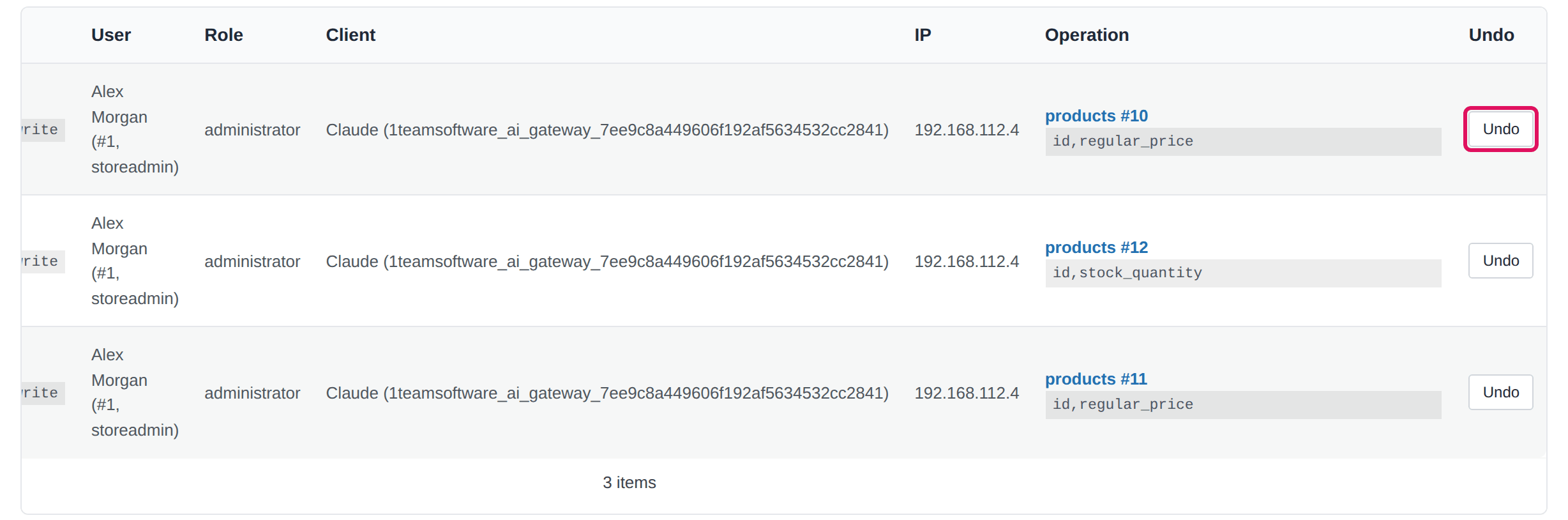
The page reloads and the table is back at its left edge. Scroll right again to see the Undo column.
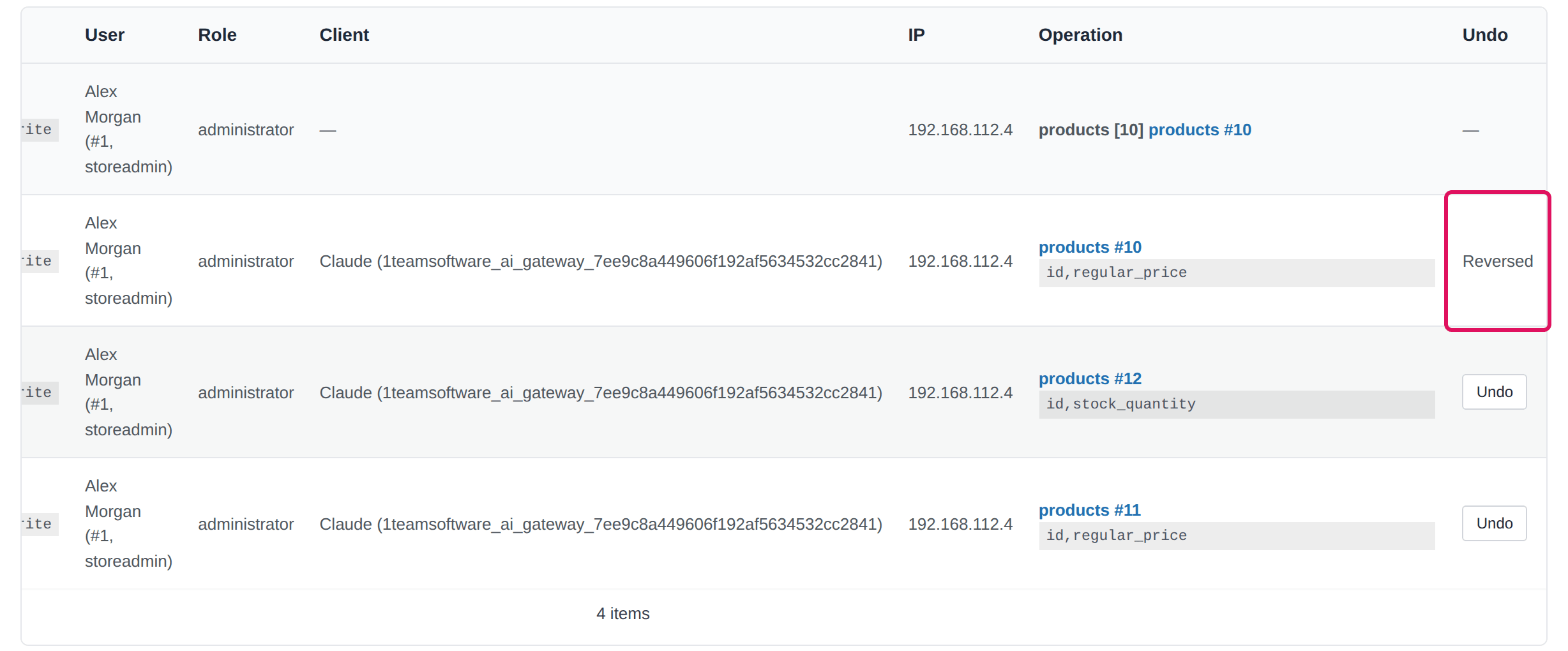
You should now see Reversed on that row, and a new row at the top for your undo. Open the item (for example the product) to check it is back the way it was.
Please note: Rows that cannot be undone have no Undo button in the Audit Log. They show a dash (—) or a short reason instead.
If it did not work #
- “The change could not be reversed”: the item may have been deleted since. Fix it by hand.
- “This kind of change can no longer be reversed on this site”: that type of change cannot be undone here. Fix it by hand.
- There is no Undo column: Undo is part of PRO. Check your license is active.
Questions people ask #
Can the AI undo a change for me? #
Yes. You can ask the AI itself to undo a change.
Next step #
How to See What the AI Changed in Your Store
Get AI Gateway PRO: this guide uses a PRO feature. Plans and prices are on the AI Gateway PRO product page.


