
How to Fix Common Problems With AI Gateway
5 min read
- Step 1: Check the Status list
- Common problems
- "MCP access not granted" when you click Authorize
- The AI app connects but shows no tools
- New tools do not show up in the AI app
- The AI says it cannot do something
- The AI app still works after you clicked Revoke
- Undo says the change cannot be reversed (PRO)
- "The link you followed has expired" when you upload the plugin
- Rare problems we know about
- If it did not work
- Next step
You will have: Your AI app working with your store again.
Time: About 5 minutes for most problems
You need: A WordPress admin login. Not set up yet? Follow How to Install and Activate AI Gateway.
Start with Step 1. If everything there is green, look for your problem in the list below it.
Step 1: Check the Status list #
Go to 1TeamSoftware → AI Gateway → Connection and scroll down to Status.
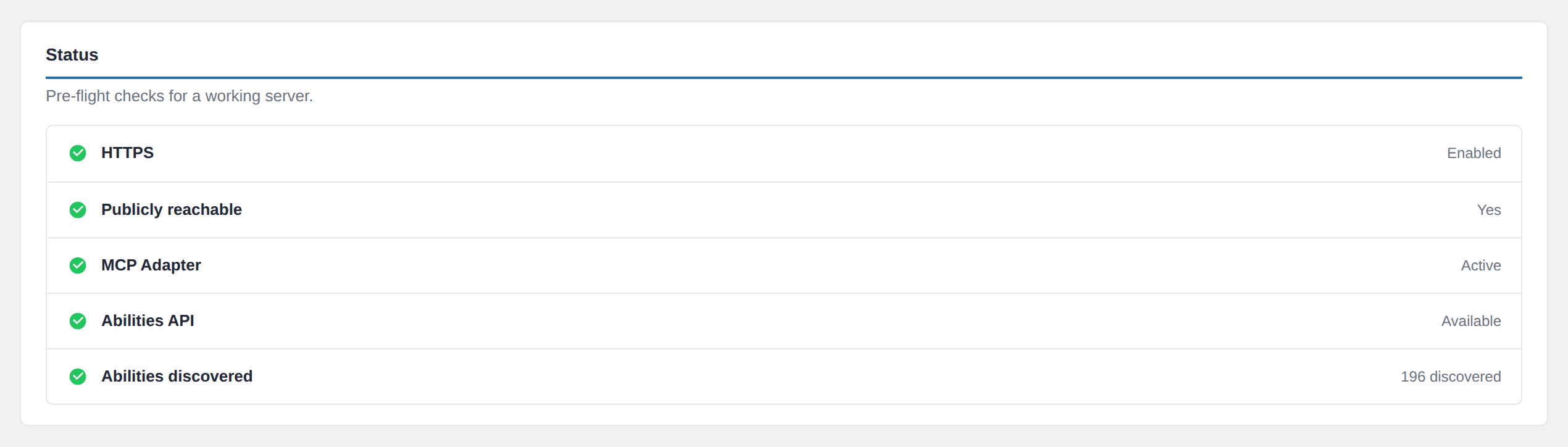
You should see a green tick next to every line. A line without a green tick is the first thing to fix:
- HTTPS: your store needs a secure address (one that starts with https://). Ask your web host to turn it on.
- Publicly reachable: Claude and ChatGPT connect from the internet, so they cannot reach a store that is only on your computer or behind a company firewall. On the Connection tab, open your app’s guide and follow its tunnel steps (Cloudflare Tunnel for Claude, Secure MCP Tunnel for ChatGPT). Cursor, Claude Code and Gemini CLI run on your computer and need no tunnel.
- MCP Adapter: AI Gateway needs this free helper plugin. Click the button on that line to install or turn it on.
- Abilities API: update WordPress to the latest version, or contact support.
- Abilities discovered: how many things AI Gateway can offer the AI. If it says 0 discovered, switch on at least one integration on the Integrations tab. How to Choose Which Parts of Your Store the AI Can Use
Common problems #
“MCP access not granted” when you click Authorize #
Your role (a WordPress user type, like Administrator or Shop Manager) is not allowed to connect AI apps yet. Go to AI Gateway → Access & Roles, turn on your role, click Save Changes, and try again.
The AI app connects but shows no tools #
Your role has nothing turned on yet. AI Gateway starts with everything switched off. Go to AI Gateway → Permissions, turn on at least Read for something, click Save access policy, then disconnect and reconnect the app. To reconnect, click Revoke for the app on the OAuth Clients tab ( How to Disconnect an AI App From Your Store), then connect it again ( Connect your AI app). How to Turn On Your Role and Choose What the AI Can See
New tools do not show up in the AI app #
The AI app only sees new tools after it reconnects. After you change Integrations or Permissions, disconnect the app and connect it again. To reconnect, click Revoke for the app on the OAuth Clients tab ( How to Disconnect an AI App From Your Store), then connect it again ( Connect your AI app).
The AI says it cannot do something #
The AI can only do what your role allows. To let it change things, the Write switch must be on for that row on the Permissions tab. Also check the Integrations tab: if the part of your store is switched off there, the AI cannot see it at all. How to Choose Which Parts of Your Store the AI Can Use
The AI app still works after you clicked Revoke #
Reload the OAuth Clients page and check that Tokens says 0. If it does not, click Revoke again. How to Disconnect an AI App From Your Store
Undo says the change cannot be reversed (PRO) #
Some changes can never be undone, for example: new items the AI created, anything that moved money or sent an email, changes to many products at once, permanent deletes, orders, refunds, customers, users, categories and tags, shipping, settings and plugins. Rows that cannot be undone have no Undo button in the Audit Log. Fix these by hand. The Audit Log shows what changed. How to See What the AI Changed in Your Store
“The link you followed has expired” when you upload the plugin #
Your web host limits how big an upload can be. Ask your host to raise the upload limit, then try again.
Rare problems we know about #
We know these can happen, but no customer has reported one yet. If you run into one, tell us and we will fix it.
Your settings do not stay after you save #
You click save and see a success message, but your change is gone. On the Permissions tab, the AI may even lose access it had before.
This happens on some hosts that stop PHP (the language WordPress runs on) from using the temporary folder, usually called /tmp. Send this message to your web host: “Please allow PHP to use the /tmp folder in open_basedir.” Then save your settings again.
No AI app can connect after a plugin update #
Every app fails to sign in after you update AI Gateway. This can happen if the update could not change your store’s database, for example because the database was full or not allowed to change.
Send this message to your web host: “Please check the database has free space and the right permissions, then delete the WordPress option named 1teamsoftware_ai_gateway_schema_version.” The update runs again the next time a page loads. Not comfortable doing this? Contact our support and we will help.
Turning on the plugin from the command line fails #
This only affects people who turn on plugins with WP-CLI (a command-line tool some hosts and developers use), version 2.8.1 or older. The plugin stays off and you see an error that starts with “TypeError”.
Turn on the plugin from Plugins in your WordPress admin instead. Or send this message to your web host: “I get a TypeError when I activate a plugin with WP-CLI 2.8.1 or older. Please update WP-CLI.”
If it did not work #
- Your problem is not listed here: contact our support and tell us what you clicked and what you saw. A screenshot helps.
Next step #
Connect your AI app: pick the guide for Claude, ChatGPT, Cursor, Claude Code or Gemini
Get AI Gateway: the free version is on the AI Gateway product page. Choose Free Version under License Type.


