
How to Activate Your AI Gateway PRO License
2 min read
You will have: AI Gateway PRO switched on, so you can undo AI changes and use the PRO reports.
Time: About 5 minutes
You need: AI Gateway installed, the AI Gateway PRO zip file, and your license key. Not set up yet? Follow How to Install and Activate AI Gateway.
Step 1: Open Add Plugin #
Go to Plugins → Add Plugin.
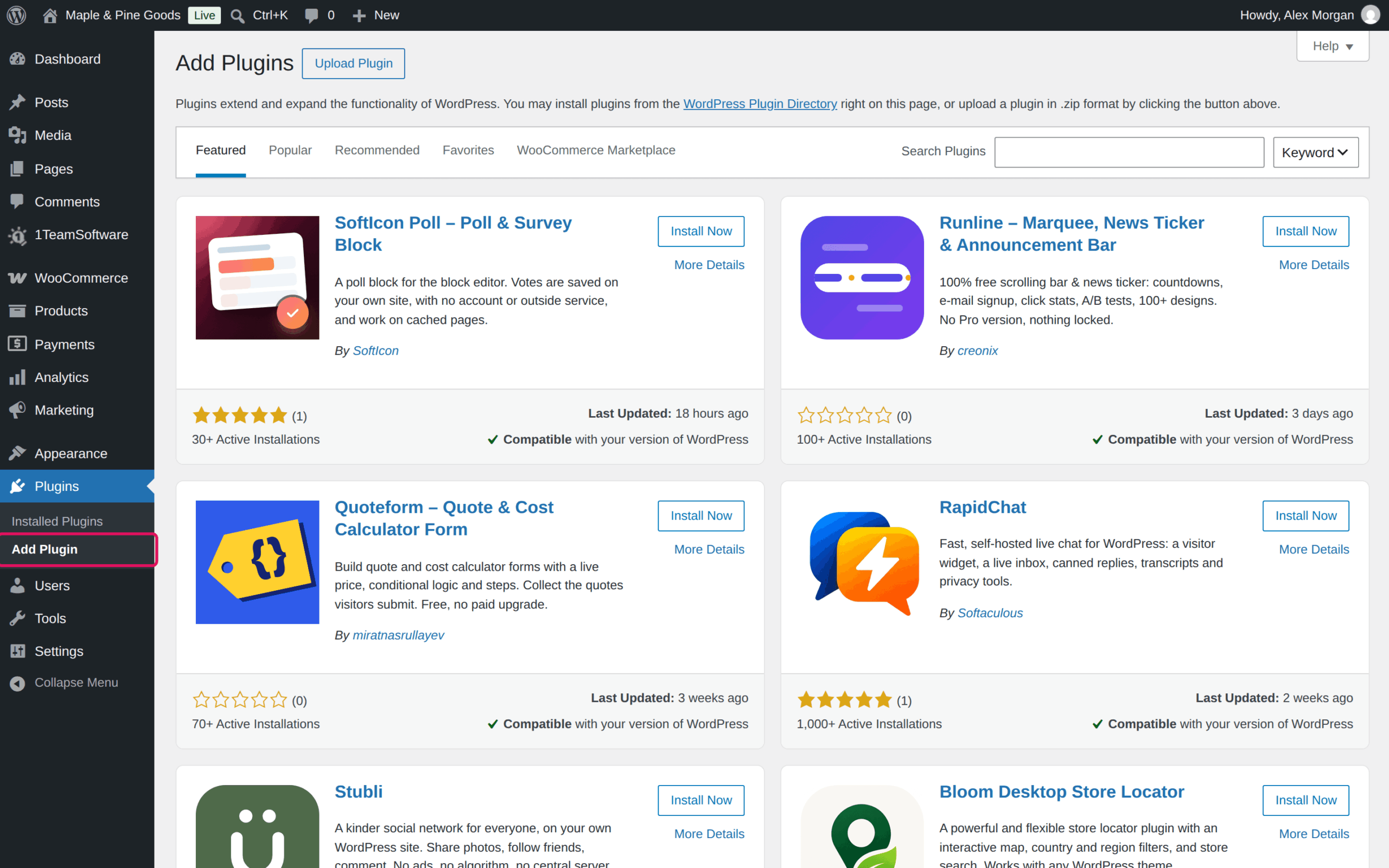
The Add Plugins page opens.
Step 2: Click Upload Plugin #
Click Upload Plugin at the top of the page.
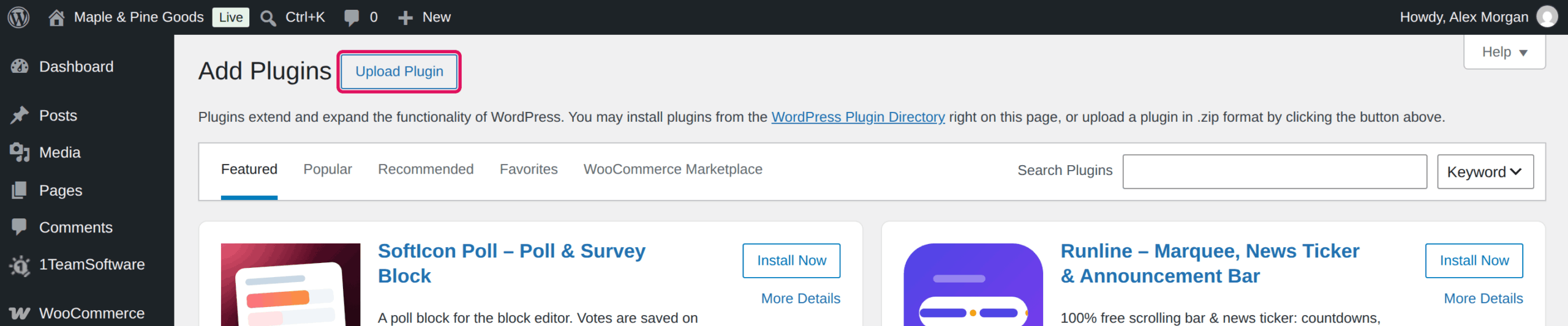
A box with a Choose File button appears.
Step 3: Choose the PRO zip file and click Install Now #
Please note: Do not unzip the file first. Upload the .zip file exactly as you downloaded it.
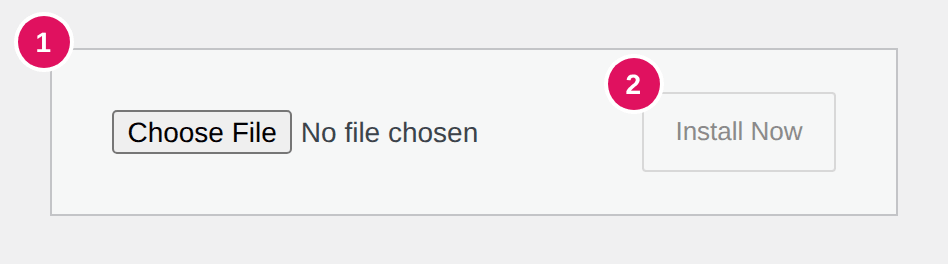
Click Choose File (1) and pick the AI Gateway PRO zip file. Then click Install Now (2).
You should now see Plugin installed successfully and an Activate Plugin button.
Step 4: Click Activate Plugin #
Click Activate Plugin.
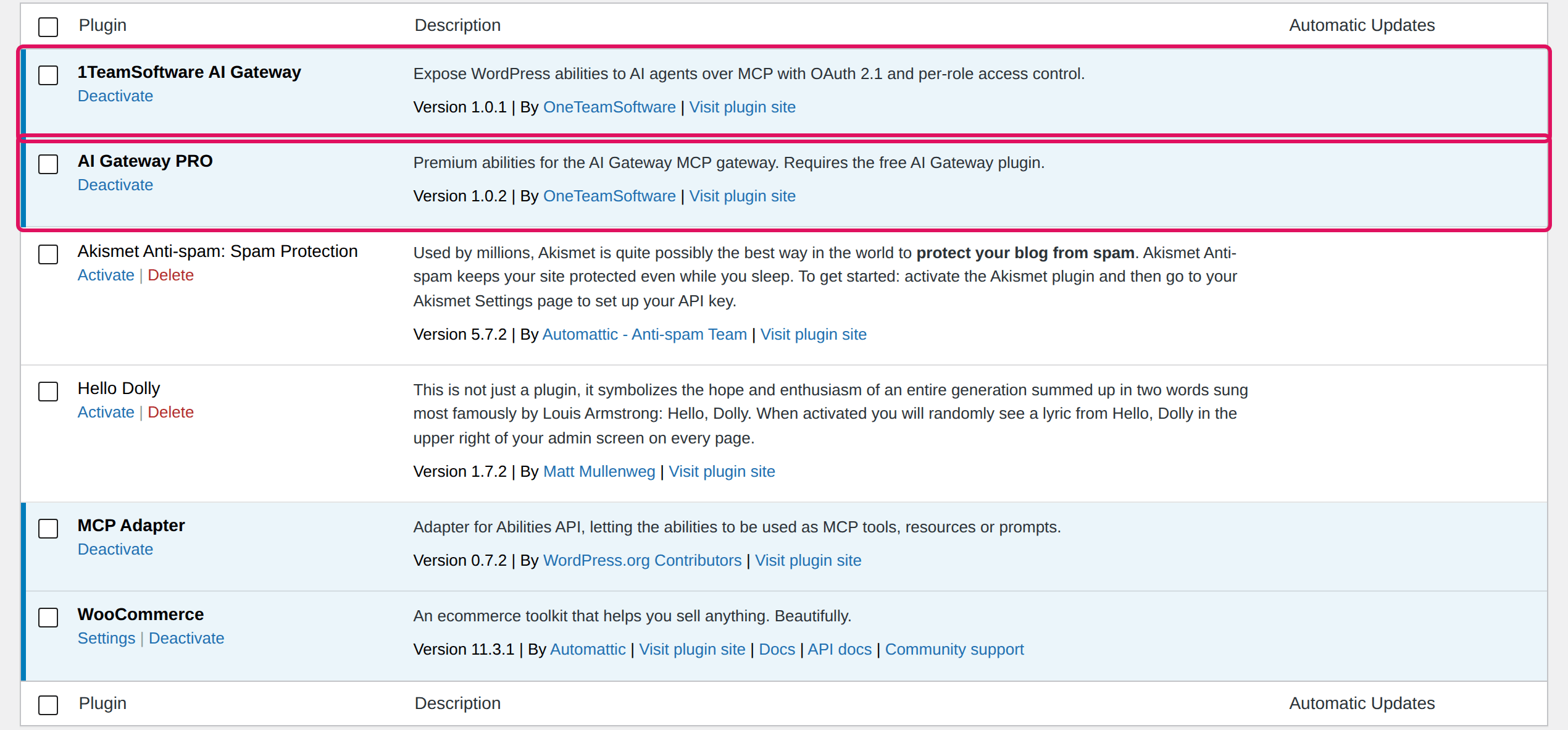
AI Gateway PRO shows up in your plugin list, marked active.
Step 5: Paste your license key #
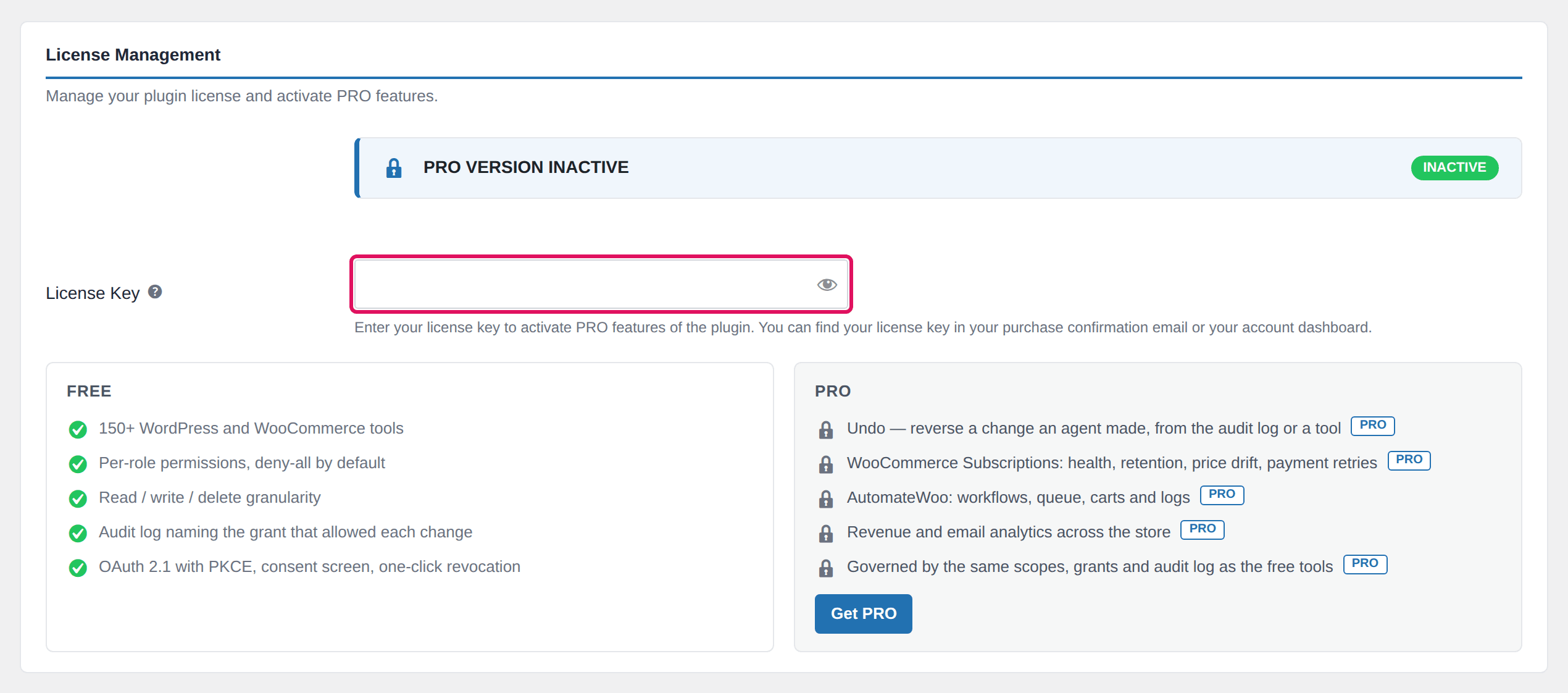
Go to 1TeamSoftware → AI Gateway → License. Paste your key into the License Key box. You will find your key in your purchase confirmation email and in your account dashboard.
Step 6: Click Activate License #
Click Activate License.
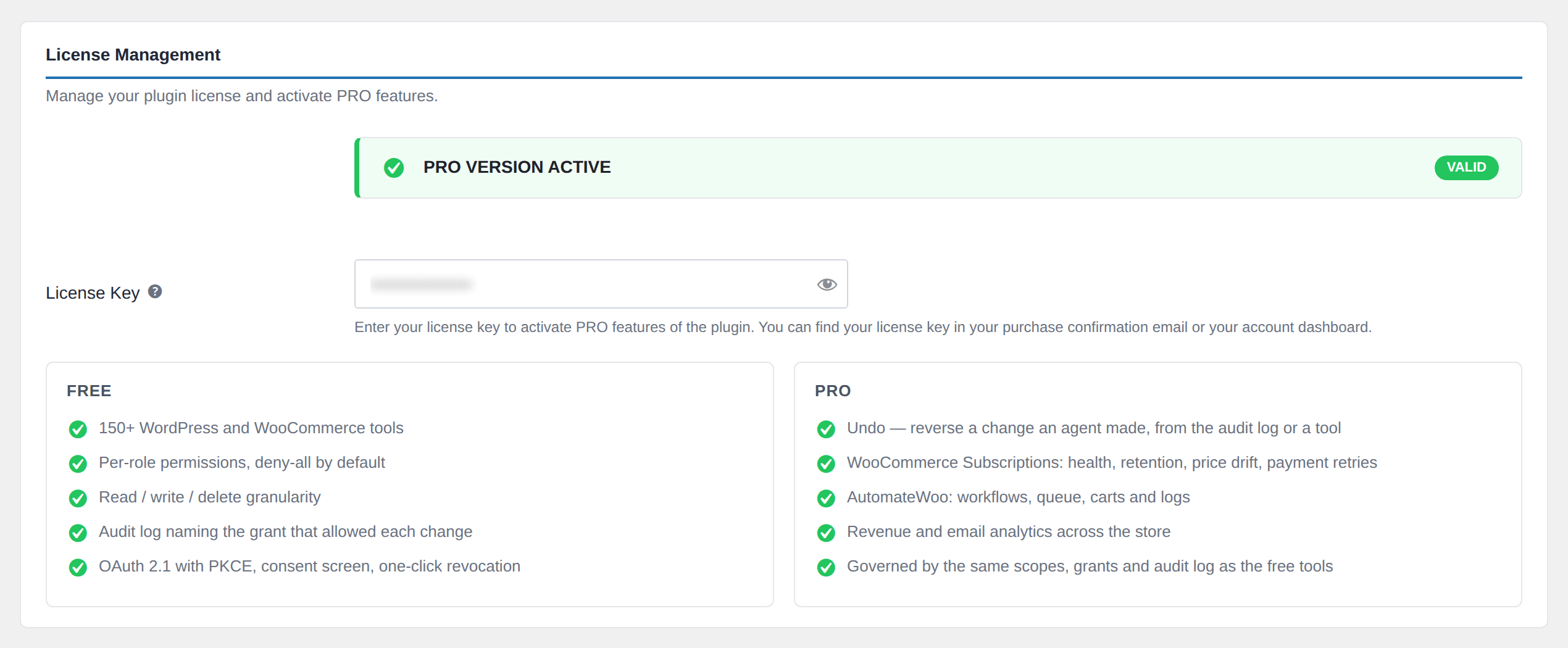
You should now see PRO VERSION ACTIVE with a green VALID badge.
Please note: The PRO box lists what you get: Undo, WooCommerce Subscriptions and AutomateWoo reports, and revenue and email analytics.
If it did not work #
- You do not see VALID: check the key has no extra spaces, then click the button again. After the first try it is called Update License Key.
- You cannot find your key: look in your purchase confirmation email or your account dashboard.
Next step #
How to Undo a Change the AI Made
PRO also lets the AI change many products at once. How to Ask the AI to Change Many Products at Once
Get AI Gateway PRO: this guide uses a PRO feature. Plans and prices are on the AI Gateway PRO product page.


