
How to Ask the AI to Change Many Products at Once
3 min read
- Step 1: Turn on your role
- Step 2: Click Save Changes
- Step 3: Pick your role
- Step 4: Turn on Read and Write for products
- Step 5: Click Save access policy
- Step 6: Ask the AI for a preview first
- Step 7: Tell the AI to go ahead
- Step 8: Check the change in the Audit Log
- If it did not work
- Questions people ask
- Next step
You will have: Prices, stock, status or categories changed on many products with one request to your AI app, and a record of what changed.
Time: About 10 minutes
You need: An AI app connected to your store and AI Gateway PRO with an active license. Not set up yet? Follow Connect your AI app and How to Activate Your AI Gateway PRO License.
PRO lets the AI change a whole group of products with one request. It can change prices (to a new price, or up or down by a percentage), stock, status (published, draft or private) and categories. You pick the products by category, by tag, or by listing the exact products.
Step 1: Turn on your role #
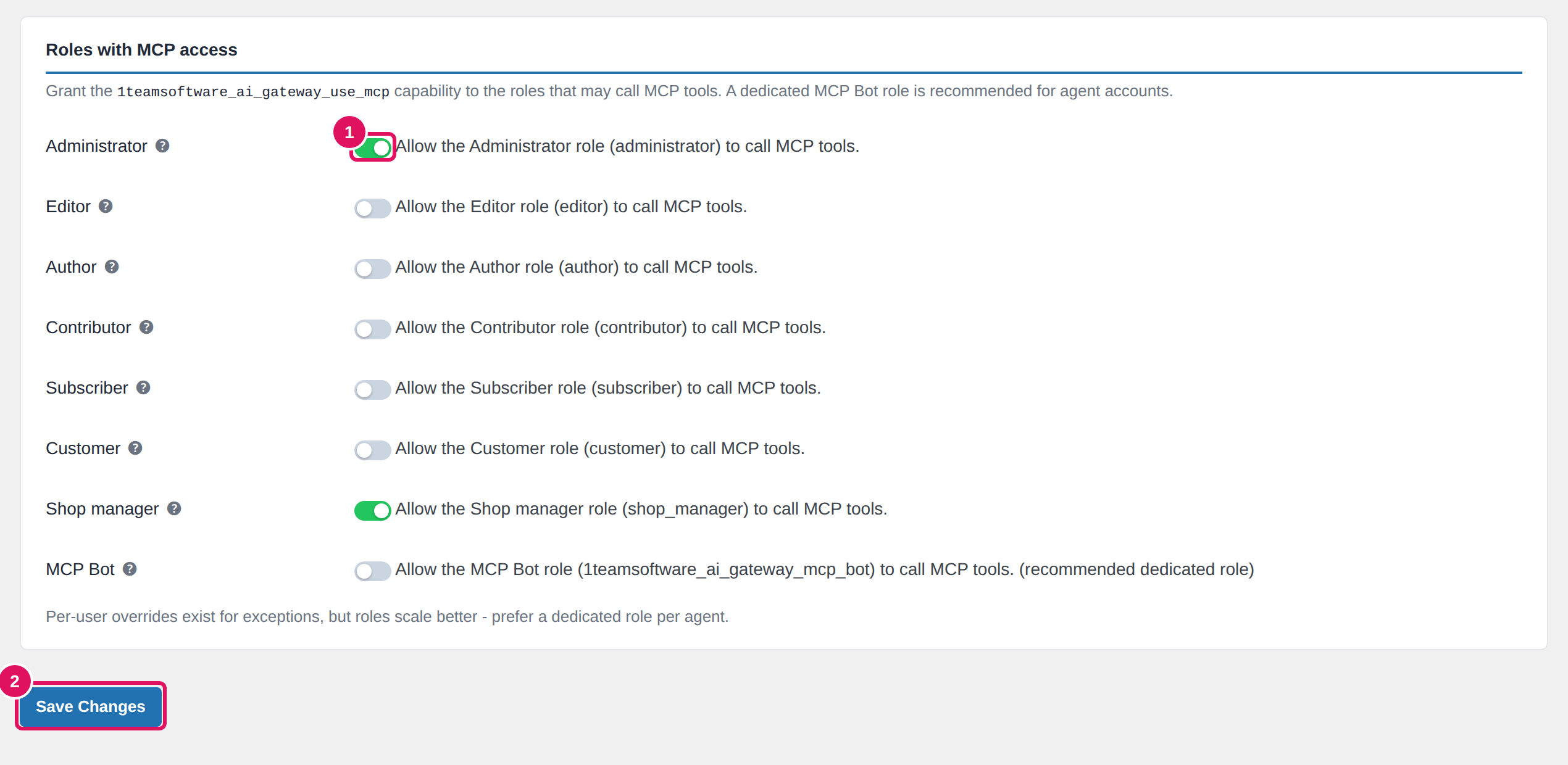
Go to 1TeamSoftware → AI Gateway → Access & Roles. Turn on the switch for your role (1), for example Administrator.
Step 2: Click Save Changes #
Click Save Changes (2).
The switch for your role stays on after the page reloads.
Step 3: Pick your role #
Go to 1TeamSoftware → AI Gateway → Permissions. At the top, click your role, for example Administrator.

Step 4: Turn on Read and Write for products #
On the products row, turn on Read and Write.
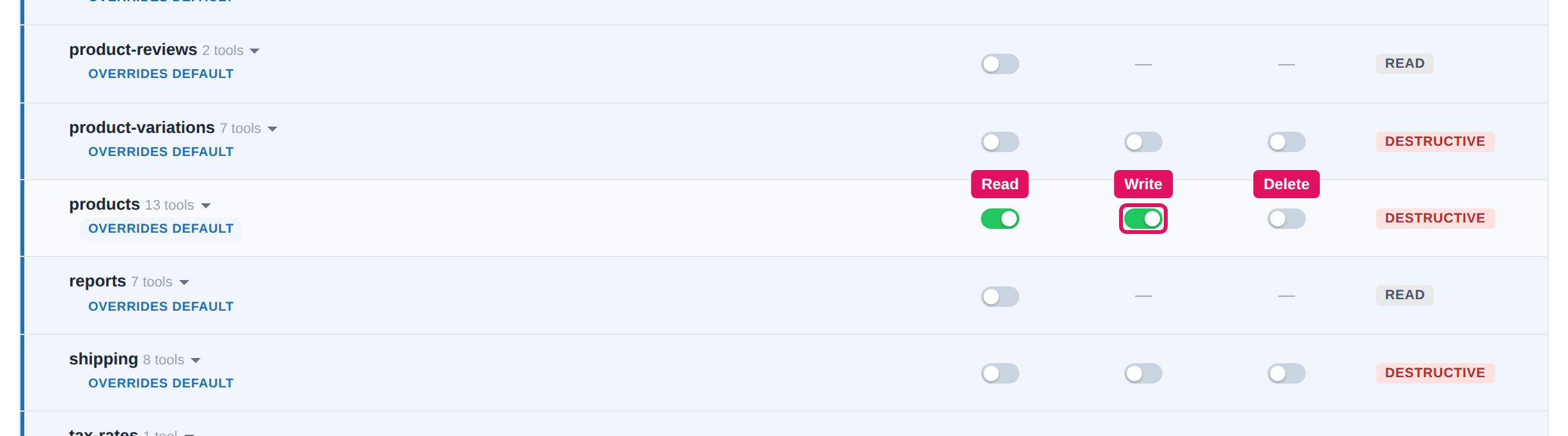
Please note: Write lets the AI change products. You do not need Delete for this.
Step 5: Click Save access policy #
Click Save access policy at the bottom of the page.

A Saved message appears at the top of the page.
Step 6: Ask the AI for a preview first #
In your AI app, describe the change and ask how many products it would touch. For example:
Lower the regular price of every product in the Mugs category by 10%. First tell me how many products this would change. Do not change anything yet.
The AI answers with a number of products. No prices have changed yet. AI Gateway always does a dry run first (a test that changes nothing) unless the AI is told to go ahead.
Step 7: Tell the AI to go ahead #
If the number looks right, reply:
That looks right. Go ahead and make the change.
The AI reports back with how many products it changed, skipped or could not change.
Step 8: Check the change in the Audit Log #
Go to 1TeamSoftware → AI Gateway → Audit Log.
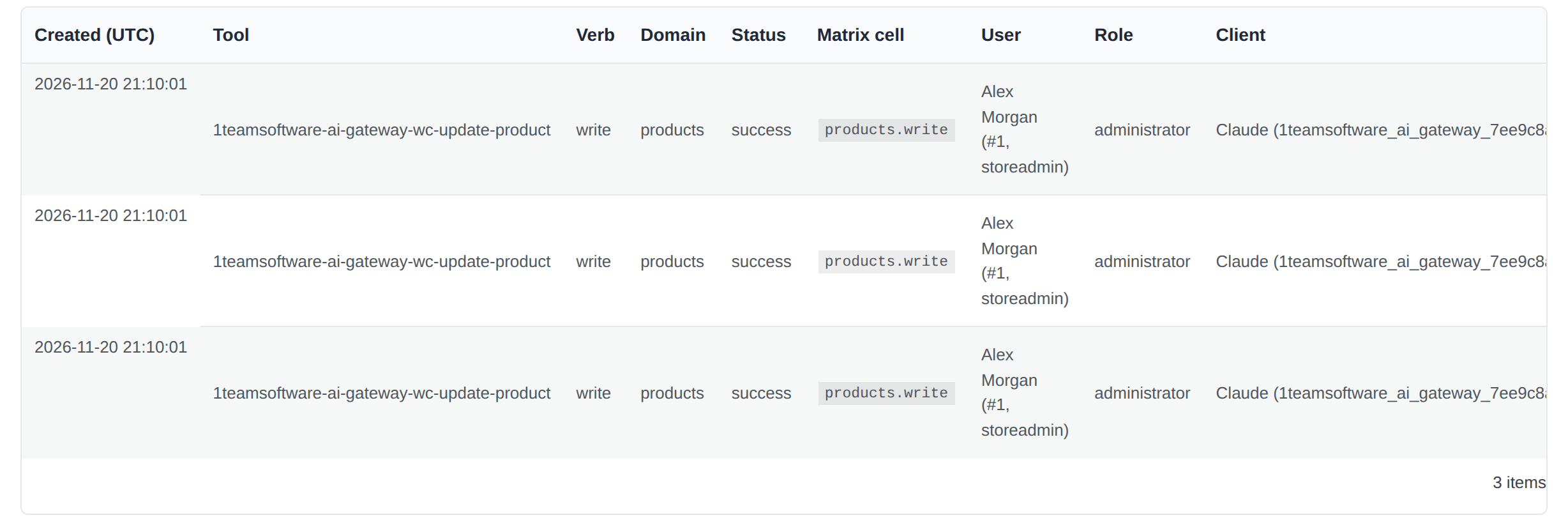
Your change is the new row at the top, with Claude (or your AI app) in the Client column. Open one or two of the products in Products to check the new price.
Please note: A change to many products at once cannot be undone with the Undo button. That is why the preview in Step 6 matters.
If it did not work #
- The AI says it is not allowed: Write is not on for products for your role. Go back to Steps 1 to 5. How to Fix Common Problems
- The AI says too many products match: one request can change up to 500 products. Pick a smaller group, for example one category at a time.
- The AI changes products one by one instead: the bulk tools are part of PRO. Check your license is active on the License tab.
Questions people ask #
Can I undo each product separately? #
Yes. Ask the AI to change the products one at a time. Each of those changes gets its own Undo button.
Next step #
How to Undo a Change the AI Made
Get AI Gateway PRO: this guide uses a PRO feature. Plans and prices are on the AI Gateway PRO product page.


