
How to Connect Cursor to Your WooCommerce Store
1 min read
You will have: Cursor connected to your store, able to do what you allowed on the Permissions tab.
Time: About 10 minutes
You need: Cursor installed on your computer, your role turned on under Access & Roles (click Save Changes), and at least one permission turned on for your role on the Permissions tab. Not set up yet? Follow How to Turn On Your Role and Choose What the AI Can See.
Cursor connects to your store with MCP, the standard way AI apps talk to other software. Cursor runs on your computer, so your store does not need to be public.
Step 1: Copy your store’s MCP Server URL #
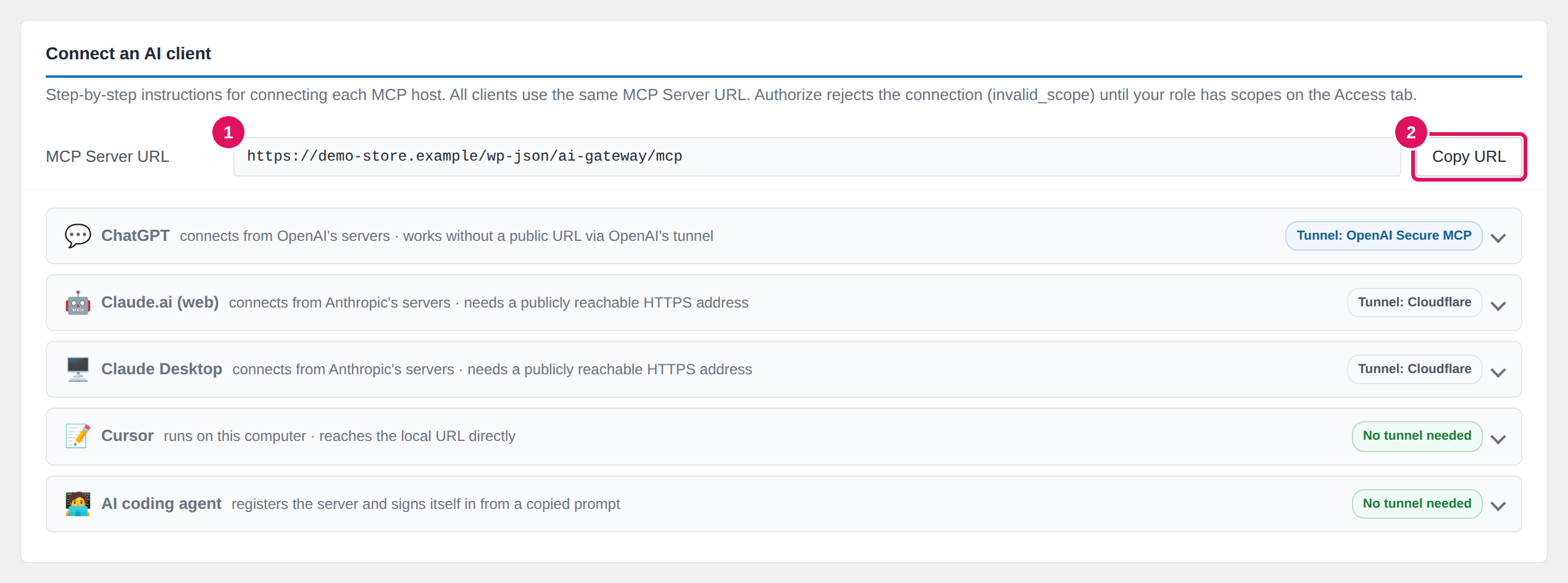
Go to 1TeamSoftware → AI Gateway → Connection. Under Connect an AI client, find the MCP Server URL (1) and click Copy URL (2).
Step 2: Copy the Cursor config #
On the same tab, click Cursor to open its steps, then click Copy Cursor config. The config already contains your MCP Server URL.
Step 3: Paste the config into Cursor’s settings file #
Open the file ~/.cursor/mcp.json, or create it if it is not there, on your computer (the .cursor folder in your home folder). Paste the copied text and save.
Please note: If the file already has other servers in it, add only the new server inside its mcpServers list, next to the others.
Step 4: Approve Cursor on your store #
Cursor opens a page from your store in your web browser. Sign in with the WordPress user whose role you turned on, then click Authorize.
Step 5: Ask Cursor about your store #
Your store’s tools now show in Cursor. To check it works, ask something simple in Cursor’s chat, like “How many products do I have?”
If it did not work #
- “MCP access not granted” when you click Authorize: your role is not turned on. Go to AI Gateway → Access & Roles, turn on your role, click Save Changes, and try again. How to Turn On Your Role and Choose What the AI Can See
- Cursor connects but shows no tools: your role has nothing turned on yet. Go to AI Gateway → Permissions, turn on at least Read for something, click Save access policy, then disconnect and reconnect Cursor. How to Fix Common Problems
- Cursor does not see your store: check that
~/.cursor/mcp.jsonis saved and that the pasted text kept all its brackets, then restart Cursor.
Questions people ask #
Does my store need to be public on the internet? #
No. Cursor runs on your computer and reaches your store directly.
Can Cursor change things in my store? #
Only what you allow. AI Gateway starts with everything switched off. You turn on Read or Write for each part of your store on the Permissions tab.
Next step #
How to See What the AI Changed in Your Store
Get AI Gateway: the free version is on the AI Gateway product page. Choose Free Version under License Type.


