
How to Install and Activate AI Gateway on Your WooCommerce Store
3 min read
You will have: AI Gateway running on your store, ready to connect an AI app like Claude or ChatGPT.
Time: About 5 minutes
You need: A WordPress admin login and the AI Gateway plugin zip file.
Step 1: Open Add Plugin #
In the WordPress menu on the left, click Plugins → Add Plugin.
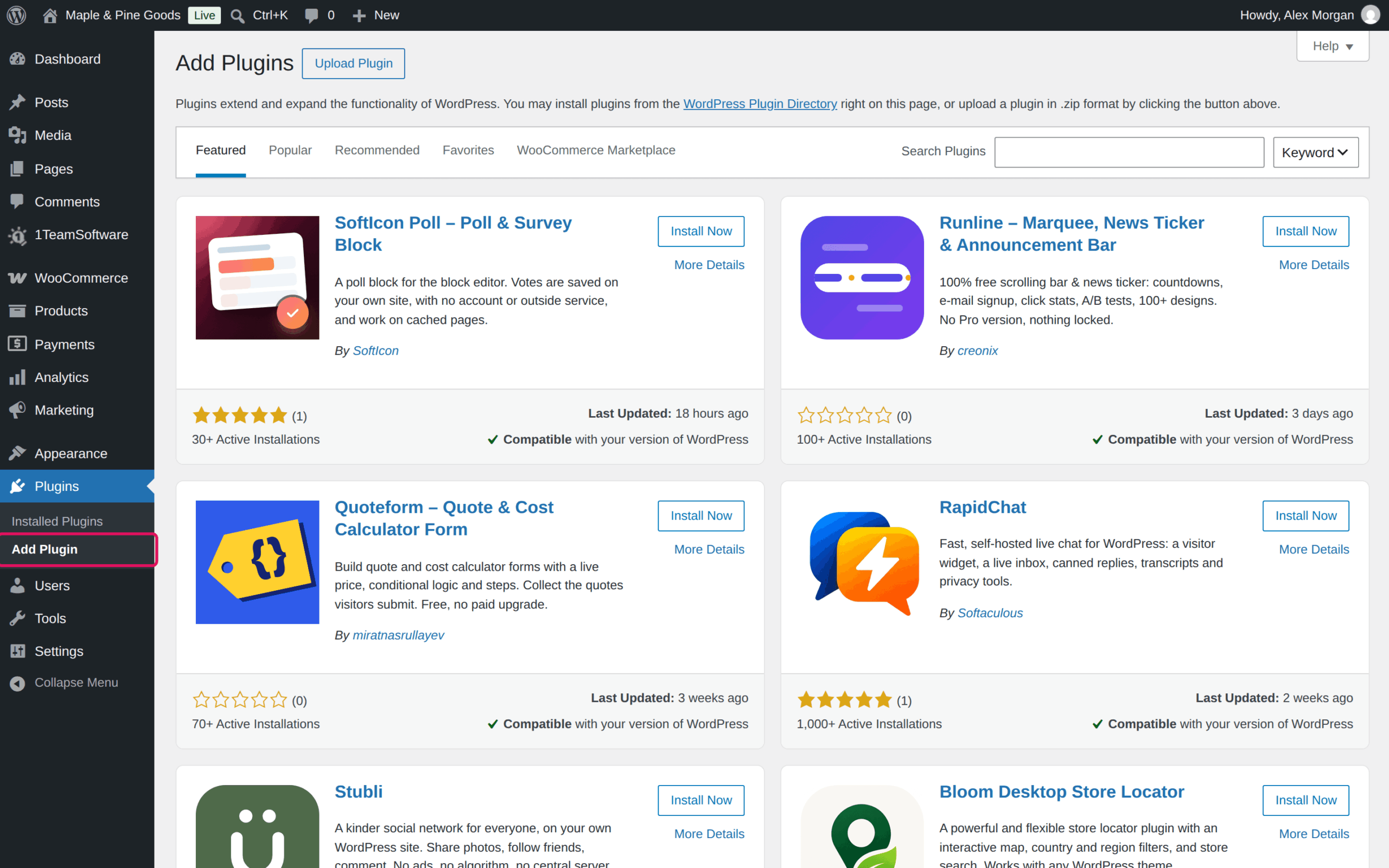
The Add Plugins page opens.
Step 2: Click Upload Plugin #
Click Upload Plugin at the top of the page, next to the Add Plugins title.
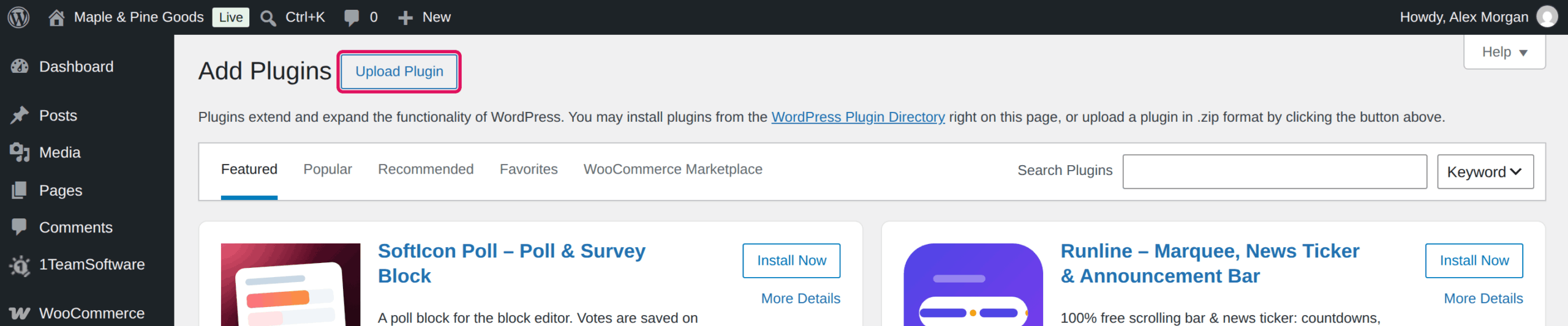
A box with a Choose File button appears.
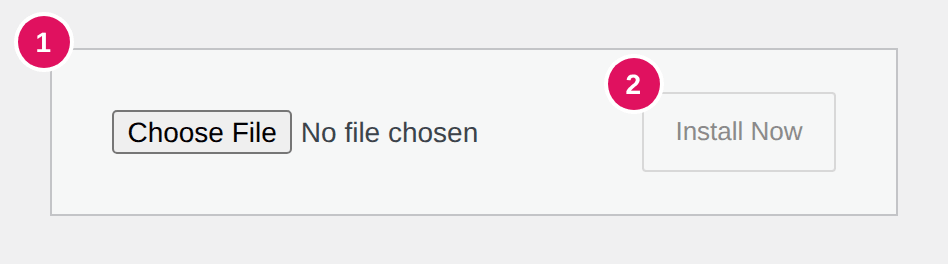
Step 3: Choose the zip file and click Install Now #
Click Choose File (1) and pick the AI Gateway zip file from your computer. Then click Install Now (2).
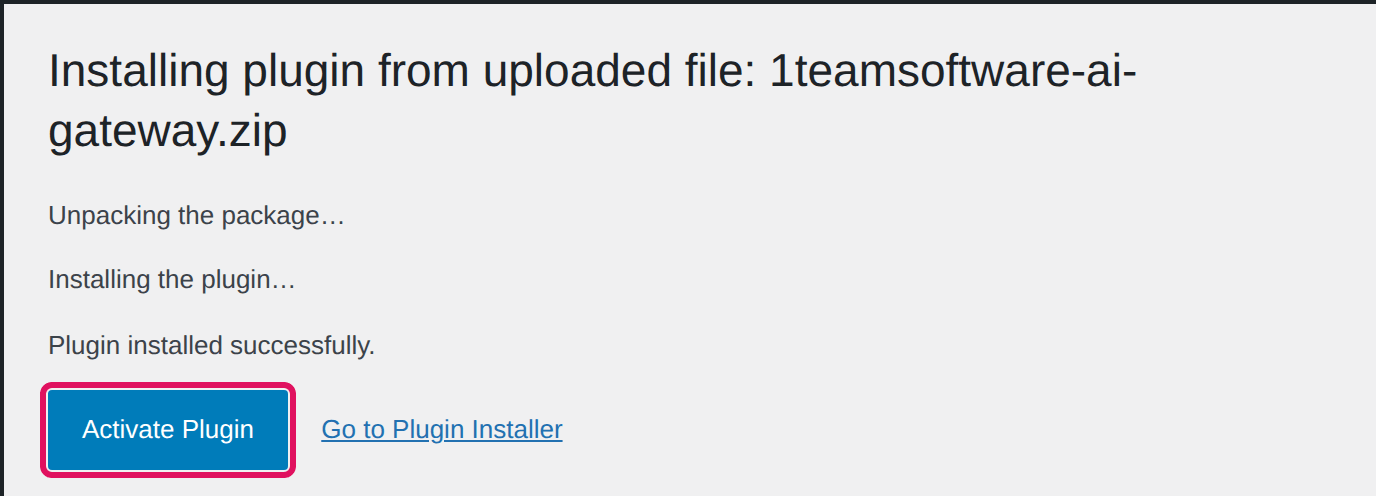
You should now see Plugin installed successfully and an Activate Plugin button.
Please note: Do not unzip the file first. Upload the .zip file exactly as you downloaded it.
Please note: On a slow web host the page can sit on Installing plugin from uploaded file for a minute, and the heading may still say it after the job is done. What matters is the green Plugin installed successfully line and the Activate Plugin button. Do not click Install Now again.
Step 4: Click Activate Plugin #
Click Activate Plugin.
AI Gateway is now in your plugin list, marked active.
Step 5: Open the AI Gateway settings #
In the WordPress menu on the left, hover over 1TeamSoftware and click AI Gateway in the submenu that opens.
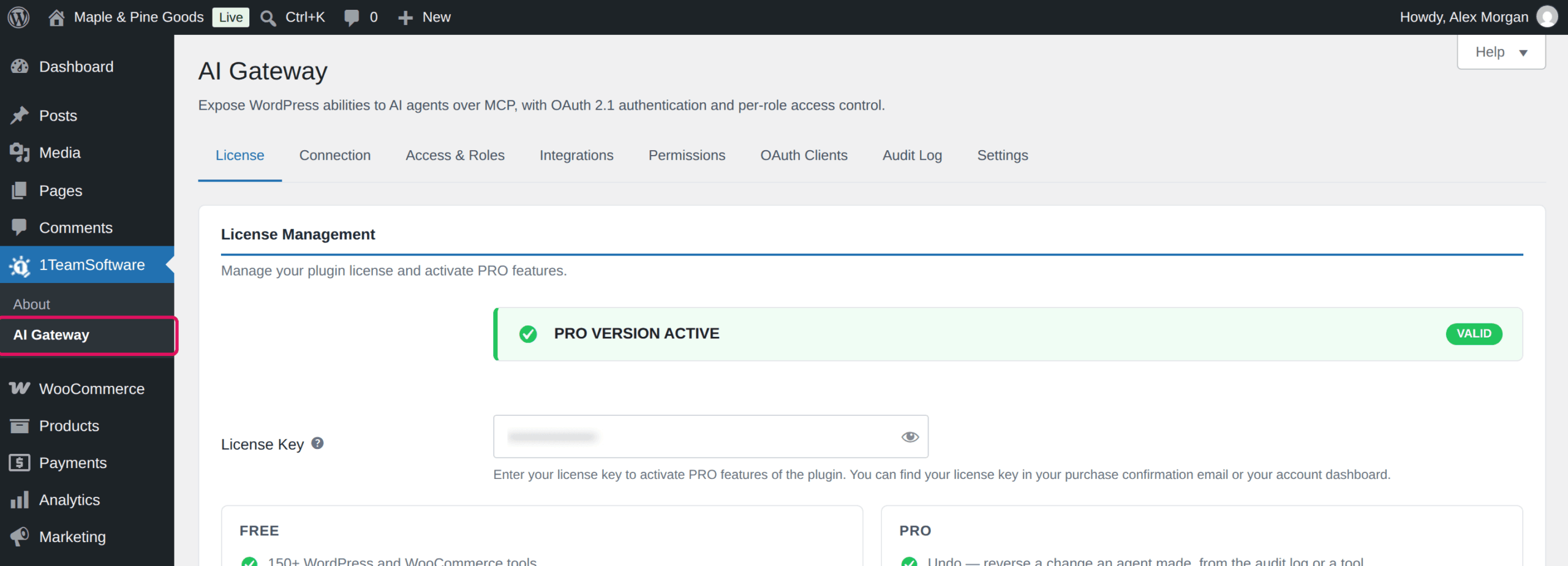
You should now see the AI Gateway page with tabs along the top: Connection, Access & Roles, Integrations, Permissions, OAuth Clients, Audit Log (when it is on) and Settings.
Please note: Right after activation the new menu takes a page load to appear. If you do not see 1TeamSoftware yet, reload the page.
Please note: Bought PRO? You also have a License tab, first in the list.
Step 6: Install the MCP Adapter #
AI Gateway needs a free helper plugin called the MCP Adapter. Click the Connection tab and scroll down to Status. Look at the MCP Adapter line:
- It says Active: nothing to do. Go to the next guide.
- Anything else, for example Not loaded: click the Install MCP Adapter or Activate MCP Adapter button on the right of the line. One click does both jobs.
Please note: While the adapter is not active, a red notice at the top of the page has the same Install MCP Adapter or Activate MCP Adapter button. Either button does the same thing.
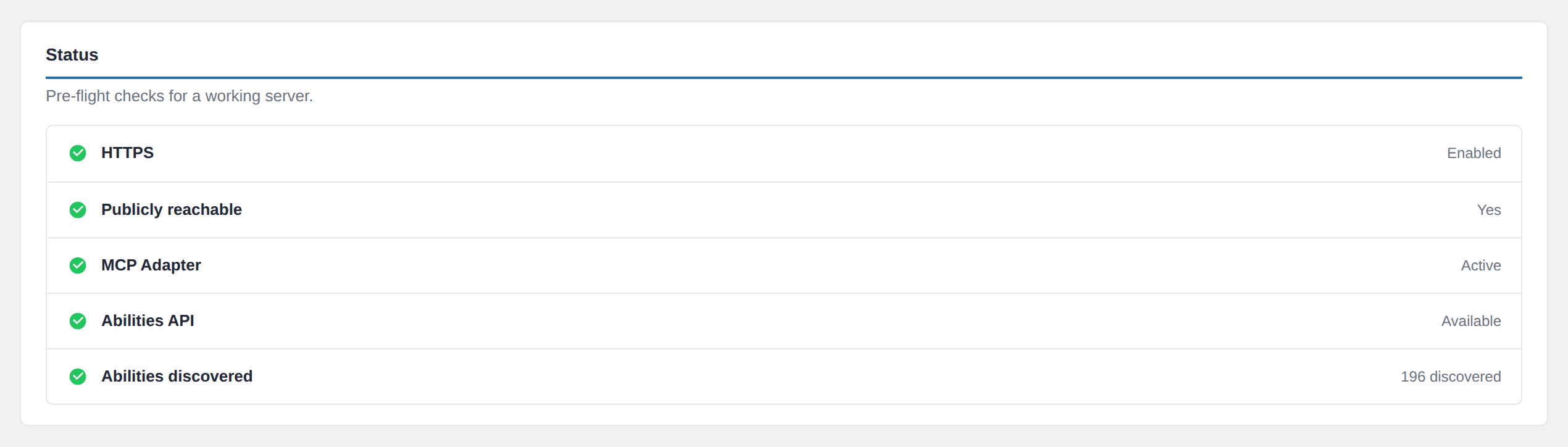
The MCP Adapter line now says Active.
Please note: No AI app can see anything in your store until you turn on your role under Access & Roles and choose permissions. The next guide shows how.
If it did not work #
- “The link you followed has expired” after Install Now: your web host limits the size of uploads. Ask your host to raise the upload limit, then try again.
- There is no Install MCP Adapter button, only a note: your site does not allow plugin installs from the admin. Install the MCP Adapter plugin from the Plugins screen instead.
- You do not see 1TeamSoftware in the menu after reloading the page: check that the plugin says active on the Plugins screen.
Next step #
How to Turn On Your Role and Choose What the AI Can See
Bought PRO? Next: How to Activate Your AI Gateway PRO License
Get AI Gateway: the free version is on the AI Gateway product page. Choose Free Version under License Type.


