
How to Configure FedEx Shipping Label Settings in WooCommerce
3 min read
- Step 1: Access the FedEx Shipping Plugin PRO for WooCommerce Settings
- Step 2: Open the Shipping Labels Tab
- Step 3: Configure the Print Shipping Label Options
- Step 4: Select Your Preferred Shipping Label Format
- Step 5: Review the Print Bulk Shipping Labels Section
- Step 6: Save Your Shipping Label Settings
- What's Next? Create and Print FedEx Shipping Labels in WooCommerce
Before you can create and print FedEx shipping labels directly from your WooCommerce orders, you need to configure the shipping label settings in the FedEx Shipping PRO plugin for WooCommerce.
These settings allow you to customize how shipping labels are created, including whether you want to review shipping rates, confirm package details, and select your preferred shipping label format.
The steps required to create a shipping label may vary depending on which options you enable under the “Shipping Labels” tab.
In this guide, we’ll walk you through how to configure these settings in the FedEx shipping plugin to match your preferred shipping workflow.
Once you’ve completed the configuration, you can follow our next guide to learn how to create and print FedEx shipping labels directly from WooCommerce orders.
Step 1: Access the FedEx Shipping Plugin PRO for WooCommerce Settings #
- Log in to your WordPress admin dashboard.
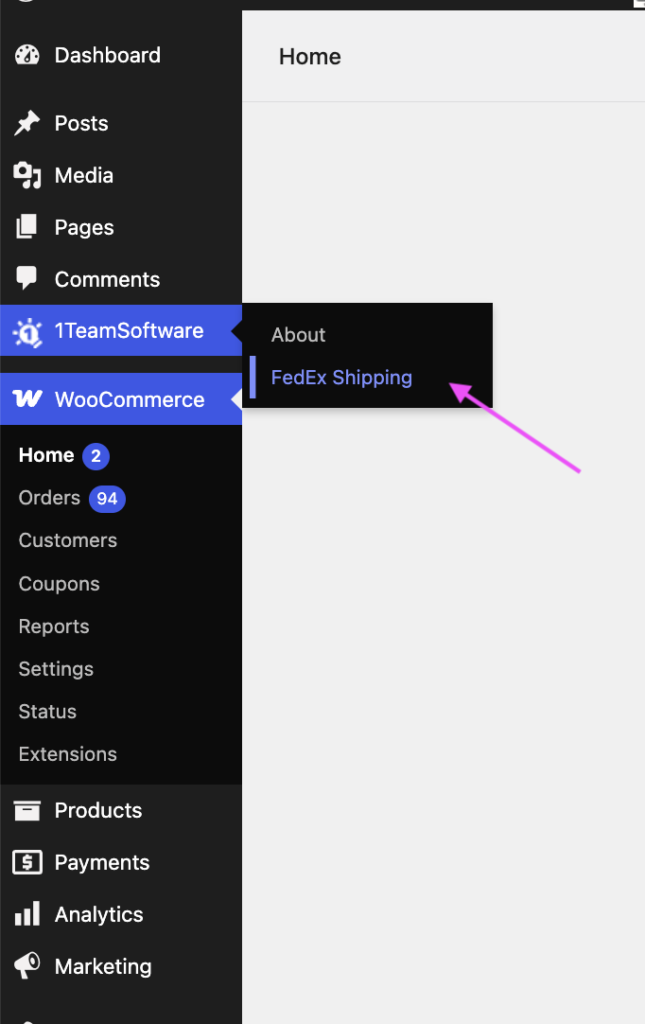
- From the left-hand menu, hover over “1TeamSoftware” and click “FedEx Shipping”.
- This will take you to the settings page for the FedEx Shipping plugin PRO for WooCommerce.
Step 2: Open the Shipping Labels Tab #
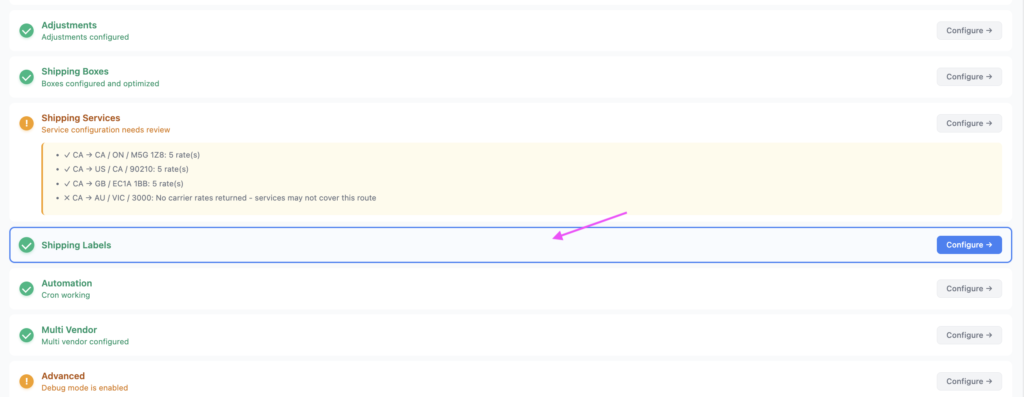
- Scroll down the plugin’s settings page and locate the “Shipping Labels” tab.
- Click the tab to expand it and view all the available shipping label settings.
Step 3: Configure the Print Shipping Label Options #
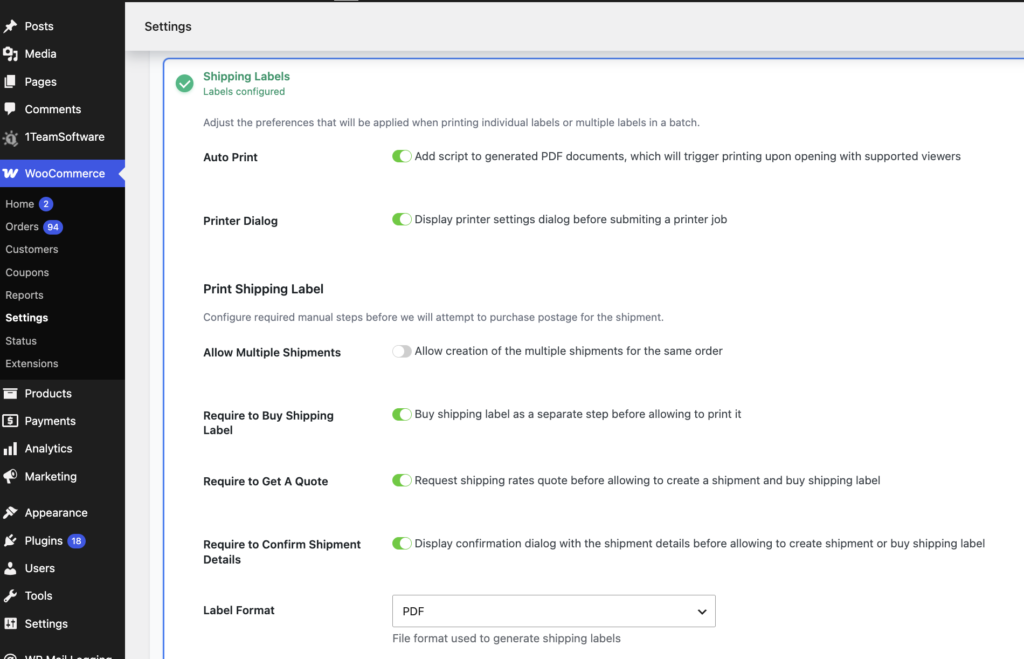
Under the “Print Shipping Label” section, you can enable the options that best suit your preferred workflow.
For this guide, we want to:
- View shipping rates for different FedEx services before purchasing a shipping label.
- Review and confirm the package dimensions and weight before purchasing the label.
- Purchase and print FedEx shipping labels directly through the plugin.
To follow this workflow, we have enabled all the available options in this section, as shown in the screenshot below.
Step 4: Select Your Preferred Shipping Label Format #
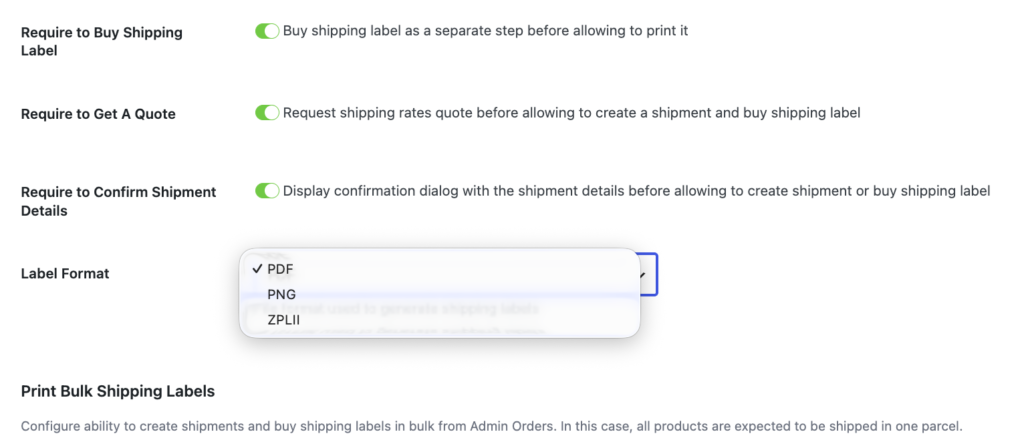
Choose the shipping label format that best suits your printing needs.
The plugin supports three shipping label formats:
- PNG
- ZPLII
Select your preferred format to use when generating FedEx shipping labels.
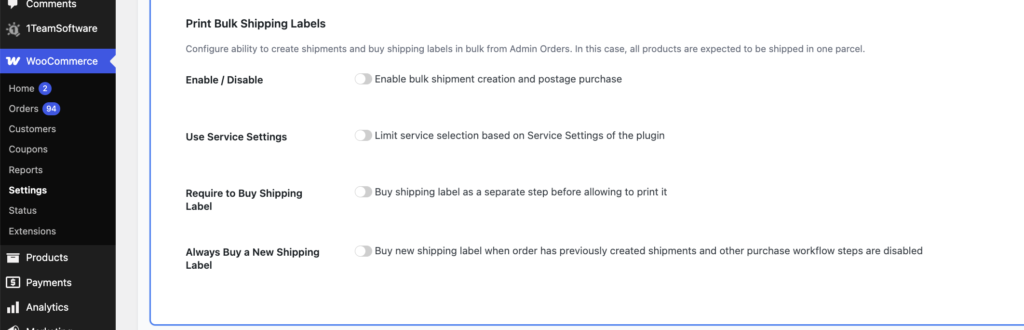
Step 5: Review the Print Bulk Shipping Labels Section #
The “Print Bulk Shipping Labels” section provides additional options for creating shipping labels in bulk.
If you prefer to review package details and shipping rates before creating a shipping label for each individual WooCommerce order, you can skip this section.
We have a separate guide on how to print FedEx shipping labels in bulk, which explains these settings and the bulk label printing process in more detail.
Step 6: Save Your Shipping Label Settings #
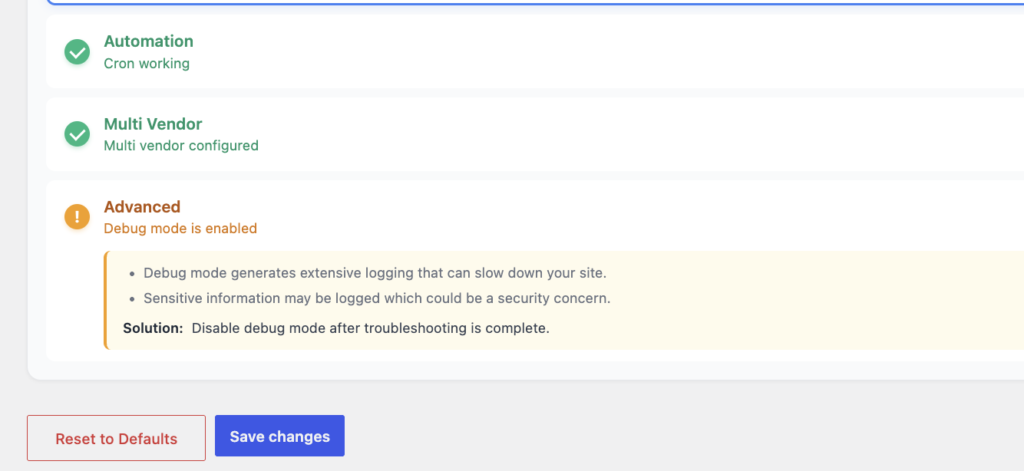
Once you have finished configuring the shipping label settings, scroll to the bottom of the page and click “Save Changes”.
This will save your selected settings.
What’s Next? Create and Print FedEx Shipping Labels in WooCommerce #
You’ve now completed the configuration of your FedEx shipping label settings!
With these settings in place, you’re ready to start creating shipping labels directly from your WooCommerce orders.
In our next guide, “How to Create and Print FedEx Shipping Labels from WooCommerce Orders,” we’ll walk you through the process step by step, from reviewing package details and shipping rates to purchasing and printing your FedEx shipping label.
Related article:


