
How to Print FedEx Shipping Labels for WooCommerce Orders
5 min read
- Step 1: Go to WooCommerce Orders
- Step 2: Select an Order
- Step 3: Create a Shipment
- Step 4: Verify the Package Contents
- Step 5: Verify the Package Type
- Step 6: Change the Shipping Package if Needed
- Step 7: Review Customs Information for International Orders
- Step 8: Verify Package Dimensions and Weight
- Step 9: Verify Package Value and Signature Requirements
- Step 10: Configure Additional Shipping Options
- Step 11: Get Shipping Rates
- Step 12: Review and Select a FedEx Shipping Service
- Step 13: Purchase the Shipping Label
- Step 14: Confirm Shipment Details
- Step 15: Print or Save Your FedEx Shipping Label
- Step 16: View the Shipping Label and Tracking Information
- You're All Set!
In this guide, we’ll walk you through how to create and print FedEx shipping labels directly from your WooCommerce orders using the FedEx Shipping plugin PRO for WooCommerce.
The steps required to create a shipping label may vary depending on the settings you have enabled under the “Shipping Labels” tab in the plugin settings.
Before getting started, make sure you have configured your shipping label settings properly.
📍 Need help with the initial setup? Follow our step-by-step guide:
How to Configure FedEx Shipping Label Settings in the plugin
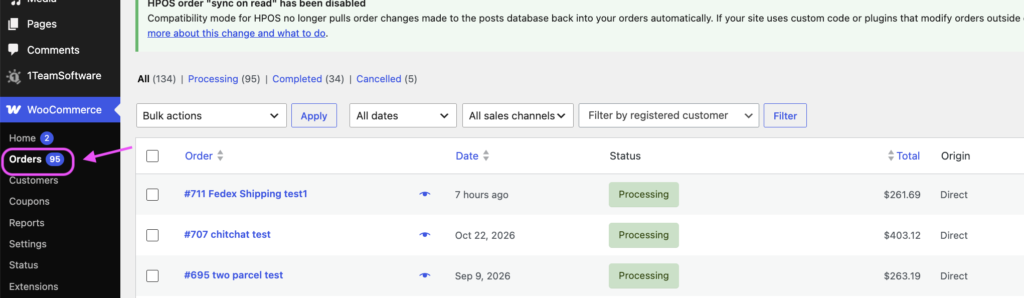
Step 1: Go to WooCommerce Orders #
From your WordPress admin dashboard, go to WooCommerce -> Orders.
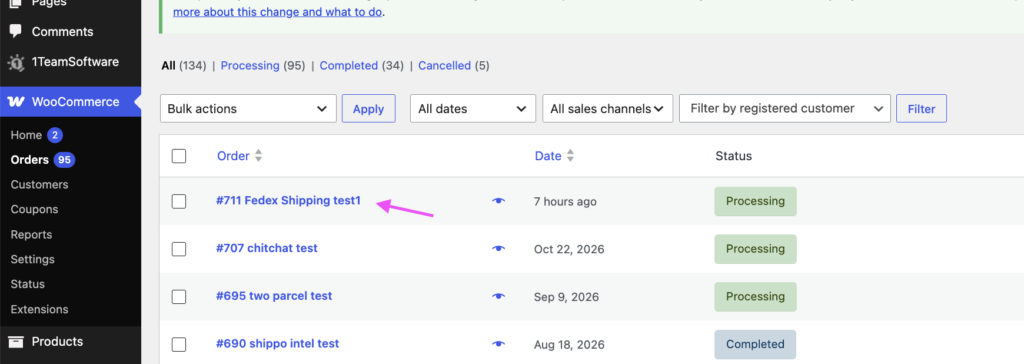
Step 2: Select an Order #
Click on the order for which you would like to create and print a FedEx shipping label.
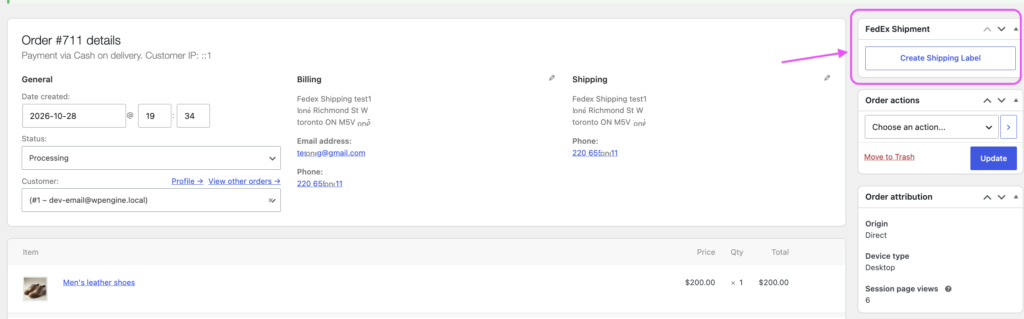
Step 3: Create a Shipment #
Click the “Create Shipment” button.
The Shipment info box will expand and display the shipment details on the right-hand side of the order page.
Step 4: Verify the Package Contents #
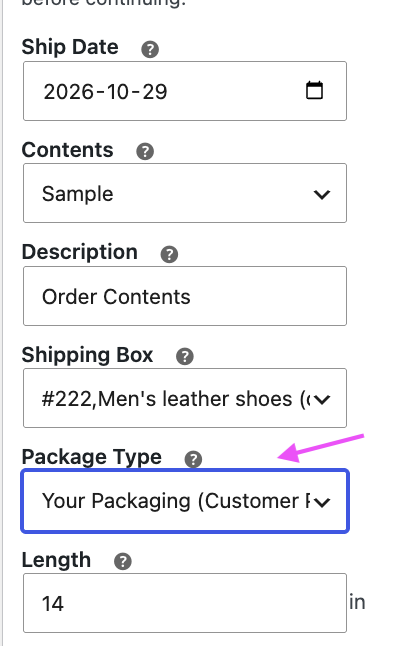
Review the package information and change the type of contents if needed.
Please note: By default, the Contents and Description fields will use the values configured under the “Shipment Defaults” tab in the shipping plugin settings.
You can modify these values as needed for the shipment.
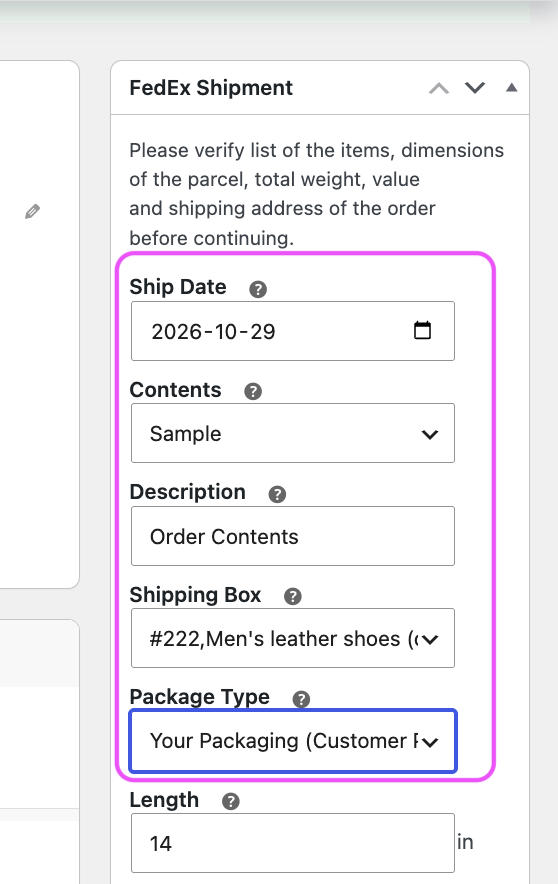
Step 5: Verify the Package Type #
Review the package type and adjust it if necessary.
The plugin will automatically select a suitable shipping box from the boxes you have configured in the plugin settings, based on the items in the order. If you have not configured any shipping boxes in the plugin settings, it will set to “Your Packaging” by default.
If the order requires multiple shipping boxes, the plugin will automatically select multiple boxes, allowing you to purchase a separate FedEx shipping label for each box.
Step 6: Change the Shipping Package if Needed #
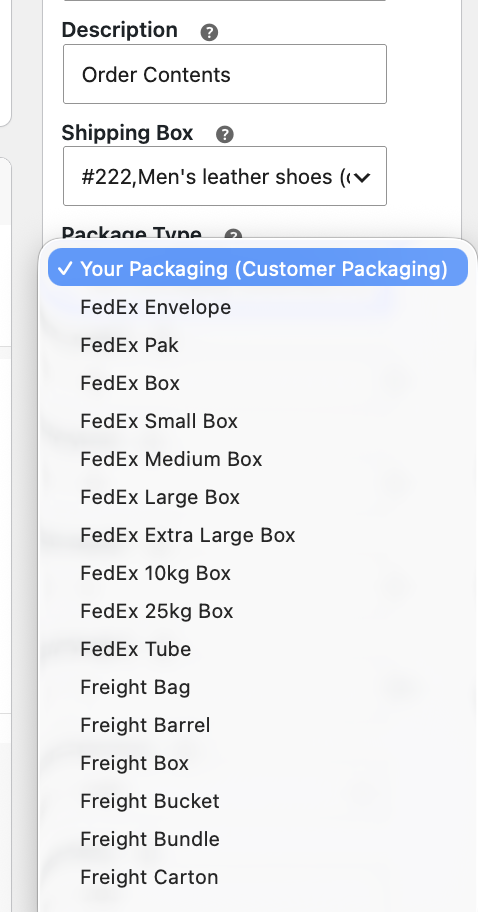
If you prefer to use a different shipping package from the one automatically selected by the plugin, you can change it in this section.
This allows you to select the packaging type that matches the actual packaging you plan to use for shipping. For example, you can choose FedEx Envelope, FedEx Pak, FedEx Small Box, or FedEx Large Box, depending on the type of FedEx packaging you use for the shipment.
Please note: If you change the package type, dimensions, or weight from the original values selected by the plugin, the shipping label cost may change and may no longer match the shipping amount the customer paid when placing the order.
Step 7: Review Customs Information for International Orders #
For international shipments, additional customs information fields will appear next to each order item.
These fields allow you to review and modify:
- Customs item value
- Quantity
- Country of origin
- Tariff number
Make sure the information is accurate before proceeding. If you change the item value or quantity, the total order value in the shipment details box will also be updated accordingly.

Step 8: Verify Package Dimensions and Weight #
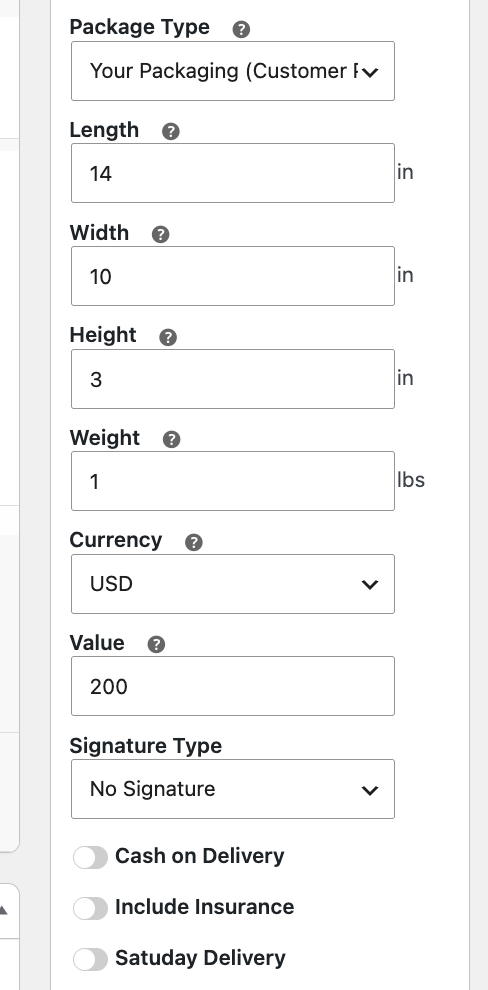
Review the package dimensions and weight to make sure they match the actual package you are shipping.
Please note: If your WooCommerce products have accurate dimensions and weights, and you have properly configured your shipping boxes in the plugin settings, the plugin should calculate the package dimensions and weight correctly in most cases.
However, if you use a different shipping box from the one selected by the plugin, or if the actual package weight differs from the calculated weight, make sure to update these details before purchasing the shipping label.
Providing accurate package dimensions and weight is important for obtaining the correct shipping rates and avoiding unexpected shipping charges.
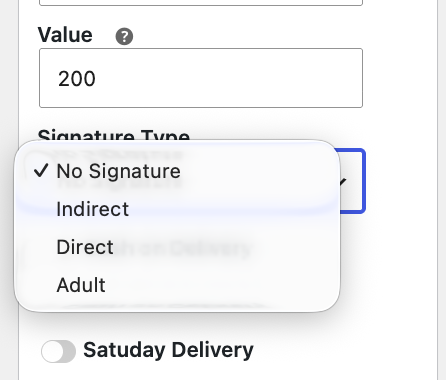
Step 9: Verify Package Value and Signature Requirements #
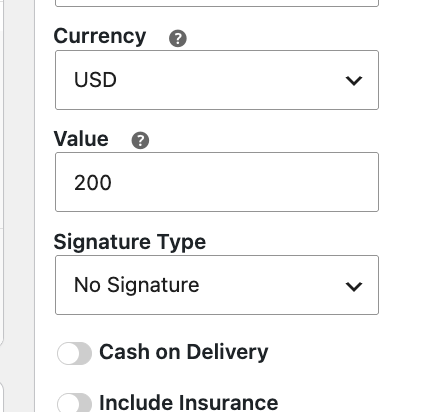
Verify the currency and declared value of the package. You can also select a signature type if your shipment requires signature confirmation upon delivery.
Please note: If you select a signature type, the plugin will only return shipping rates for FedEx services that support the selected signature requirement. FedEx services that do not offer the requested signature service will not return rates.
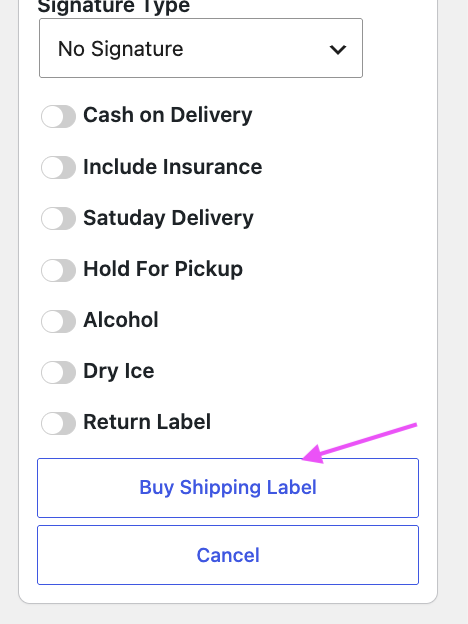
Step 10: Configure Additional Shipping Options #
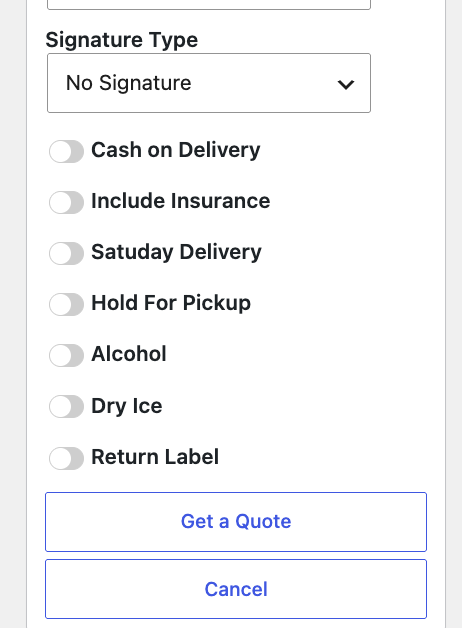
Depending on your shipment requirements, you can enable additional options such as:
- Include Insurance
- Saturday Delivery
- Alcohol
- Return
Select the options that apply to your shipment.
Important notes:
- Include Insurance: If you enable this option, the insurance cost will be included in the shipping rates returned by the plugin.
- Saturday Delivery: If you enable this option, only FedEx shipping services that support Saturday delivery will return rates. Services that do not support Saturday delivery will be filtered out.
📍 Want to know which FedEx shipping services offer Saturday delivery?
Refer to our article about FedEx Saturday delivery services to learn which services support Saturday delivery and whether additional fees apply.
Step 11: Get Shipping Rates #
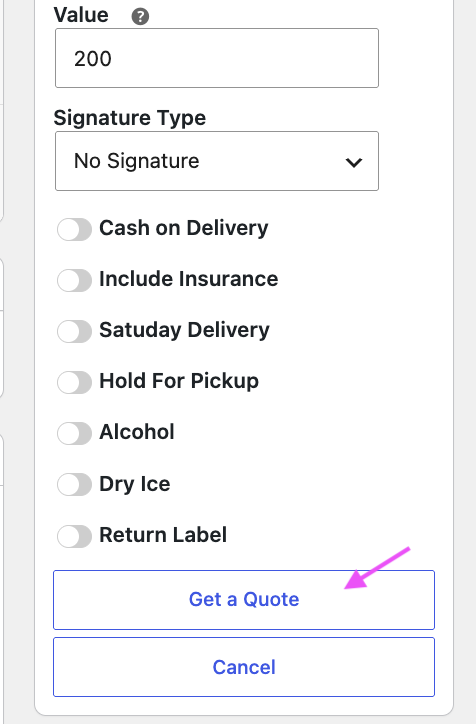
Once you have reviewed the shipment details and selected your preferred shipping options, click the “Get a Quote” button.
The plugin will retrieve shipping rates for the available FedEx shipping services based on the package information and selected shipping options.
Step 12: Review and Select a FedEx Shipping Service #
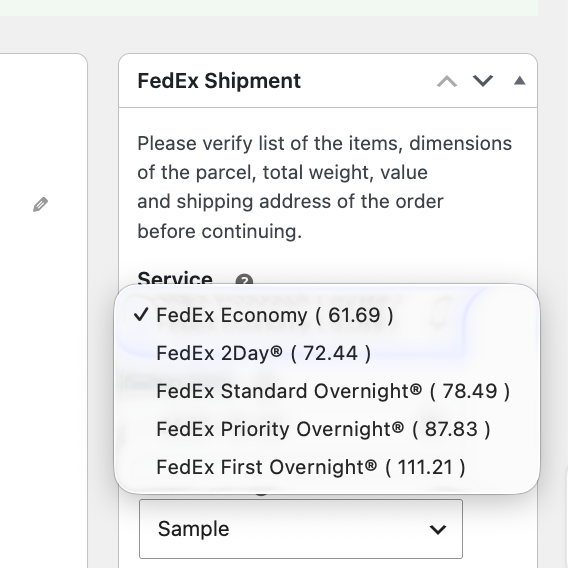
Once the shipping rates have been retrieved successfully, a Service dropdown will appear at the top of the form.
By default, the selected service will match the shipping service the customer chose when placing the order. Alternatively, the default shipping service may be determined by the settings configured under the “Shipment Defaults” tab.
The Service dropdown displays all available FedEx shipping services along with their corresponding shipping rates.
You can review the available options and select a different shipping service from the one originally chosen by the customer if needed. This allows you to choose the shipping service that best suits your fulfillment requirements before purchasing the label.
Step 13: Purchase the Shipping Label #
After selecting your preferred FedEx shipping service, click the “Buy shipping label” button. A pop-up window will appear displaying the package information for your review before proceeding with the shipping label purchase.
Step 14: Confirm Shipment Details #
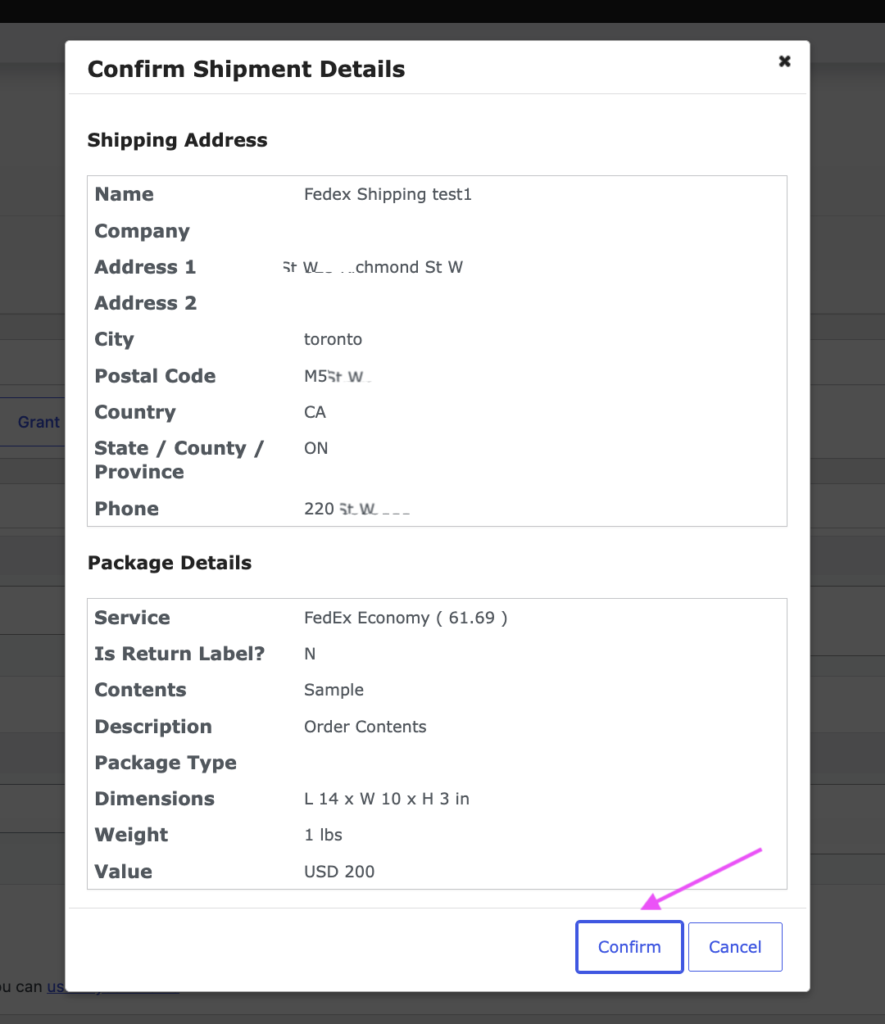
Before completing the shipping label purchase, review the shipment details once more from the pop-up window, including:
- Shipping address
- Package dimensions
- Package weight
- Package value
If all the information is correct, click “confirm” to proceed.
Please note: The steps in this workflow may vary depending on the options you have enabled under the “Shipping Labels” section in the shipping plugin settings.
Step 15: Print or Save Your FedEx Shipping Label #
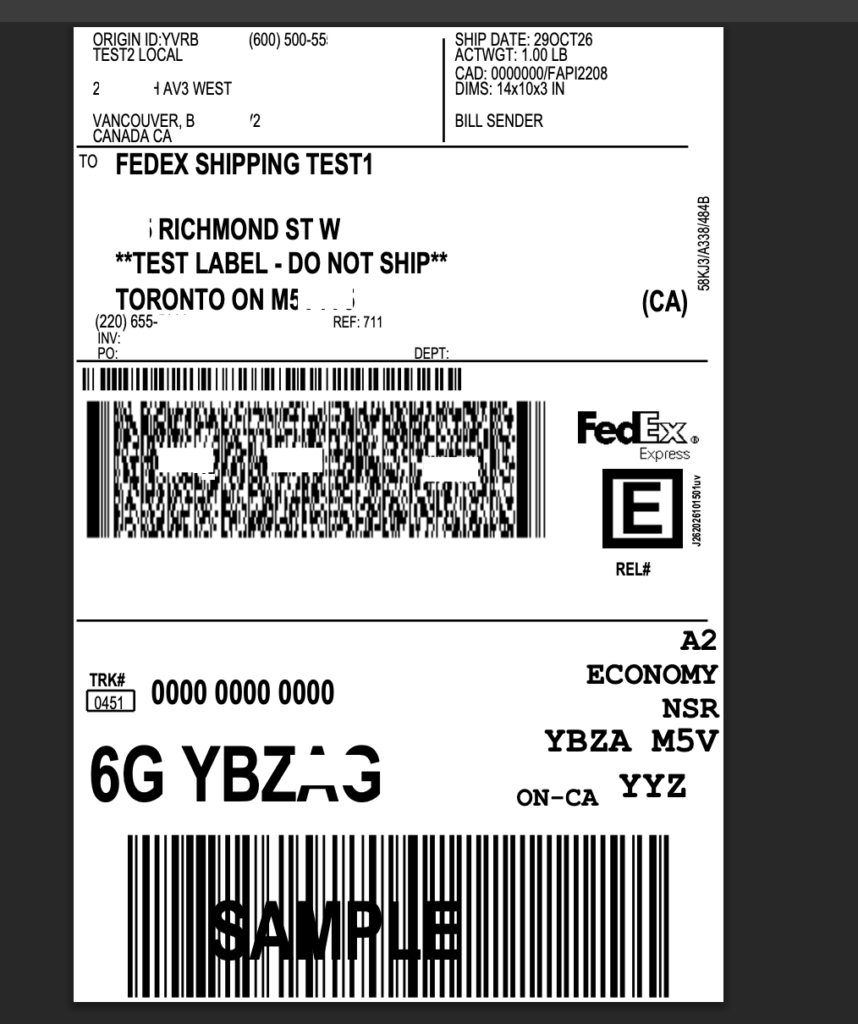
Once the FedEx shipping label has been created successfully, a pop-up window will appear displaying the generated shipping label.
Your FedEx shipping label is now ready!
You can print the label directly or save the file to print it later.
Step 16: View the Shipping Label and Tracking Information #
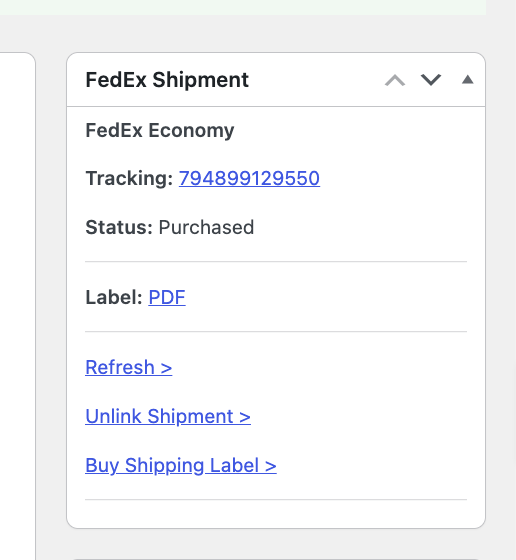
After closing the shipping label window, the plugin will display the shipment information, including the tracking number, in the plugin section of the WooCommerce order.
If you need to access the label again, simply click the PDF file to view, print, or save the shipping label.
You can also purchase another shipping label for the same WooCommerce order if needed.
You’re All Set! #
You’ve successfully created and printed a FedEx shipping label directly from your WooCommerce order using the FedEx Shipping plugin PRO for WooCommerce.
With the shipping label settings properly configured, you can follow the same process to create shipping labels for your future WooCommerce orders.
If you regularly process multiple orders and want to save time, you can also explore our guide on How to Print Bulk Shipping Labels, which explains how to generate shipping labels for multiple orders in one workflow.


